
Permission
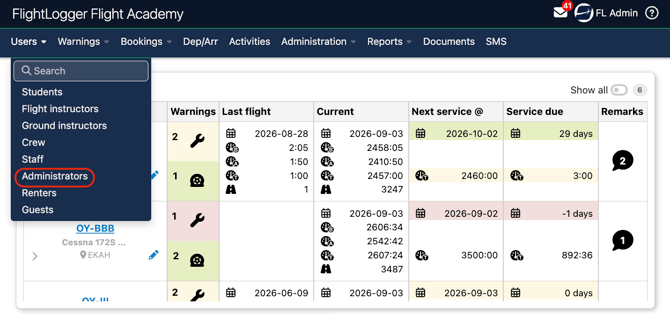
To assign a user related requirement, you must have the user role of Administrator.
Regarding Duty Times
Before you can assign duty time requirements, duty tracking must first be enabled for the user group you want to track, in your account settings. If duty tracking is not enabled for a group, duty time requirements cannot be attached to it.
Enable Duty Tracking for User Groups
To activate duty on a user group:
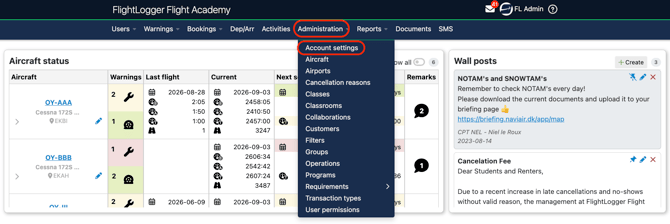
Go to Administration -Account Settings.
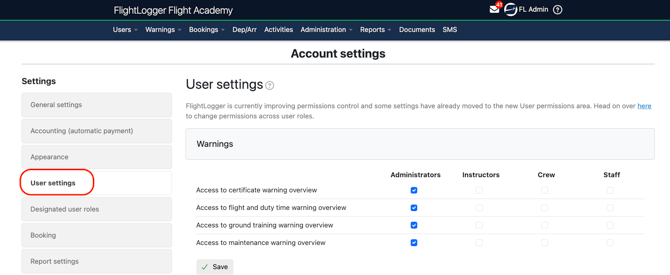
Select User Settings.
Scroll down to the Duty Times section. Locate the list of user groups and select the specific groups that require duty tracking.
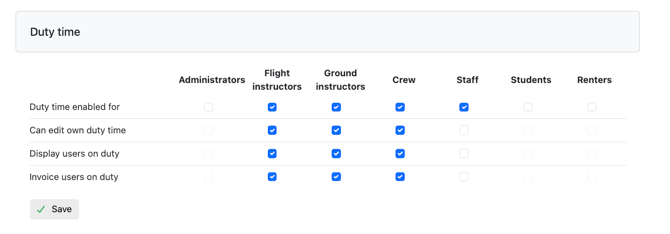
Remember to click Save.
Assigning a Requirement
Flight and Duty Times requirements can be assigned in three different ways.
They can be attached to a specific User group, on a specific Program or directly to an Individual user.
Choosing the right method depends on how broadly the requirement should apply and how you want it managed within your operation.
Assignment on User groups
To start with User group assignments, go to Administration, open the drop down menu, select Requirements, and choose Assign.
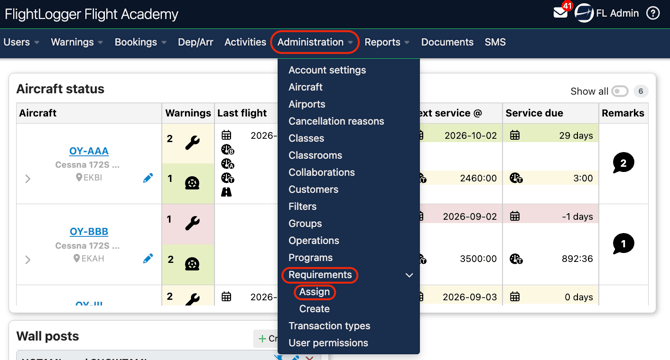
This will open the assignment page.
At the top of the page, you will see the available resources and user groups.
To assign a user requirement, the first step is to choose the relevant user group. You can select from administrator, crew, flight instructor, ground instructor, renter, staff, or student.
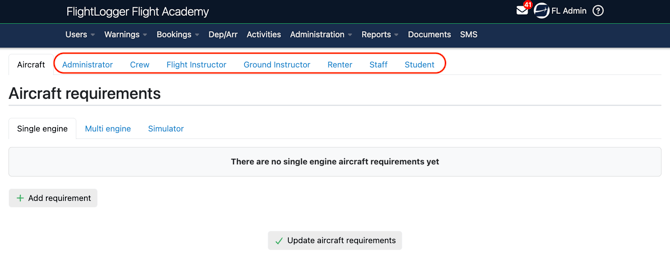
From the list, click Add requirement.
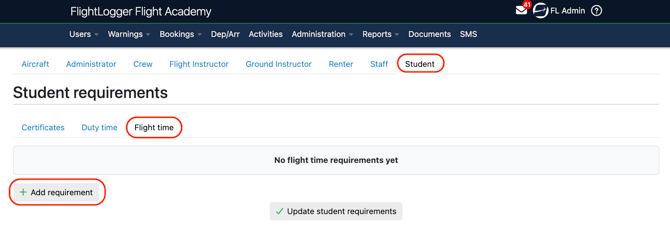 Then select the relevant requirement from your previously created master list
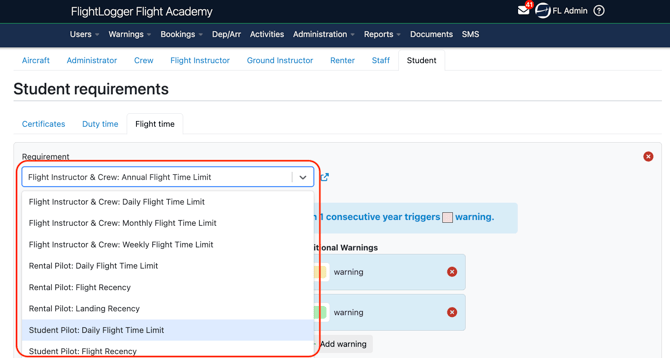
Choose the requirement from the list, and then select Update requirements.
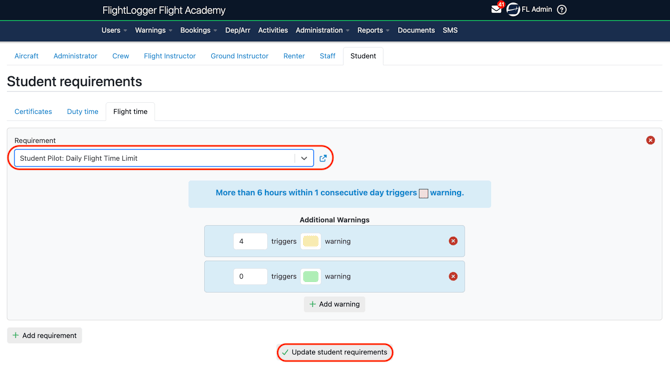
Once assigned to a user group, the requirement will automatically apply to all users within that group. For example, if a Student daily flight time requirement is assigned to the Student group, every existing and new student registered in FlightLogger will automatically receive that requirement and flight time tracking will start.
Assignment on Programs (only Flight Time limitations)
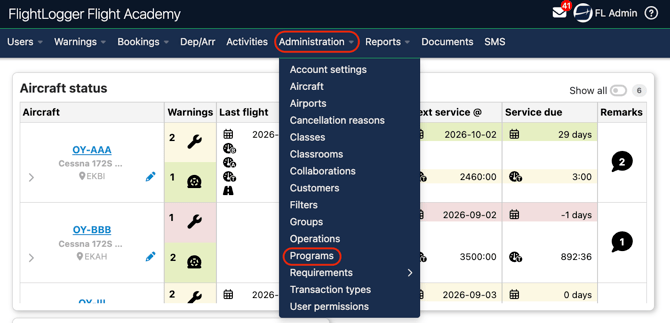
The second option is to assign a requirement to a specific program, go to Administration and select Programs.
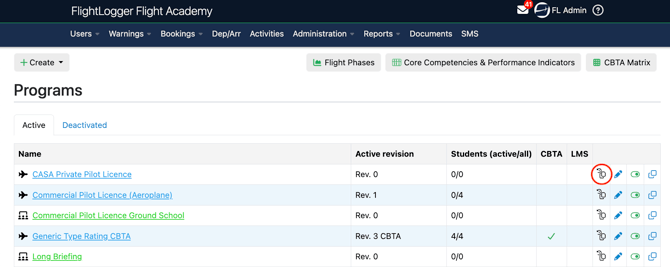
In the program overview, click on the Certificate and Flight Duty time requirements symbol. This will open the requirements page for that specific program.
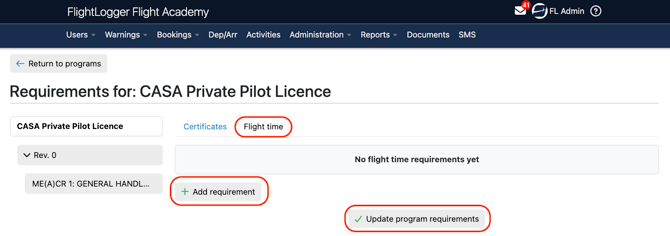
In the Flight Time tab, select Add Requirement to choose and attach the desired flight time limitation requirements, then click Update Program.
Assignment on Individual Users
The third option is to assign a requirement directly to an individual user.
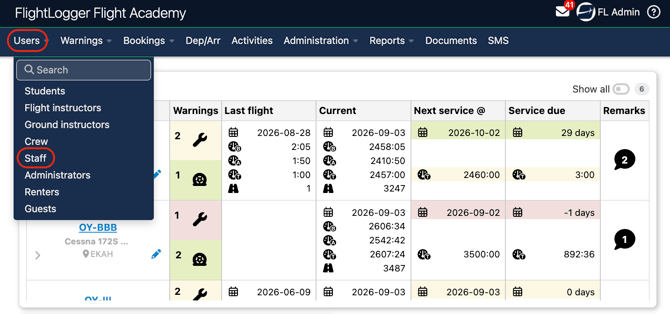
Go to Users. Select the relevant user group, for example Staff.
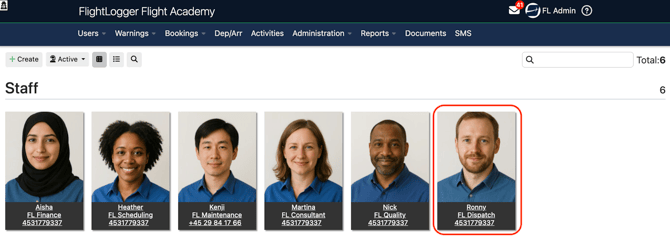
Select the specific user.
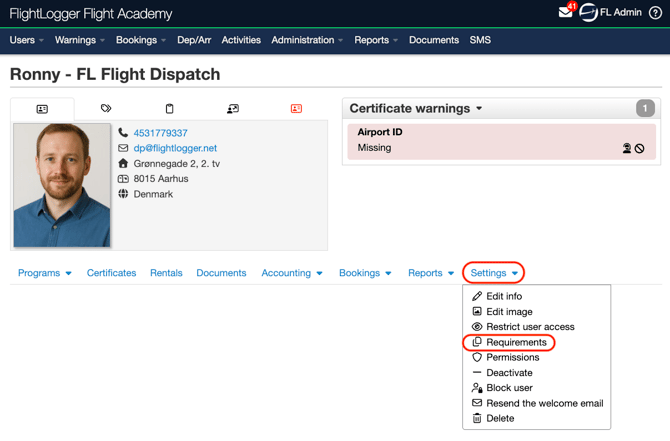
Under Settings, choose Requirements.
Add the requirement to that user. The requirement will apply only to this individual. Other users in the same group will not be affected.
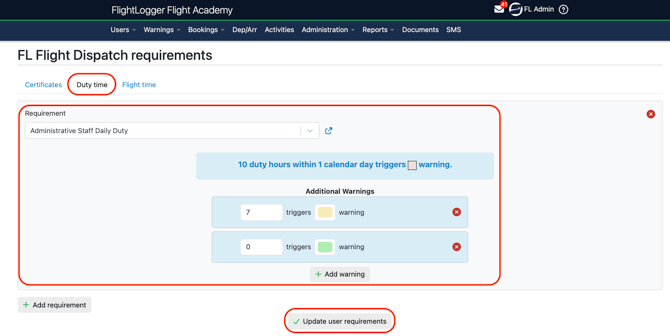
When you have finished configuring the requirement, remember to select Update requirement to save it.
Need help?
If you need assistance, feel free to contact our support team via the Get Support tab inside FlightLogger.