
Permissions
To clone a training program, you must, as a minimum, have the permission to view and edit programs
See this article to learn more about Permissions.When to Use Cloning
The cloning feature is the recommended approach when, for example:
-
Setting up a type rating program for a new aircraft type that follows an existing training structure (e.g., using a Boeing 737 type rating structure to build a Boeing 747 program).
-
Establishing new intake cohorts or seasonal variants of recurring training.
-
Testing structural syllabus changes without impacting active students in the original program.
Starting from scratch? If you are building a completely unique syllabus with no similar existing template, refer to our guide on Creating a new training program from scratch.
Step-by-Step: How to Clone a Training Program
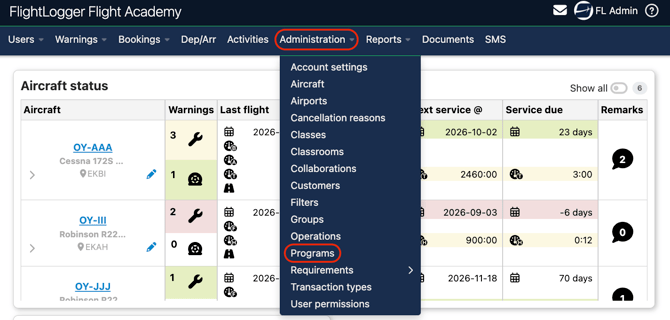
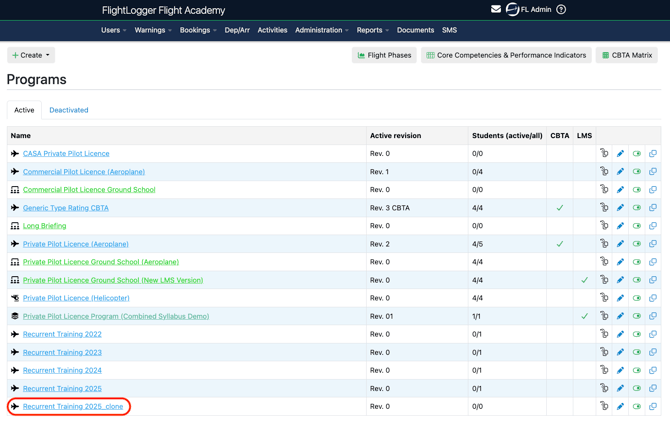
Go to Administration - Programs to open your active program list.
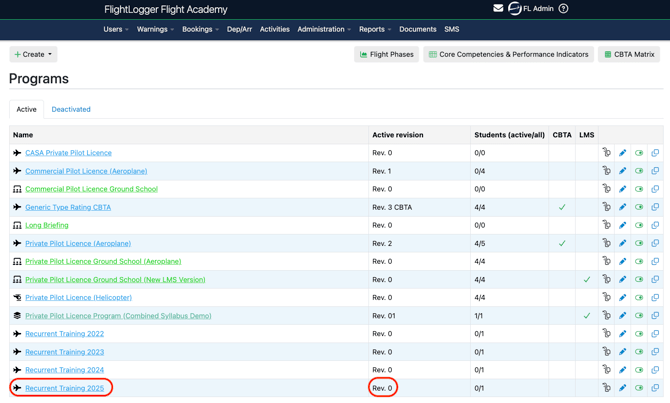
Locate the source program you wish to copy. Verify that the active revision on the source program is correct as cloning always copies the currently active revision of the original program.
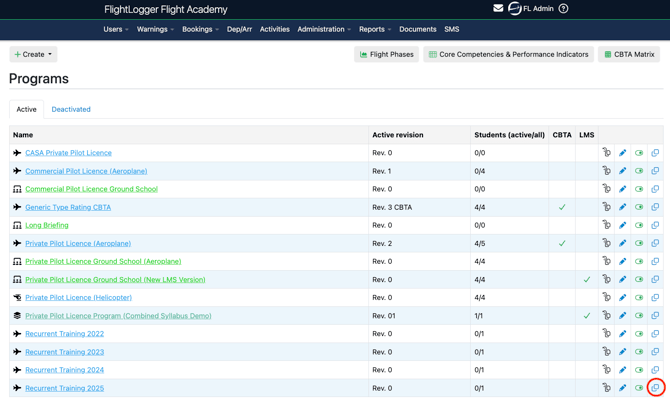
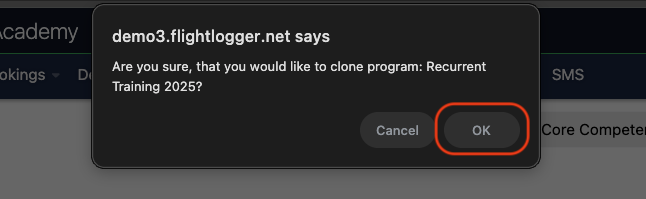
Click the Clone icon on the right-hand side of the program row and click OK to confirm.
FlightLogger will begin generating the duplicate. This process may take a few minutes depending on the size of the program; refresh the page if the new copy does not appear immediately.
Once generated, the program will appear in your list with "Clone" appended to its name (e.g., Recurrent Training 2025 - Clone).
What Is Included in a Cloned Program?
A cloned program creates a complete structural duplicate, including:
- All phases, lessons, and exercises (preserving sequence and structure).
- Briefing texts, lesson objectives, and syllabus times.
- Attached certificate requirements.
- Flight time limitation settings (if the FTL module is enabled on your account).
- Master exercise linkages.
*Note: Cloned programs copy syllabus structure and settings only. Enrolled students, active progress, historical training records, and logbook entries are never carried over to the new copy.
Customizing Your Cloned Program
Because a newly cloned program has no enrolled students, it is considered inactive. This gives you full flexibility to make any required edits before going live.
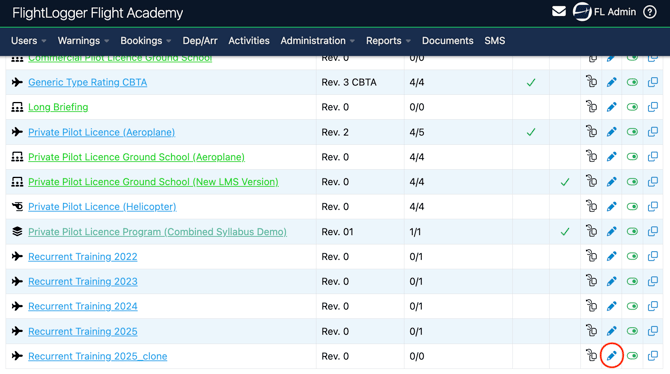
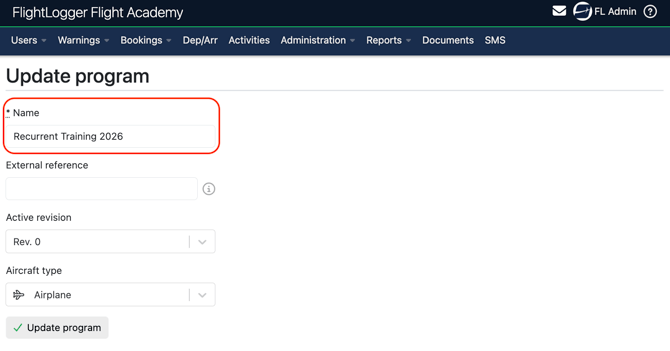
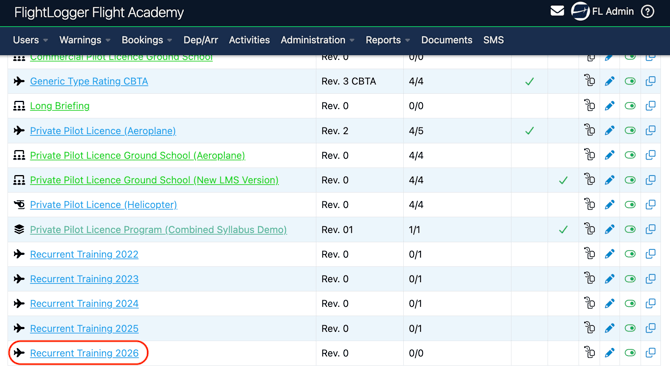
Renaming: Select the Edit icon next to the cloned program to update its title (e.g., Recurrent Training 2026)
Click on your newly cloned program name and open its revision.
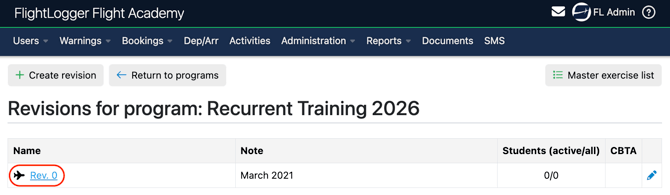
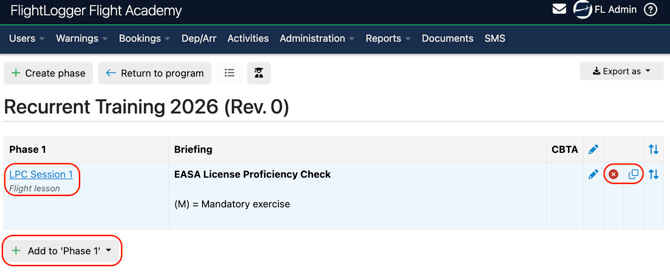
Since no students are enrolled yet, you have full flexibility to make any changes you need.
Major Changes: You are free to edit, add or delete lessons, phases, or exercises without restriction.
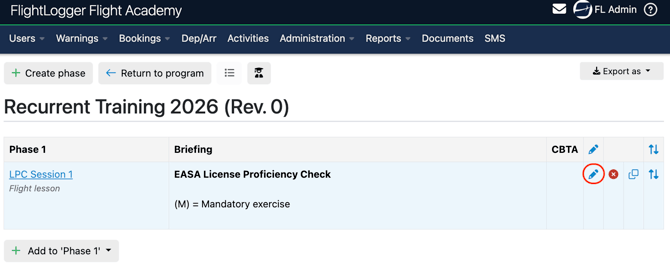
 Minor Changes: Update lesson times, modify briefing notes, or adjust attached certificate requirements as needed.
Once your structural adjustments are complete, you can begin enrolling students and commence training under the new program.
Example: To set up recurrient training, create a dedicated program.
When a pilot's recurrent check is due, assign this program, complete the training and then mark the program as Completed.
When the next annual check rolls around, go to Administration - Programs, create a clone and add any cghanges, assign it to the pilot to complete their next registration.
Need help?
If you need assistance, feel free to contact our support team via the Get Support tab inside FlightLogger.