
Permission
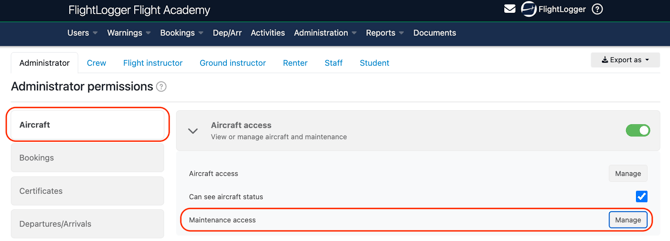
All users can be allowed to create maintenance requirements, as long as they are given the correct permission.
Access can be granted either to an entire user group or to an individual user.
*Note: To learn more about permissions, have a look at this article.
To grant access at group level, go to the relevant user group settings, locate the permissions section under Aircraft, and enable maintenance access.
Creating the Maintenance Requirement
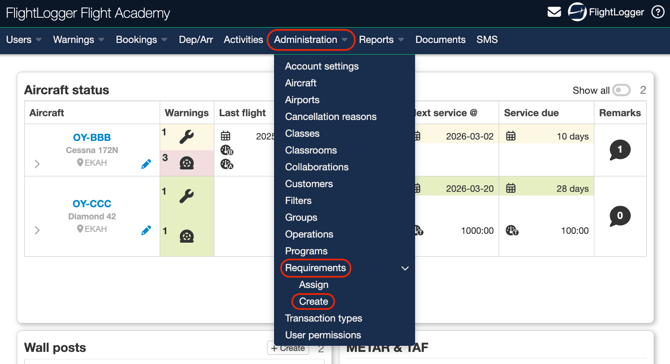
To start with requirements, go to Administration, open the drop down menu, select Requirements, and choose Create.
This opens the Certificate requirements area, where you must choose Maintenance.
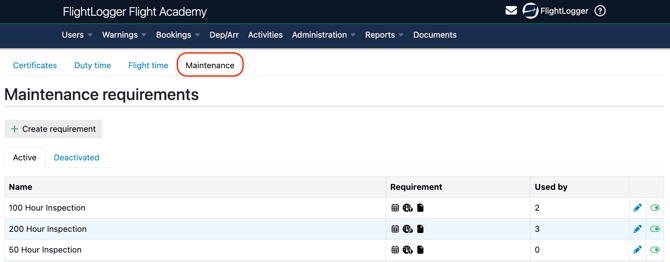
*Note: The example shown in the image above, applies when the Flight Time Limitation Module (FTLM) is enabled on your account. You will therefore manage the creation of flight time and duty time requirements on the same page.
*Note: If you need an explanation of what the different columns and symbols on the requirements page mean, you can refer to this article for a detailed overview: Getting started with requirements****
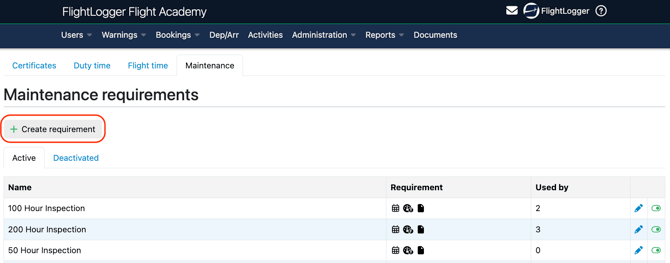
Click Create Requirement
This will take you to the Create maintenance requirement page, where you can define and configure the new requirement.
Start by entering a Name for the requirement.
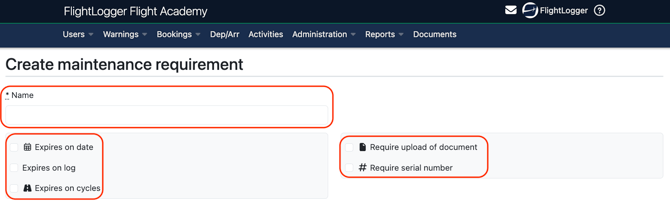
When setting up the requirement, you must decide how it should expire.
You have the following options:
Expire on a date
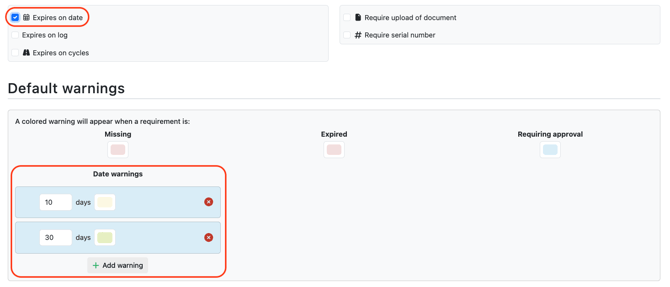
Selecting this option activates default warnings at 30 days and 10 days before expiry (which can be edited).
Expire on log
This activates default warnings at 30 hours and 10 hours before expiry (which can be edited).
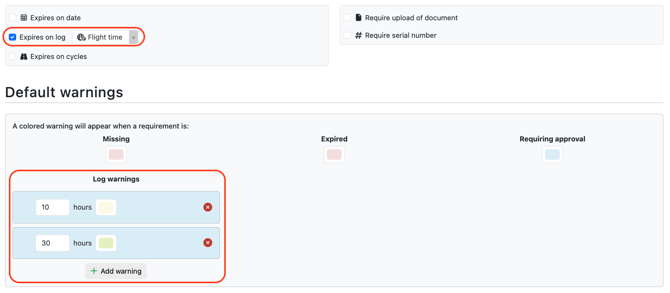
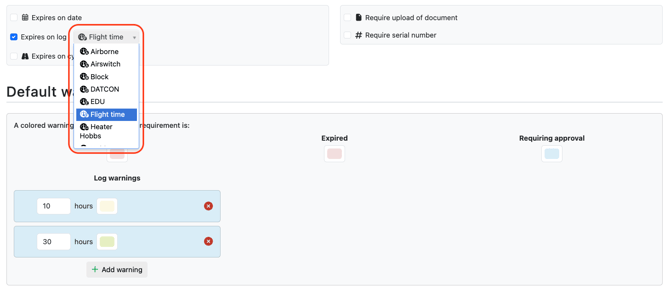
When using log based expiry, you must select the correct timer. The timer must match the one configured for the specific resource.
Expire on cycles
As with date and log expiry, default warnings are added automatically (which can be edited).
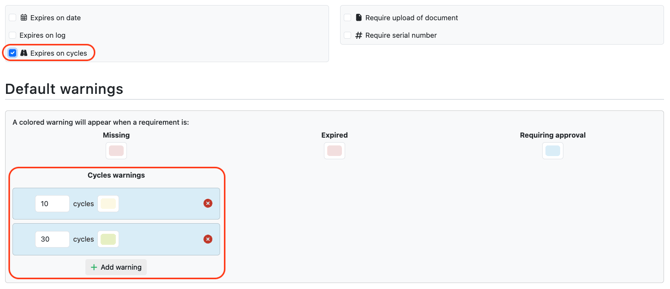
In FlightLogger, cycles are recorded per landing. Each landing that is registered, whether it is a full stop or a touch and go, counts as one individual cycle.
Multiple warnings
You may choose one, two, or all three expiry types. If multiple expiry types are selected, the system will monitor date, log hours, and cycles at the same time. The first warning will be triggered as soon as the first configured limit is reached, whether that is based on date, hours, or cycles.
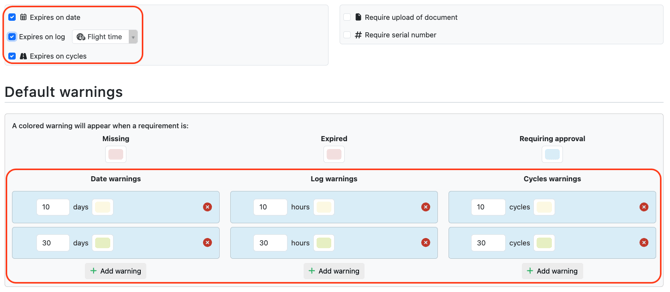
You can decide whether the requirement must include a document upload and whether a serial number must be entered, for example for a specific part.

Use the information above as a starting point to create a master Maintenance requirements list.
Editing options
The system includes default warning colors for missing requirements, expired requirements, and requirements awaiting approval. These colors provide a clear visual indication of the current status.
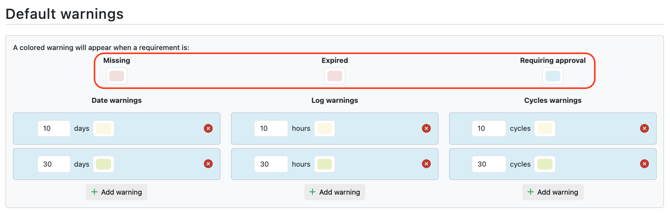
Administrators can change these colors by clicking on the colour box, which opens the color configuration window. Here, you can define your own custom colors as needed.
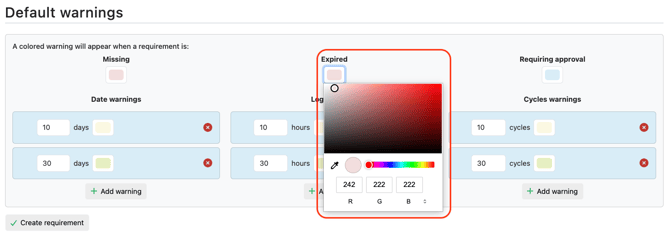
The selected colors will be reflected on the user profile page and on the front page, giving users immediate visual feedback on resource status.
Under the Default warnings, all warning times intervals can also be edited to match your operational needs. These will define how long before expiry a notification should be triggered.
You can also change the warning colors, as described earlier.
If you want to remove a default warning, you can delete it using the delete option.
You may also add additional warnings, for example a third or fourth time based reminder, depending on how early you want to be notified.
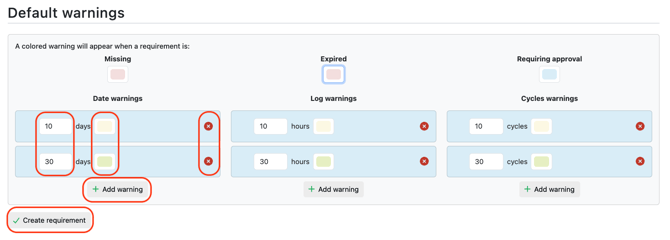
When you have finished configuring the requirement, remember to select Create requirement to save it.
Need help?
If you have questions about setup, permissions, or best practices, contact us at support@flightlogger.net