
Permission
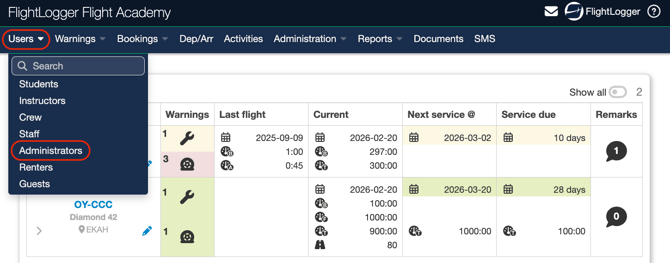
To create a user related requirement, you must have the user role of Administrator.
Creating the Certificate Requirement
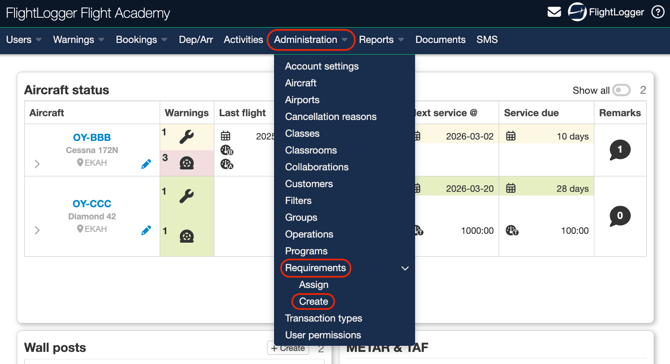
To start with requirements, go to Administration, open the drop down menu, select Requirements, and choose Create.
This opens the Certificate requirements area, where you must choose Certificates (It is the default selection)
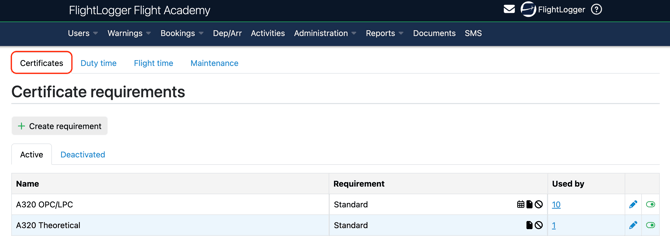
*Note: The example shown in the image above, applies when the Flight Time Limitation Module (FTLM) is enabled on your account. You will therefore manage the creation of flight time and duty time requirements on the same page.
*Note: If you need an explanation of what the different columns and symbols on the requirements page mean, you can refer to this article for a detailed overview: Getting started with requirements****
Click Create Requirement
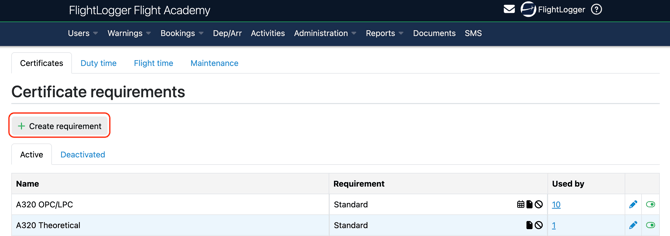
This will take you to the Create certificate requirement page, where you can define and configure the new requirement.
Start by entering a Name for the requirement.
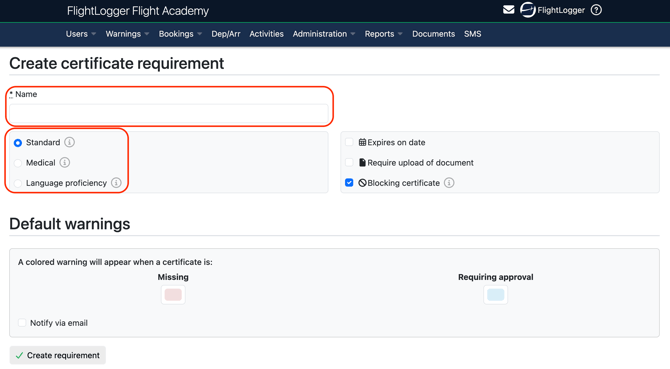
You must then choose between three types of requirements, Standard, Medical, or Language proficiency.
Standard requirement

These are used for general certificates. It can be configured with or without an expiry date and with or without a document upload requirement.
This type should be used for certificates such as passports, airport IDs, ratings, and similar documents.
*Note: All requirements have blocking enabled by default. You can remove this by unchecking the option if blocking is not needed.vA blocking requirement can prevent actions if the certificate has not been uploaded or is not valid. Depending on your account settings, blocking can apply during booking creation or at the flight registration stage.
For more details on how blocking works together with your configuration, please refer to the section on account settings in the linked guide. XXXXXX
Medical requirement

The medical class, such as Class 1, Class 2, Class 3, or LAPL, is selected when the medical requirement is assigned to a user(s).
*Note: When you choose to create a medical requirement, the options for expiry date, document upload, and blocking are enabled by default. These settings can be adjusted if needed, depending on your local rules and regulations and how you want the requirement to function in your account.
*Note: Have a look at this article regarding the assignment of requirements. xxxxxx
Language proficiency requirement

These may also include a document upload, depending on your preference. When fulfilling the requirement, the user must select a language level from 1 to 6.
If a Level 6 certificate is uploaded, the language proficiency will have no expiry, as this is the default setting.
*Note: When creating a language proficiency requirement, the options for expiry date, document upload, and blocking are enabled by default. However, only the document upload requirement and blocking can be changed. The expiry date setting cannot be removed, as language proficiency certificates must always expire on a defined date Unless it is level 6) according to standard rules.
*Note: Have a look at this article regarding the assignment of requirements. xxxxxx
Use the information above as a starting point to create a master Certificate requirements list.
Editing options
The system includes default warning colors for missing requirements, expired requirements, and requirements awaiting approval. These colors provide a clear visual indication of the current status.
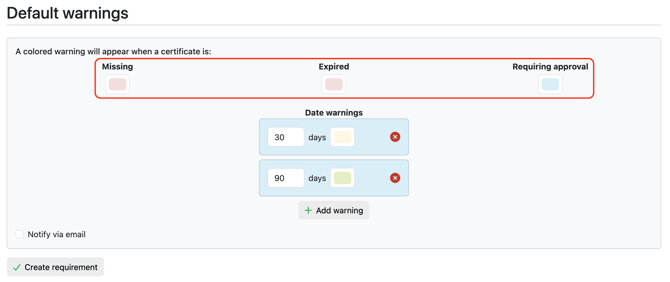
Administrators can change these colors by clicking on the colour box, which opens the color configuration window. Here, you can define your own custom colors as needed.
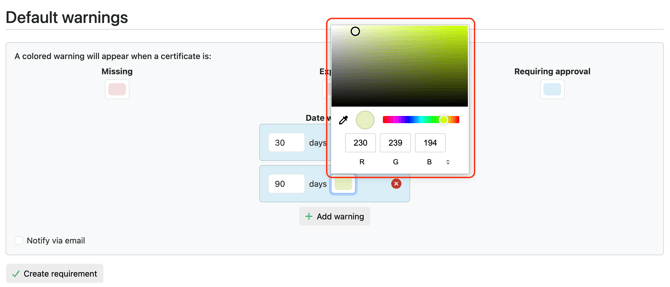
The selected colors will be reflected on the user profile page and on the front page, giving users immediate visual feedback on their own requirements..
Under the Default warnings, all warning time intervals can also be edited to match your operational needs. These will define how long before expiry a notification should be triggered.
You can also change the warning colors, as described earlier.
If you want to remove a default warning, you can delete it using the delete option.
You may also add additional warnings, for example a third or fourth time based reminder, depending on how early you want to be notified.
For user requirements, you can enable email alerts. When this is activated, the user will receive automatic emails from FlightLogger at the defined intervals, for example 90 days before expiry, 30 days before expiry, and again on the expiry date itself. These notifications follow the warning intervals you configure.
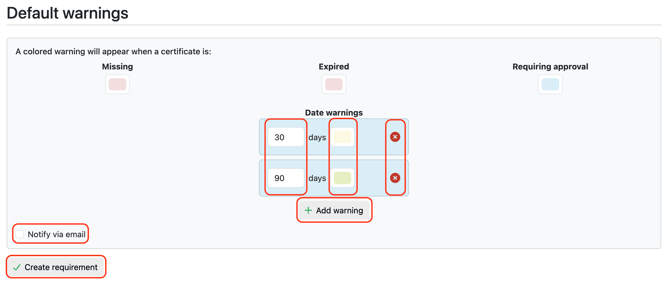
When you have finished configuring the requirement, remember to select Update requirement to save it.
Need help?
If you have questions about setup, permissions, or best practices, contact us at support@flightlogger.net