
User Permissions
Under the user role or permission group settings, set the permission to view, create, edit, or delete unpublished bookings to the create and edit level or higher.
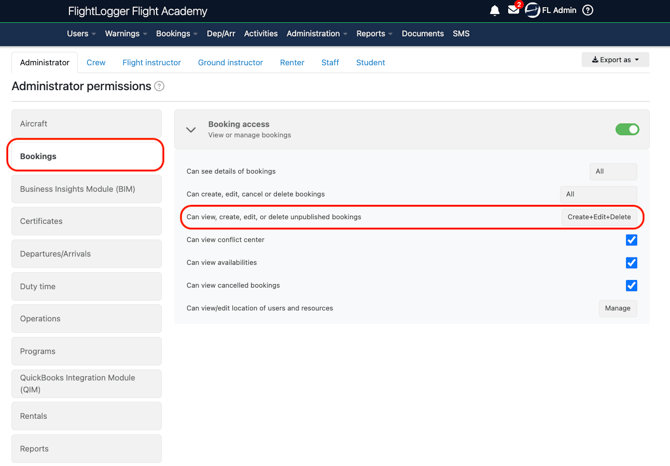
This allows schedulers to start runs, inspect suggestions, and modify draft proposals. Deleting suggestions requires the delete permission.
Learn more about Permissions in our article Permissions
Generating a Suggested Schedule
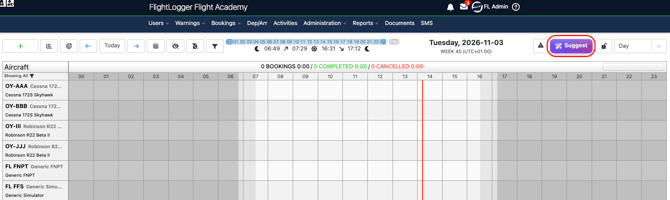
- Navigate to the Booking screen and click Suggested Scheduling icon.
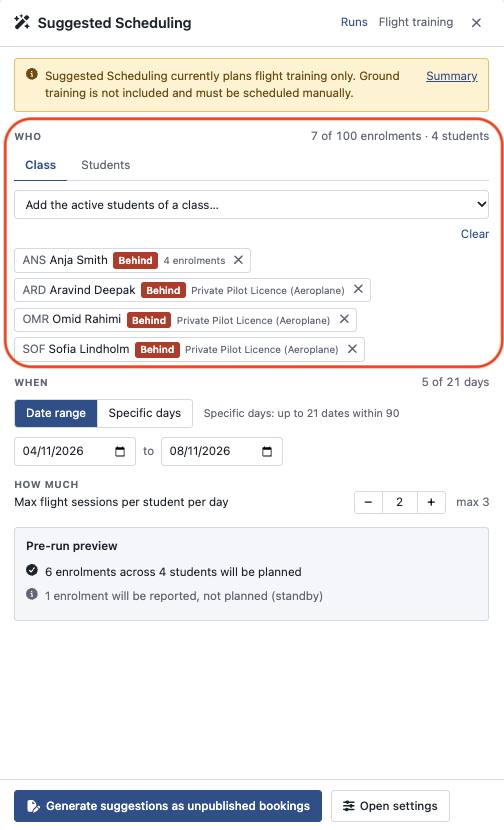
- Select Students: Choose individual students or an entire class, planning up to 100 active enrollments per run. You can untick any specific program you do not wish to plan.
- Select Dates: Choose up to 21 planning days within a 90 day calendar window. Days in between the selected dates are still monitored to ensure resources remain free.
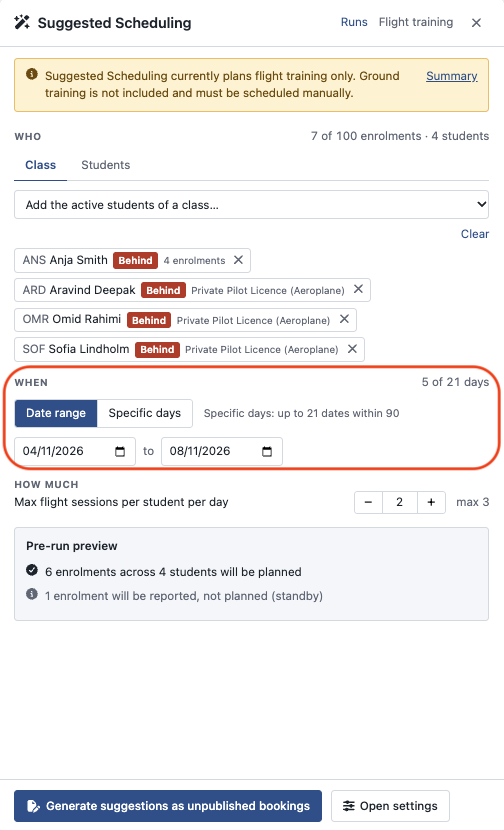
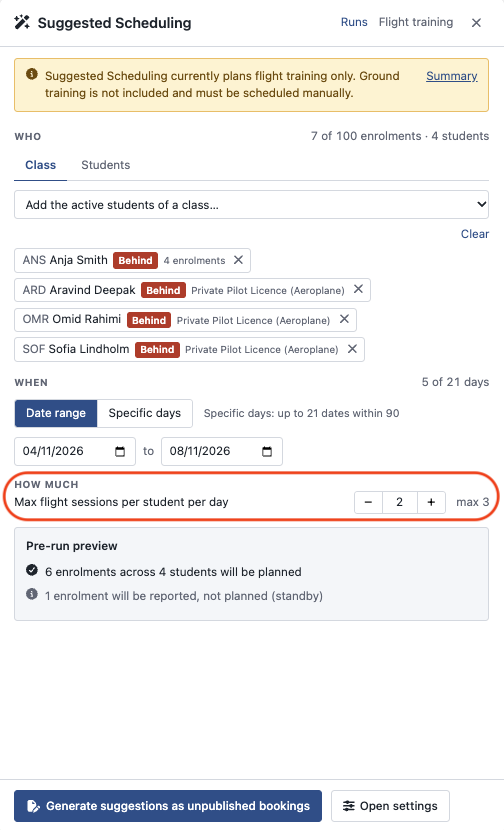
- Set Daily Limits: Select the maximum number of daily flight sessions per student, from 1 to 3 (default is 1).
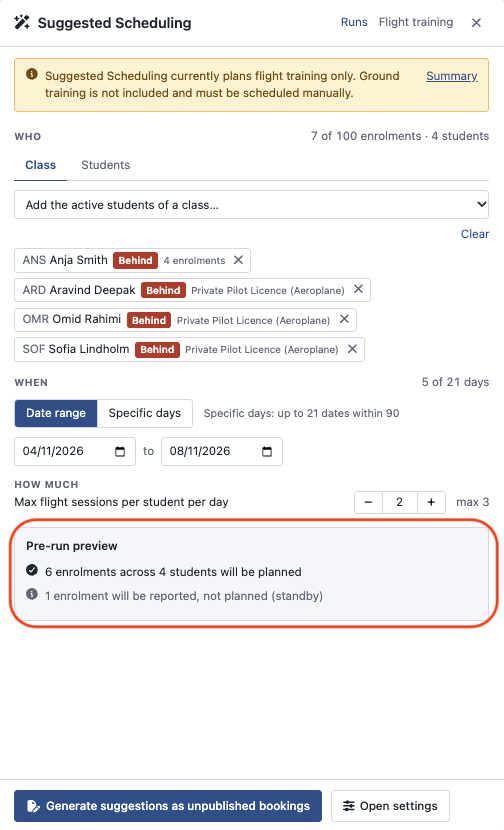
- Review the Pre Run Preview: The drawer identifies upcoming manual ground sessions, locked prerequisites, missing flight hours, or days lacking an operating window before you generate.
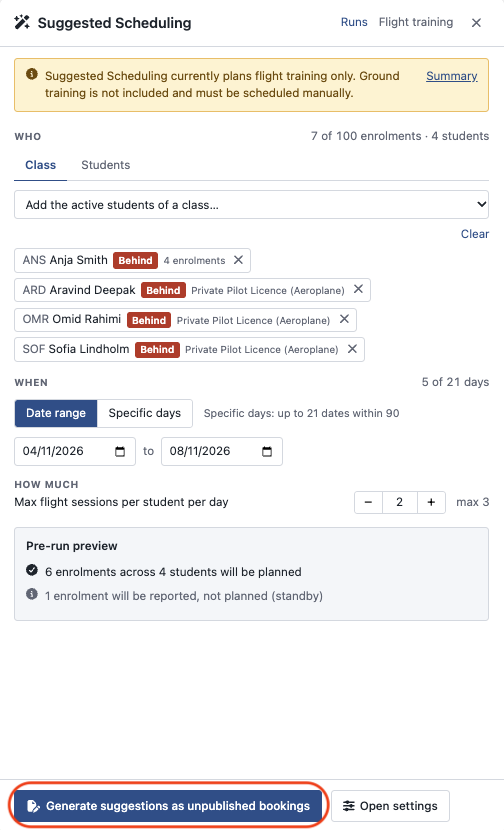
- Generate: Click Generate suggestions as unpublished bookings. Most runs finish in under a minute, and you will receive an in app notification as soon as your draft schedule is ready.
Reading the Suggested Scheduling Run Summary
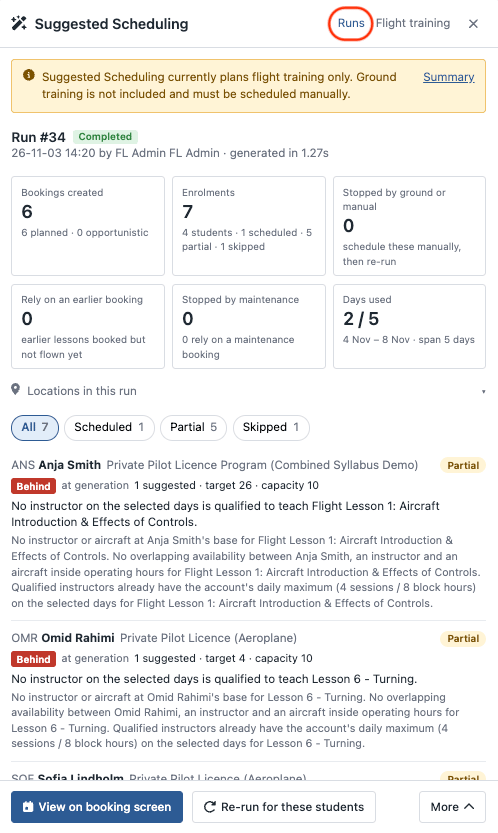
When Suggested Scheduling finishes generating, a run summary opens automatically. It displays what was booked, which students still need your attention, and any reasons why specific sessions could not be planned. You can return to this summary at any time from Runs.
Summary Overview
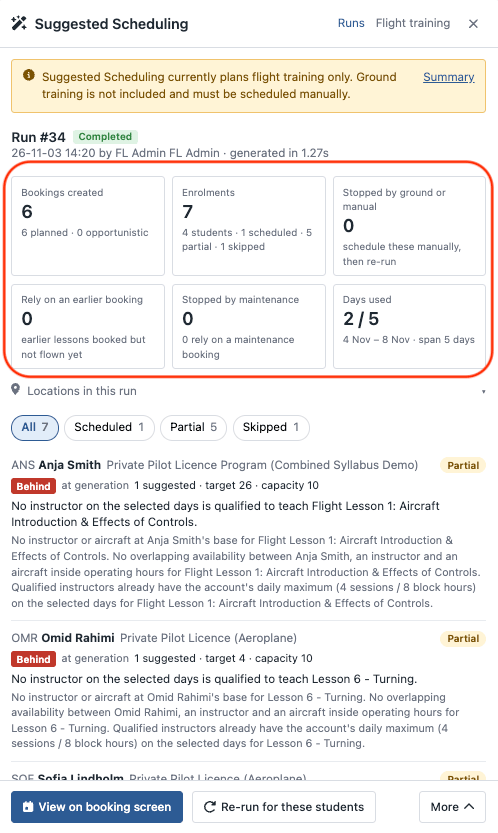
- Bookings Created: Counts all unpublished draft bookings generated, split into planned bookings needed for pace and opportunistic bookings using leftover capacity.
- Enrollments: Displays individual student program enrollments included, categorized as scheduled, partially scheduled, or skipped.
- Stopped by Ground or Manual: Highlights students whose next lesson is a ground session, stage check, or skill test. Schedule those sessions manually and run the tool again.
- Rely on an Earlier Booking: Tracks suggested lessons that depend on an earlier booked lesson that has not been flown yet.
- Days Used: Displays how many selected calendar days received at least one booking.
- What This Run Could Not Rely On: An expandable section detailing any missing settings or default assumptions used during the generation.
Outcome Statuses
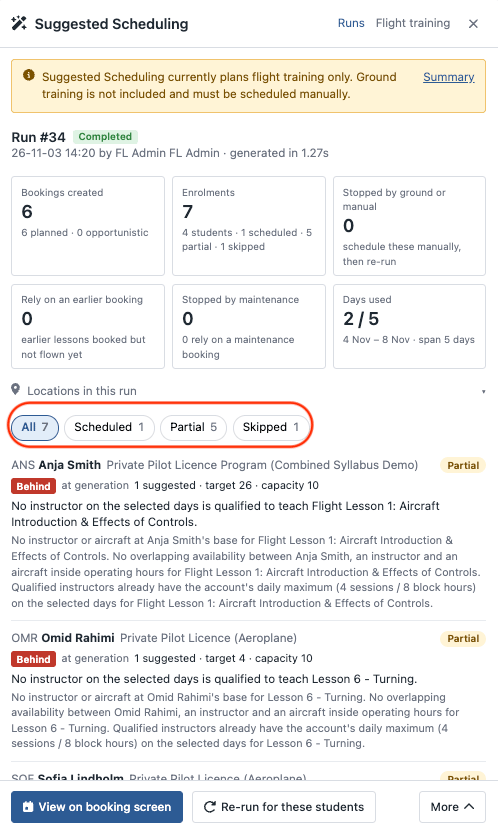
- Scheduled: Sufficient lessons were suggested to meet the student target pace.
- Partial: Some lessons were suggested, but fewer than the required target.
- Skipped: No lessons could be suggested. A plain English explanation is provided alongside an action link, such as Open training, to resolve the bottleneck.
Reviewing and Publishing
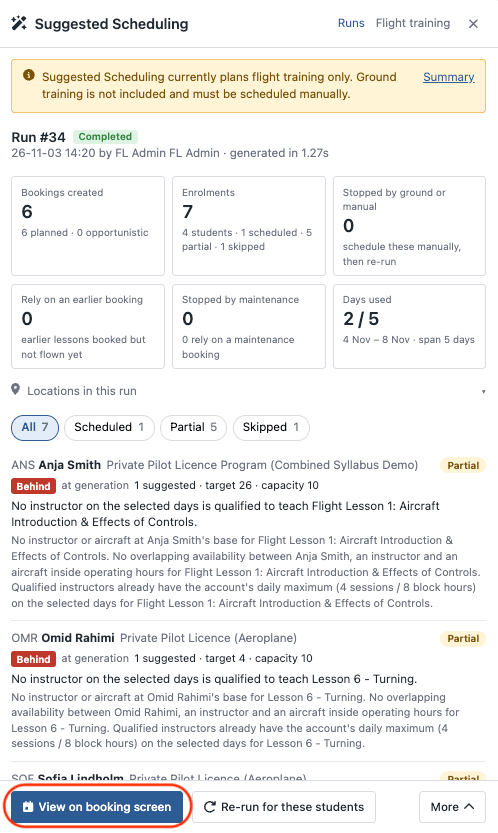
Once generated, click "View on booking screen" for the draft bookings to appear on your calendar.
Closing the Suggested Scheduling window will not delete any of your data, so you can safely leave the page whenever you need to.
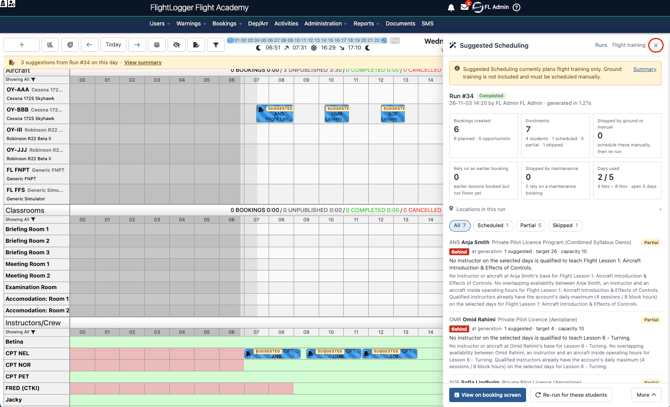
You can reopen the window at any time to check the results or run the tool again simply by clicking the yellow bar at the top of the screen that says "View Summary".
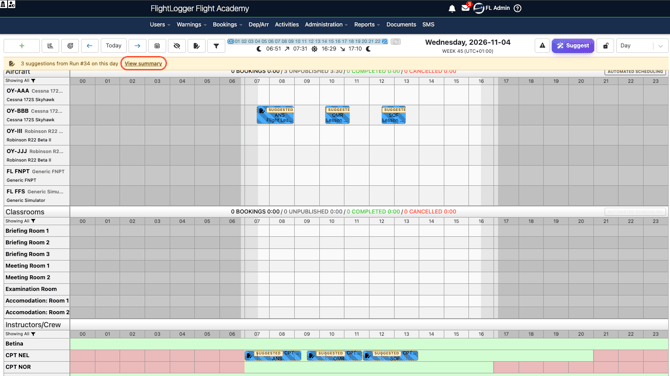
The suggested bookings for the assigned aircraft, student, and instructor now appear across each of the dates you selected. You will notice diagonal stripes running across these entries on the schedule, which clearly indicates that they are only draft suggestions. The suggested bookings tab is also active to help you view them, and each proposed session includes a distinct tag confirming that it is a Suggested booking.
From this point on, the workflow follows the exact same process you already know from working with unpublished bookings.
Just like standard unpublished bookings, your suggestions stay completely invisible to students and instructors until you are ready to share them. Schedulers can freely click into any proposed booking to adjust start times, swap aircraft, or change the assigned instructor. Because they are drafts, you can move them around the schedule or delete individual sessions without triggering automated notification emails or alerts.
When you are satisfied with the timeline, you can publish the schedule either day by day or booking by booking. At the moment of publishing, FlightLogger runs a live check against all standard booking rules to ensure certificates, maintenance, and availability are still fully compliant, giving you complete oversight before anything goes live.
If the run summary stopped a student because of a ground session, progress check, or exam, you can simply book that required milestone by hand and then click Re run for these students directly in the summary to carry on with their flight training.
You also never have to worry about old proposals cluttering your view, because any unpublished draft suggestions whose scheduled date passes without being published will automatically delete overnight to keep your calendar completely clean.
To learn more about how unpublished bookings work, how to edit them, and how to publish your schedule, see our dedicated guide on Getting Started with Unpublished Bookings.
Need help?
If you need assistance, feel free to contact our support team via the Get Support tab inside FlightLogger.