
Creating Your Account
*Note: Your account cannot be self-created. It must be initiated by either the FlightLogger support team or an administrator at your flight school.
-
To set up your profile, they will need your valid email address.
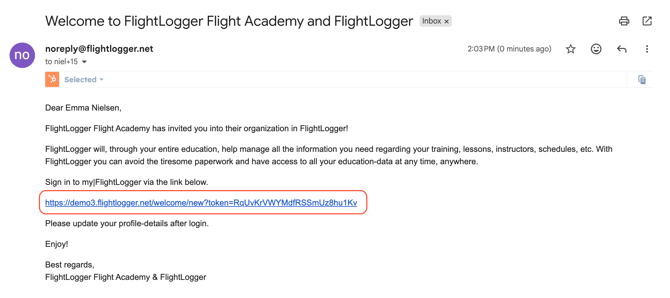
- As soon as an administrator creates your user profile, the system automatically sends a welcome activation email to that address.
First-Time Activation
Open the Activation Email: Locate the welcome email from FlightLogger and click the activation link inside.
*Note: If you cannot find the email, check your spam folder first. If it is still missing, contact your flight school's administration team and ask them to resend your welcome email.
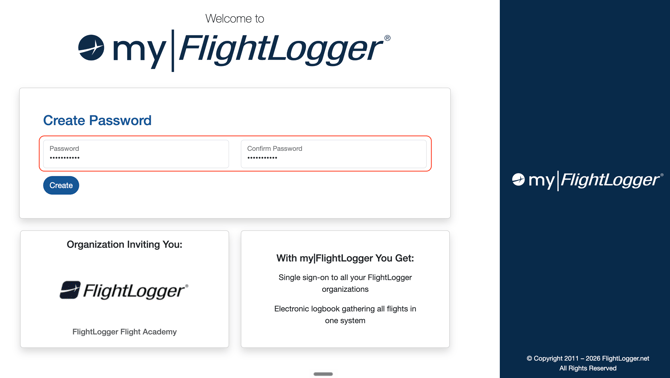
Create Your Password: The link will take you to a page where you must choose a password. Your password must be at least 8 characters long and can include a combination of letters, numbers, or symbols.
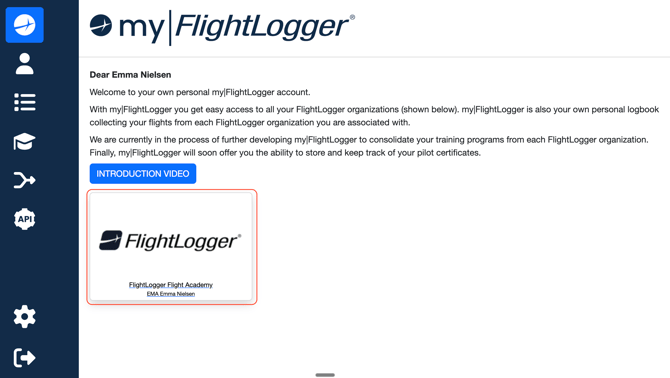
First-Time Login via My FlightLogger: Once your password is created, you will be directed to the My FlightLogger landing page. Simply click on your flight school’s logo/emblem to enter your account.
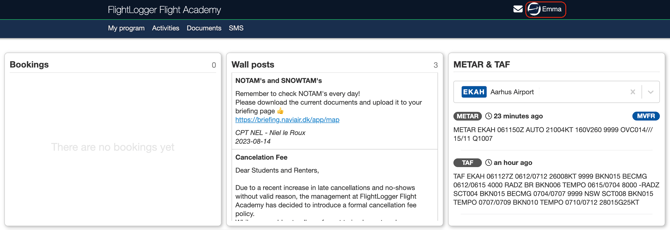
You are now logged in to your account and will be taken to your dashboard.
Future Logins
Use Your School's Custom URL: After your initial setup, and for future logins, bookmark and use the specific URL assigned to your flight school for all future logins.
Resetting a Forgotten Password
If you ever forget your password, go to the front login page of your school’s URL and click the Reset Password option.
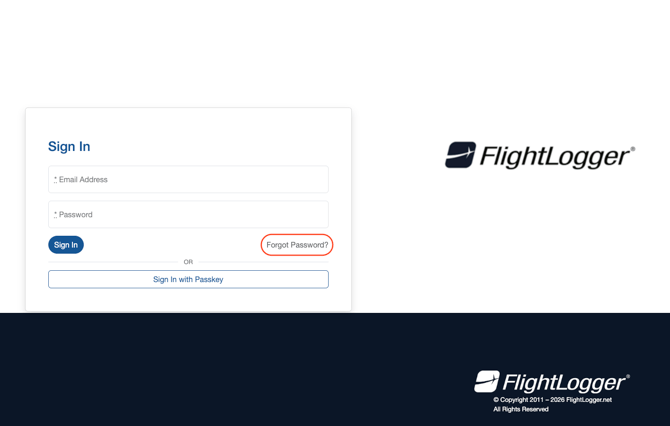
Next, you will be taken to a page where you need to enter the email address associated with your account (the one that was used when your account was set up).
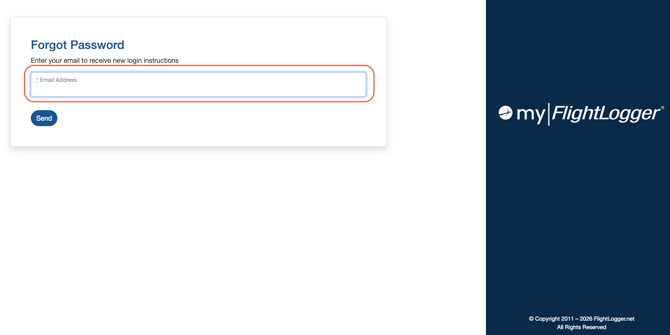
After submitting your email address, FlightLogger will send you a secure link to reset your password.
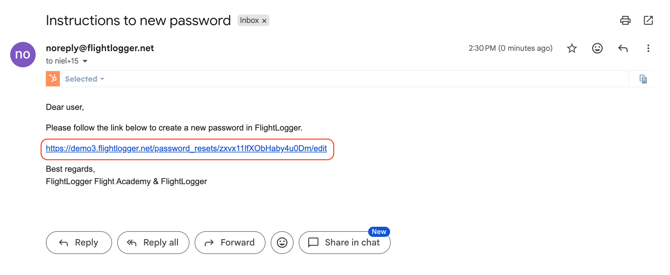 After clicking the link inside the password reset email, you will be taken to a secure page on My FlightLogger where you can set your new password.
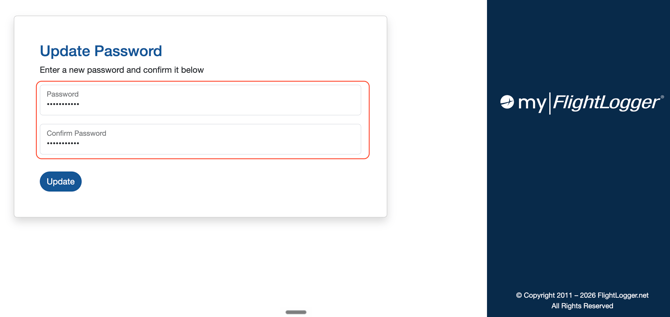
Once you have successfully reset your password, you will be taken directly into your account and land on your dashboard.
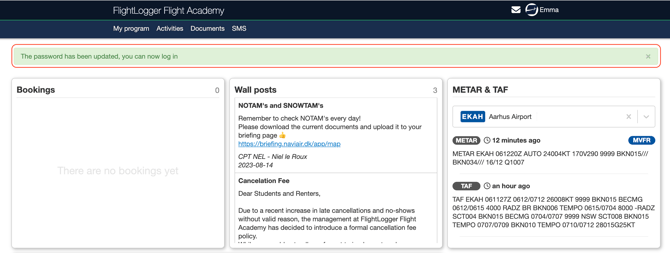
Securing Your Personal Data: Emails and Passwords
To protect account privacy and security, specific rules apply to modifying user credentials once an account is active:
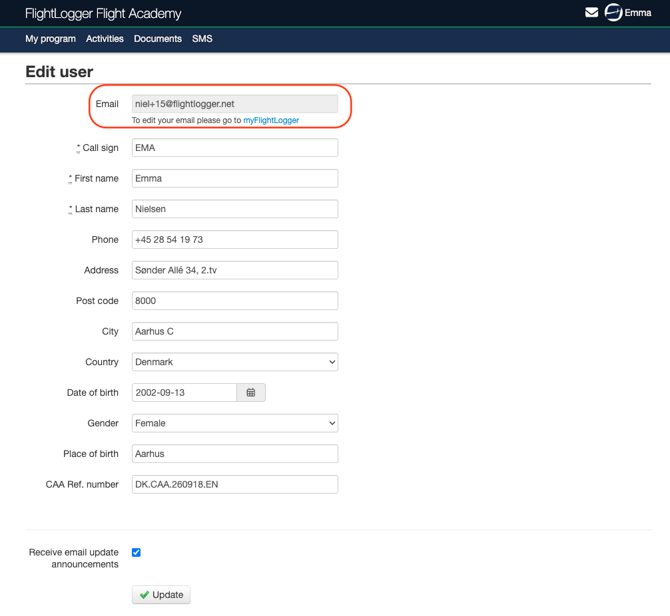
Email Restrictions: Once a user logs in for the very first time, administrators can no longer change that user's email address. Looking at your email address within your account settings page, you will notice it is greyed out and uneditable.
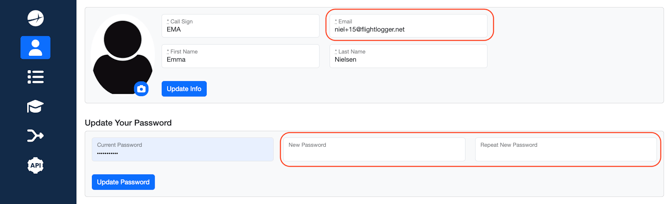
How to Make Changes: To update your email address or change your password, you must navigate back to your My FlightLogger page. Only you — the account owner — can update these credentials from that page.
Information for Administrators
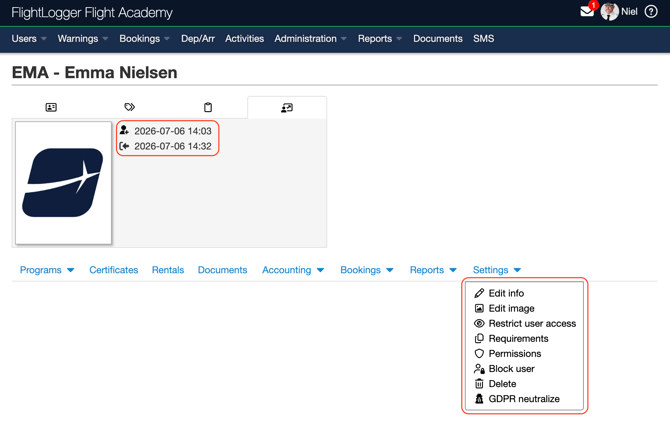
From an administrative perspective, you can track a user's registration progress by viewing their profile page:
- Before First Login: The profile will explicitly state that the user has "never logged in." This status indicator appears just above the date/timestamp of when the user profile was created.
Administrators also have an option available on the user profile to Resend the welcome email if the user missed it.
The login status indicator is visible under the User Activity and Settings tabs.
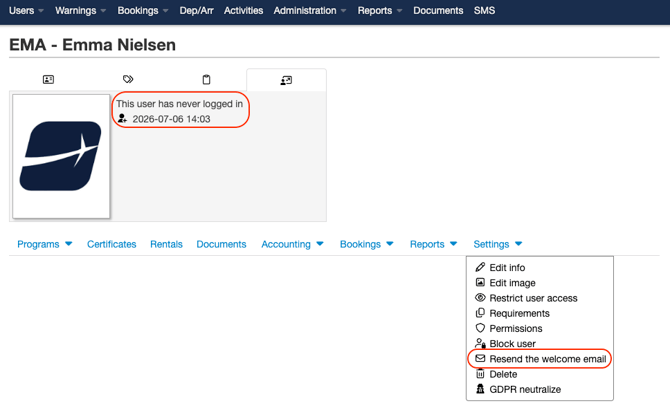
- After Successful Login: The system displays a clear date and timestamp of the user's last login activity. This is just below the date/timestamp of when the user profile was created.
Additionally, after the user has successfully logged in for the first time, the option to resend the welcome email automatically disappears. This serves as your confirmation that the user has successfully accessed the platform.
Need help?
If you need assistance, feel free to contact our support team via the Get Support tab inside FlightLogger