
Prerequisites & Permissions
To configure and assign Aircraft Model certificate requirements, you must hold the Administrator user role.
Create the Certificate Requirement
To create the requirement:
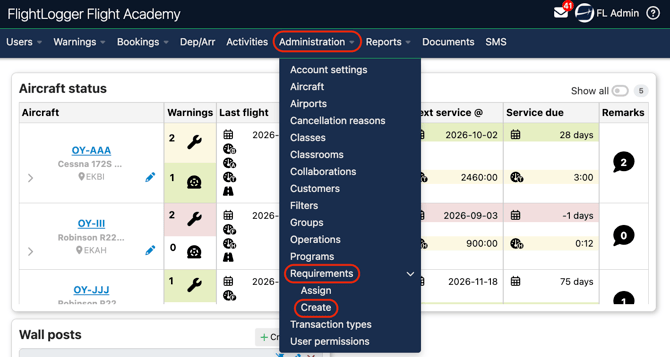
Go to Administration - Requirements. Click Create.
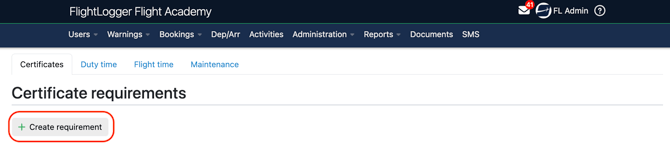
Select Create Requirement.
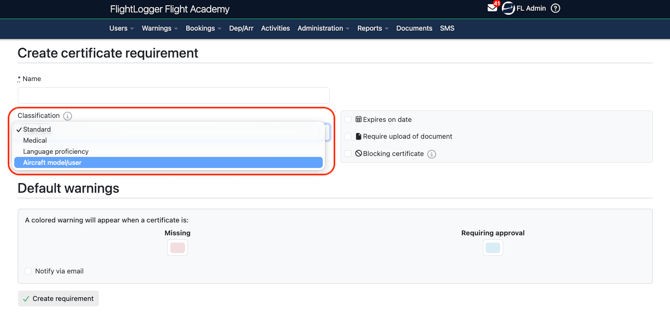
Under the Classification tab, select Aircraft model/user.
Configure the requirement parameters:
-
Expiry Date: Enable this if the checkout requires recurrent training or periodic re-validation.
-
Document Upload: Enable this if pilots must upload supporting paperwork (e.g., a signed endorsement or checkout form).
-
Blocking: Leave blocking enabled if you want to prevent bookings when the qualification is missing or expired.
-
Set your desired default warning intervals and colors, then click Create Requirement.
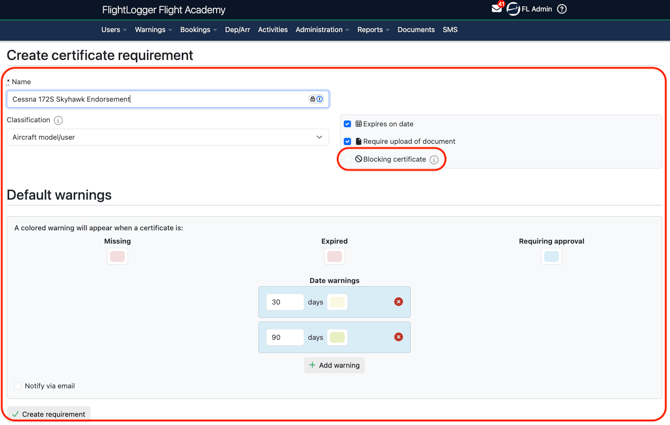
*Note: When creating an Aircraft model certificate requirement, you will notice that the system does not allow you to select it as a blocking certificate. That option is grayed out by default. This is because once the aircraft model requirement is created and attached, the system automatically blocks any pilot who lacks this specific endorsement from being scheduled on that aircraft.
*Note: The Aircraft model certificate requirement applies exclusively to instructors and flight crew members. Renters are excluded from this requirement, as their authorized aircraft access is managed separately through specific renter permissions in their account settings.
Link the Requirement to an Aircraft Model
Once created, attach the requirement to the specific aircraft model(s) that require the qualification:
Go to Administration - Aircraft.
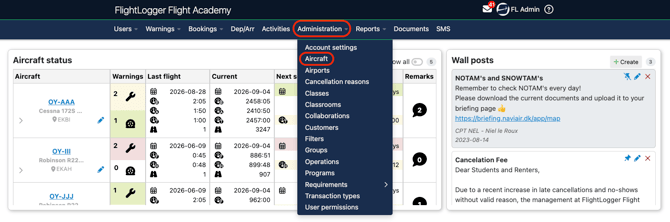
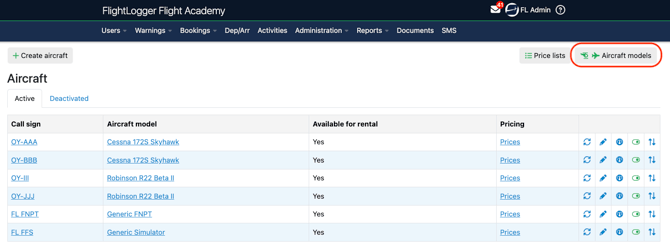
Select the Aircraft models.
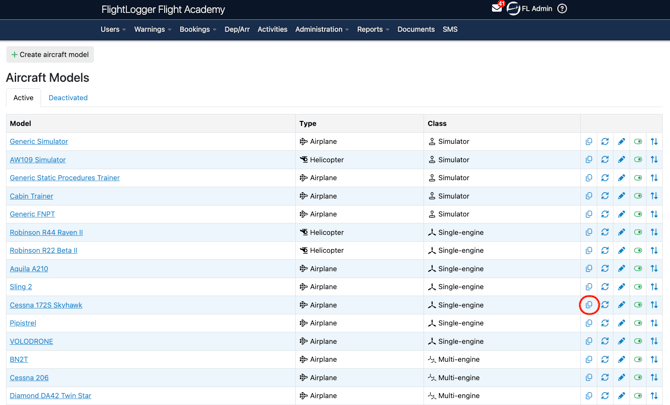
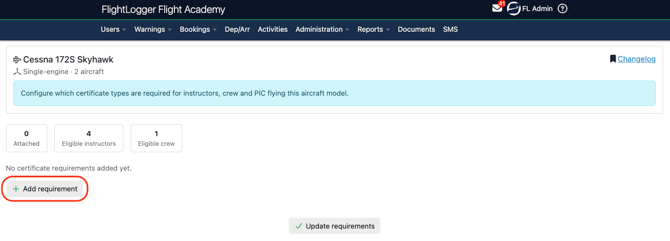
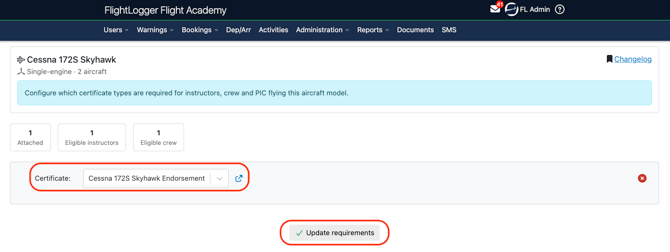
Click the Certificate Requirements tab.
Add the certificate requirement you have created .
Assign the Requirement to Users
Next, assign the requirement to the relevant instructors and/or crew who hold (or need to upload) the qualification:
Remember that aircraft model requirements can only be assigned to Flight Instructors or Crew Members. The assignement can be either at the group level or on individual user profiles, and cannot be attached to training programs.
For a complete step-by-step walkthrough on assignments on group or on individual level, please see our guide Assigning User related requirements.
Operational Impact & Scheduling Workflows
Once configured and assigned, FlightLogger automatically enforces qualification checks during booking creation creating Automatic Booking Warnings.
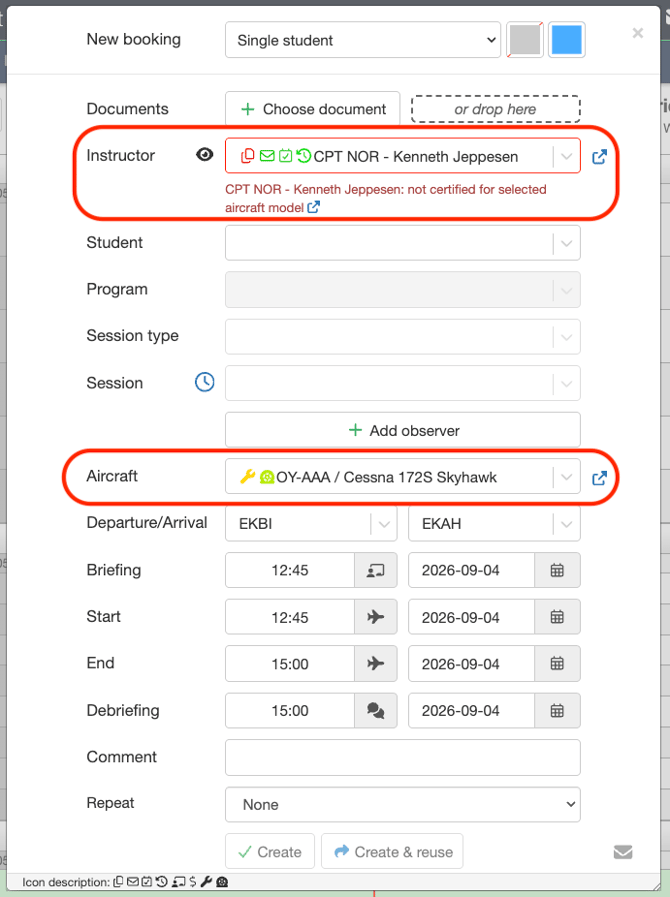
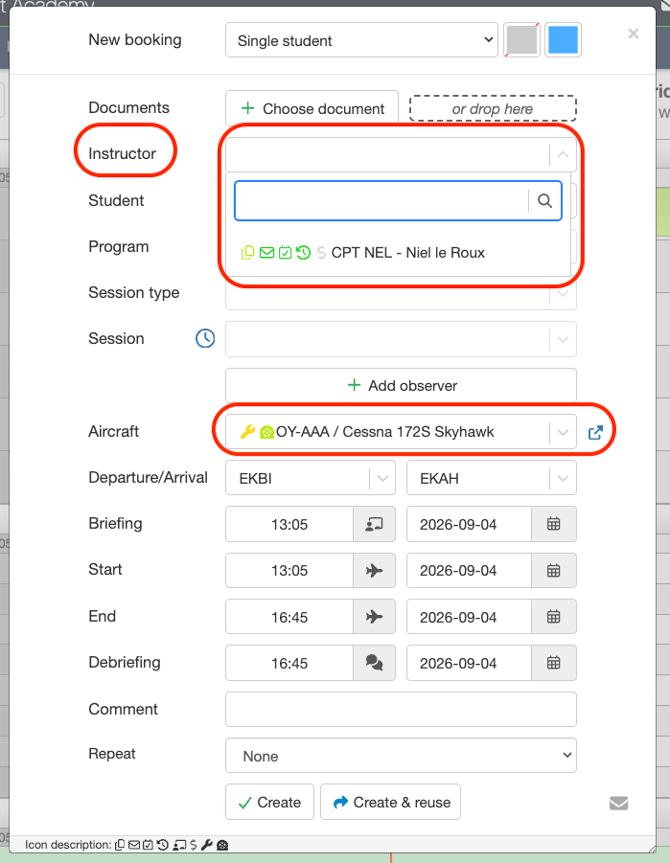
If a scheduler attempts to book an instructor or pilot on an aircraft model for which they lack the required active certificate (or if their certificate is expired/unapproved), the system displays an immediate warning badge on the booking modal.
Filtering Unqualified Crew (Business Rule Configuration)
Optionally, aiding shedulers to prevent selecting unqualified users in the first place, you can turn on a certificate filter:
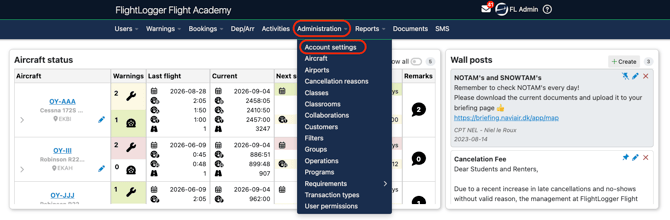
Go to Administration - Account Settings.
Choose Bookings.
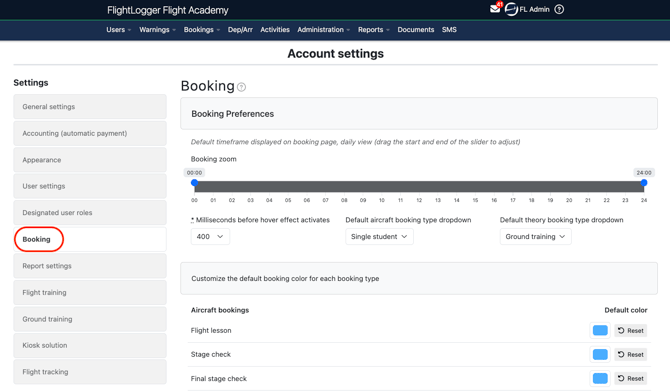
Scroll down to Business Rules. Enable the setting: Use Certificate Requirement as a Booking Filter. Save your settings.
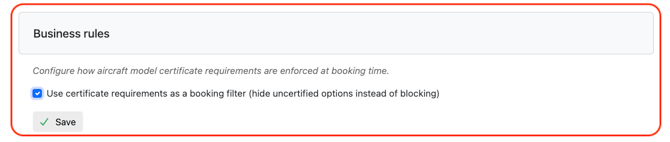
When enabled, selecting a specific aircraft on the booking calendar automatically filters the crew drop-down list to show only those users who hold the valid, approved certificate required for that aircraft model.
Need help?
If you need assistance, feel free to contact our support team via the Get Support tab inside FlightLogger.