
The Combined Syllabus Builder lets you create training programs where flight lessons and ground training sessions belong to the same overall syllabus structure.
This is useful for schools that want their training programs to reflect flight and ground training combined, rather than managed as completely separate tracks.
With a Combined Syllabus program, both flight and ground training can be organised within phases, giving administrators, instructors, and students a clearer structure to follow.
Permissions
To create a combined syllabus program, you must, as a minimum, have the permission to view and edit programs
See this article to learn more about Permissions.
Creating a Combined Syllabus program
To create a new Combined Syllabus program.
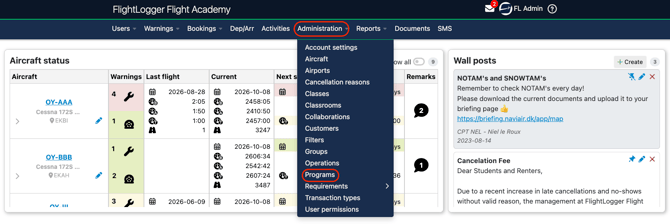
Go to Administration and select Programs
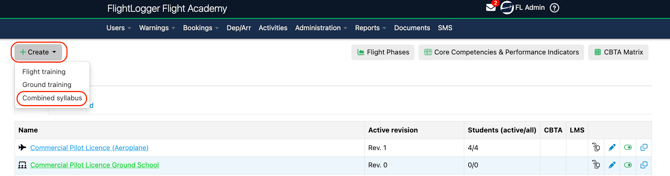
 Click Create and select Combined.
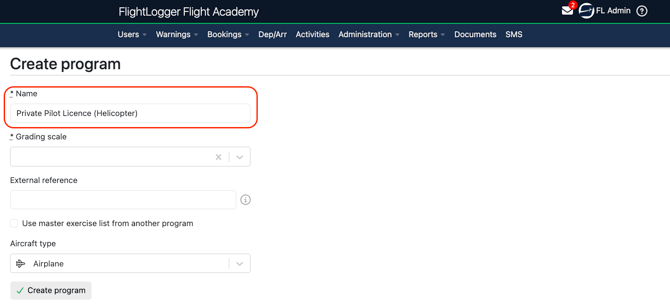
Enter the name of your program
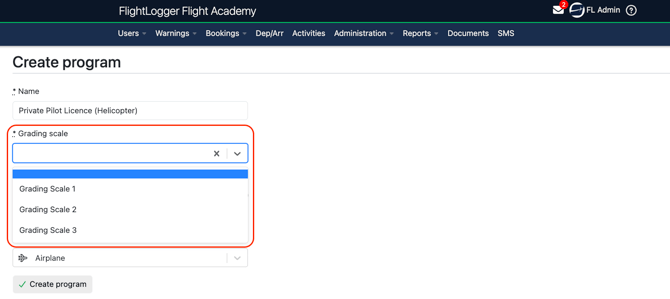
Select the grading scale you want to use.
See this article to learn more about Multiple Grading Scales.
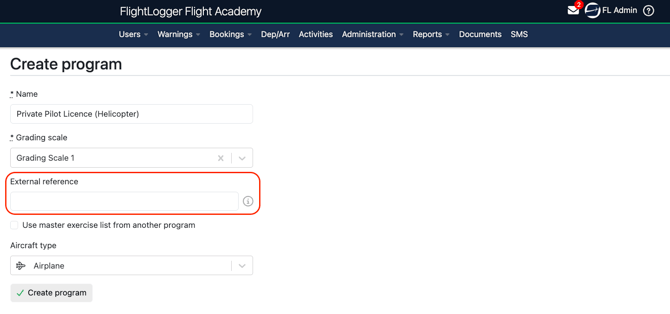
Use External reference to link or cross-reference this program with third-party software and external systems (e.g., accounting, ERP, or LMS platforms)
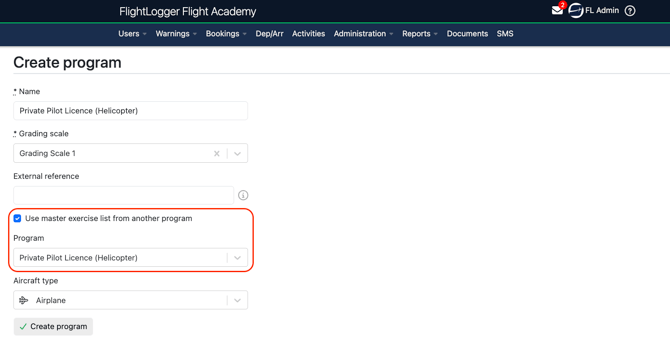
Choose whether you want to use the master exercise list from a similar program.
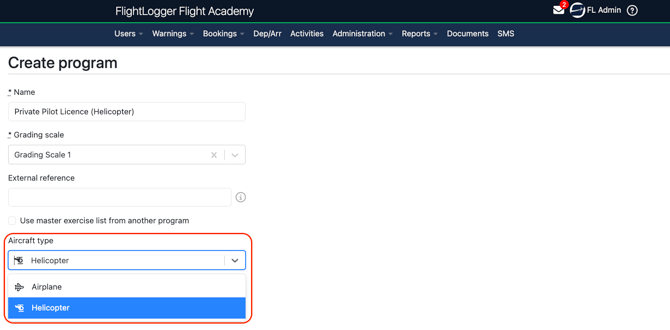
Choose Aircraft Type
Click Create Program Once the program has been created, you can start building the structure with revisions, phases, lessons, and ground training content.
Create the first revision
After creating the program, create the first revision. The revision is where you build and maintain the active structure of the program.
Open the newly created Combined Syllabus program
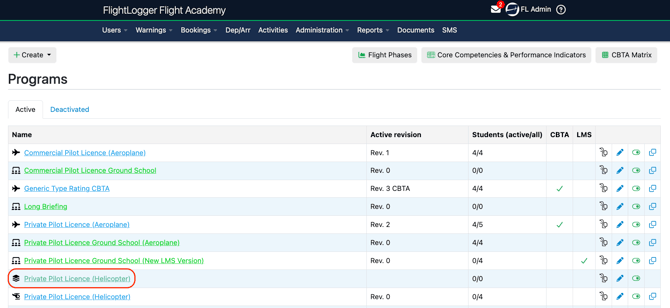
Click Create revision

Enter the revision number and any relevant revision details and configure the remaining available program settings
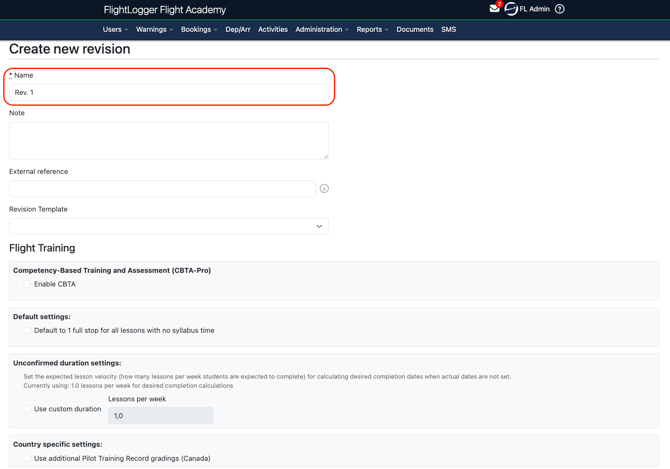
Customise the program overview
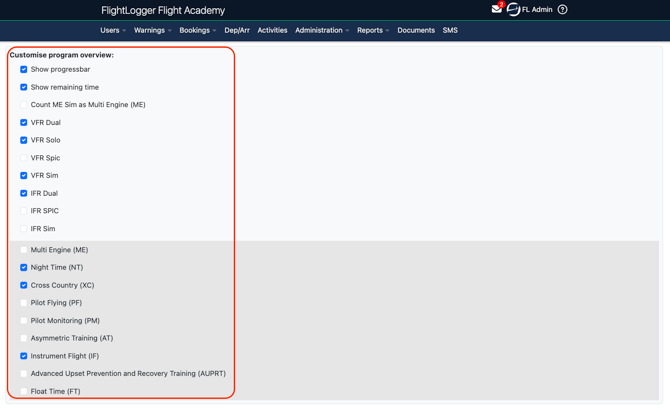
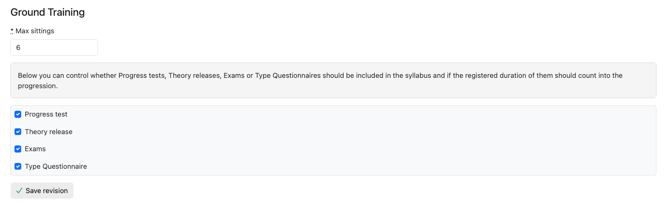
Configure the ground training options and Save the revision
Create a Master exercise list
If you did not import a Master exercise list from another program, you will need to create one from scratch.
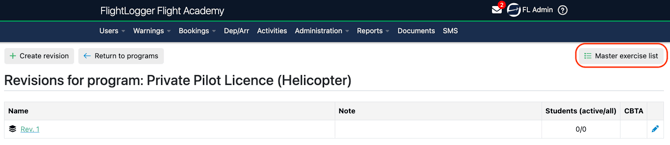
See this article to learn more about Master Exercise Lists.
Set up phases
Phases help divide your program into logical, structured sections. Phases are completely customizable, you can intertwine theoretical ground sessions and practical flight lessons in whatever order best supports your student learning path.
Every program automatically includes a default starting phase called Phase 1.
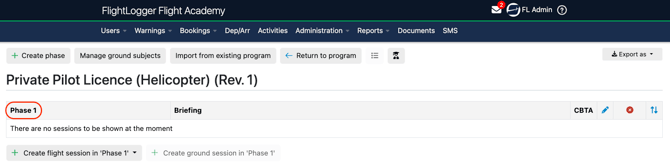
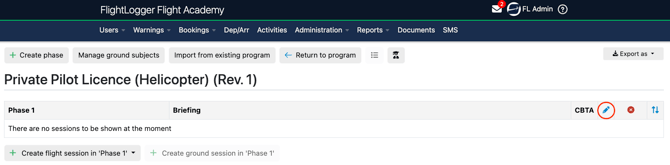
You can easily rename this default phase to match your syllabus, simply by clicking the Edit button.
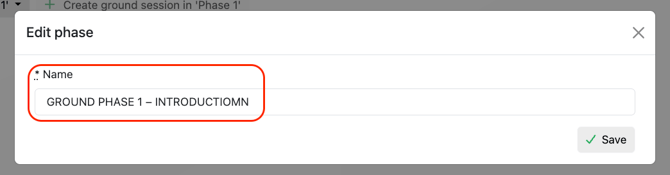
Enter the new phase name and Save.
You can create additional phases at any time by clicking Create phase.
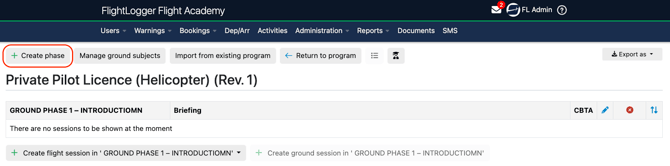
Both flight and ground training can be organised within these phases.
Add flight and ground training content
Once your phases are ready, you can begin adding the training content.
Add flight sessions where students will complete practical flight training, and add ground training sessions where theoretical or classroom-based training should be included in the same program flow.
*Note: Sessions, whether flight or ground, are simply FlightLogger's term for lessons, missions, sorties, etc.
By default, creating Flight sessions are available immediately.
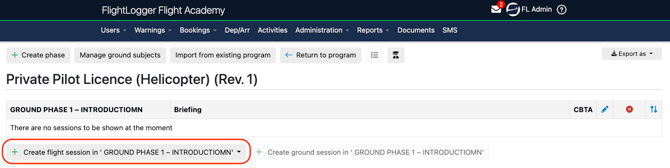
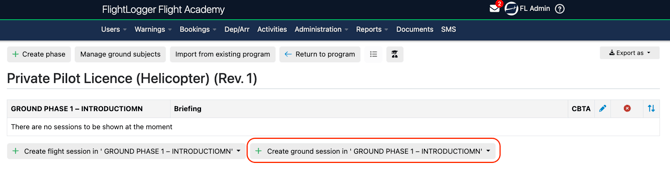
Creating Ground sessions first become available once your Ground subjects have been defined.
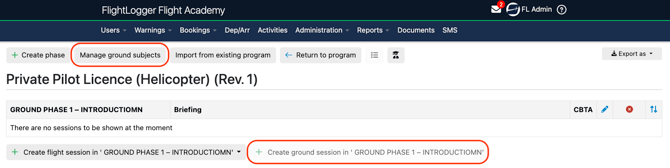
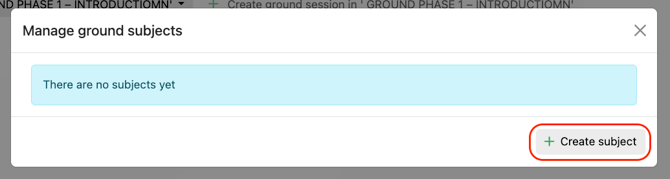
To add ground subjects, click Manage ground subjects and select Create subject.
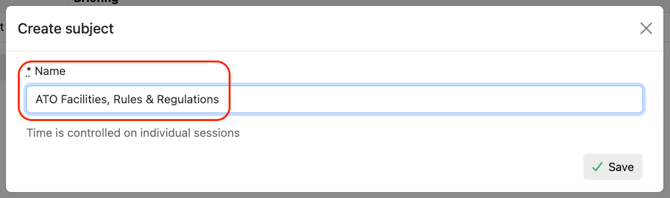
Enter the subject name and save.
Repeat this process until your ground subject list is complete. You can add or edit subjects at any time.
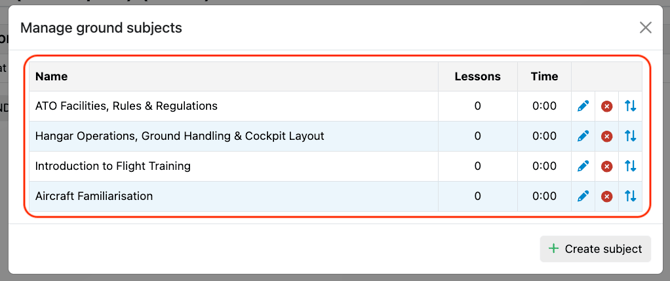
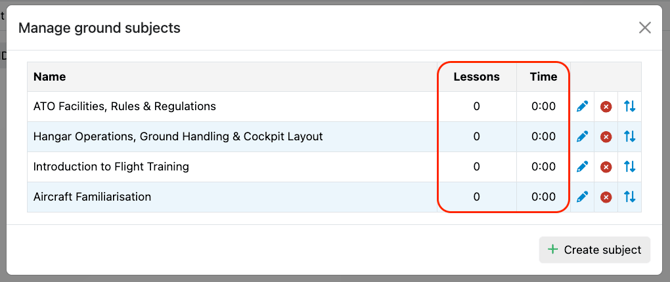
On the ground subject overview, the Lessons and Time columns will initially appear blank. These fields populate automatically as you assign subjects and durations to specific lessons.
Flight and ground training content can be added manually or imported from an existing program.
Manual addition
Click Create ground session.
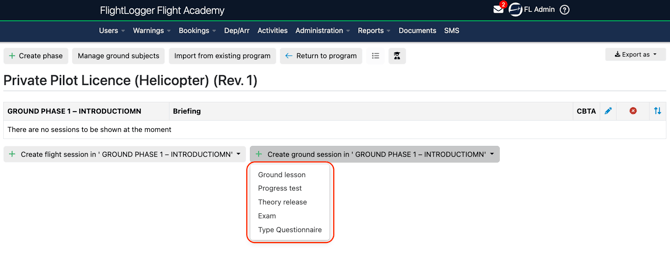
Select the session type: ground lesson, progress test, theory release, exam, or type questionnaire.
Enter a name and select a subject category from your created list.
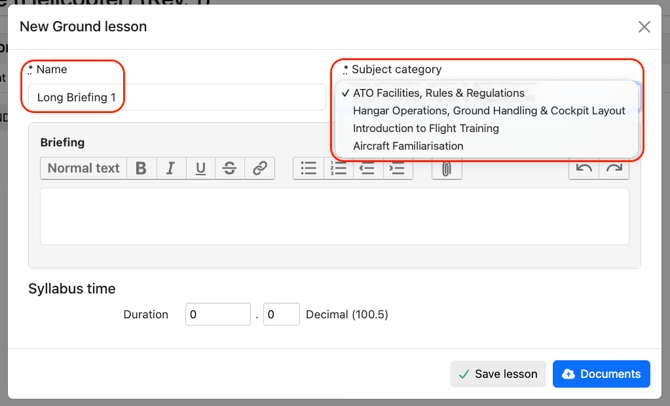
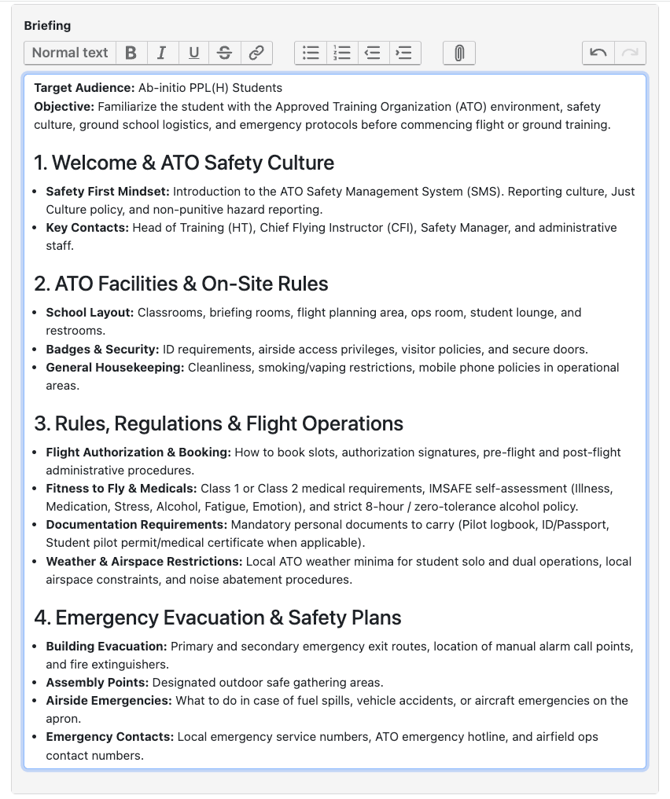
Add your lesson content.
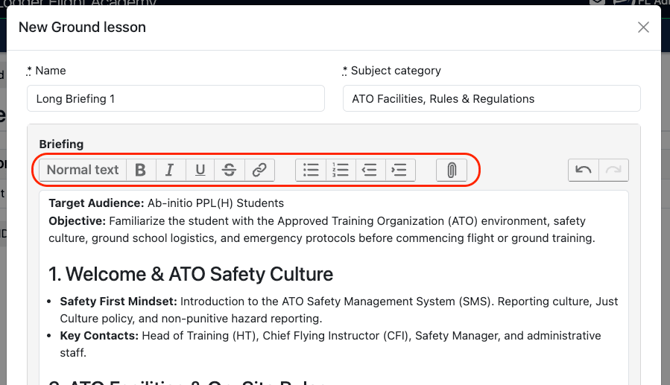
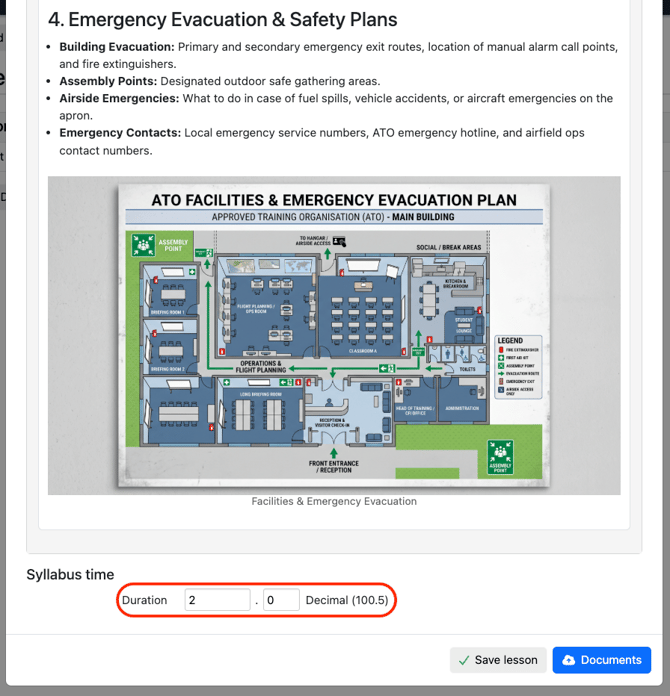
Attach any links, files, or images.
Enter the duration of the session.
Attach relevant documents from your Document Center.
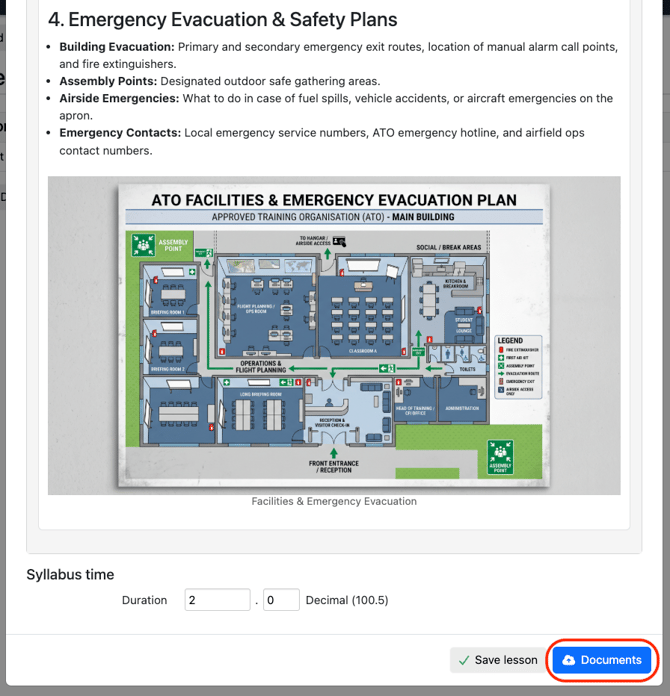
Save your session.
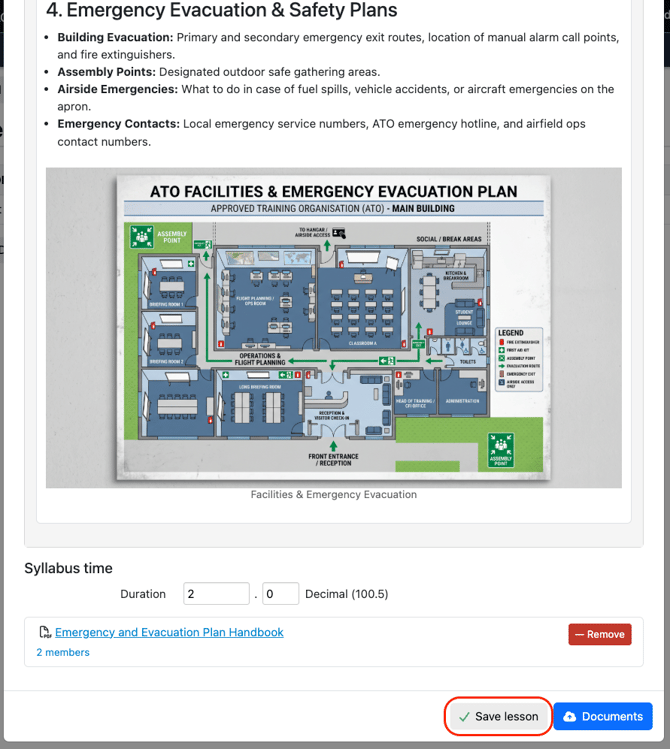
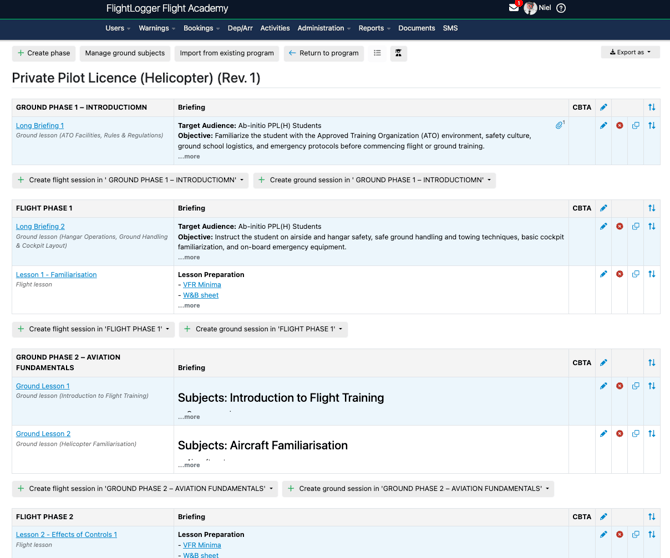
Continue building your sessions and adding new phases as needed. Remember that a single phase can contain both flight and ground sessions.
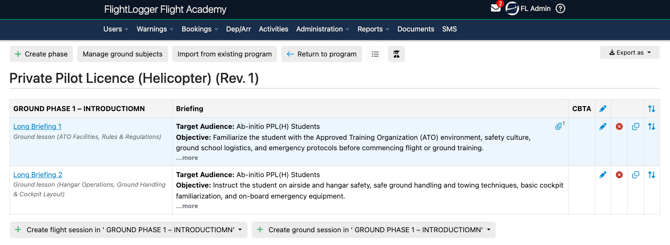
When building your content, make sure each lesson or session is placed in the correct phase and that syllabus time, briefing content, and other required information are filled in where relevant.
This helps ensure the program overview gives a clear picture of the full training structure.
Importing an existing program
If a program already exists in one of your other flight training or ground training programs, you can bring it into your Combined Syllabus program instead of building it from scratch.
Click Import from Existing program in the top bar.
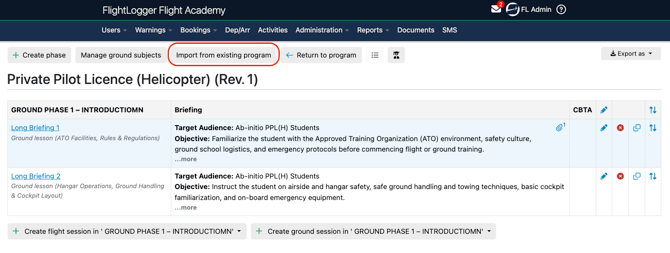
Select the flight training or ground training program you want to import from. Click Import.
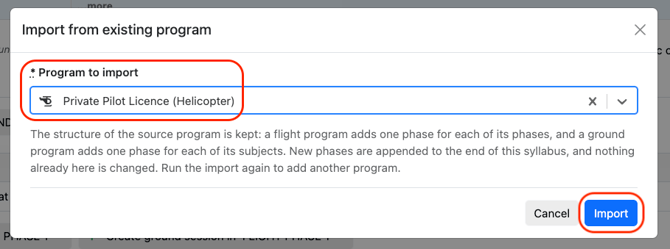
*Note: This imports the entire program lessons into the selected phase. You cannot choose individual subjects or lessons to bring in on their own. If you only need part of the source program, delete the lessons you don't need after the import.
Once imported, your program appears at the bottom of the page.
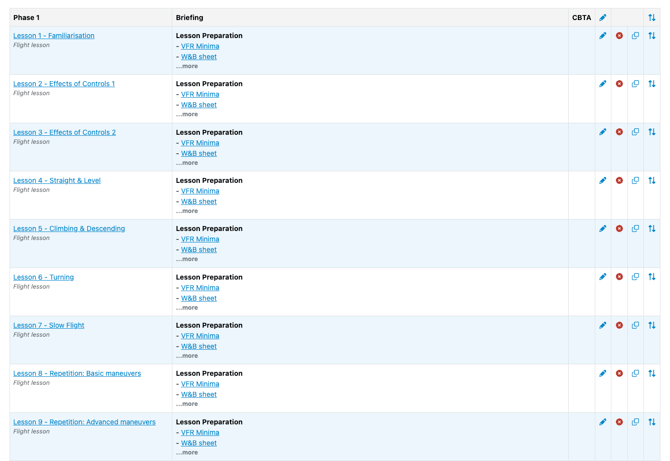
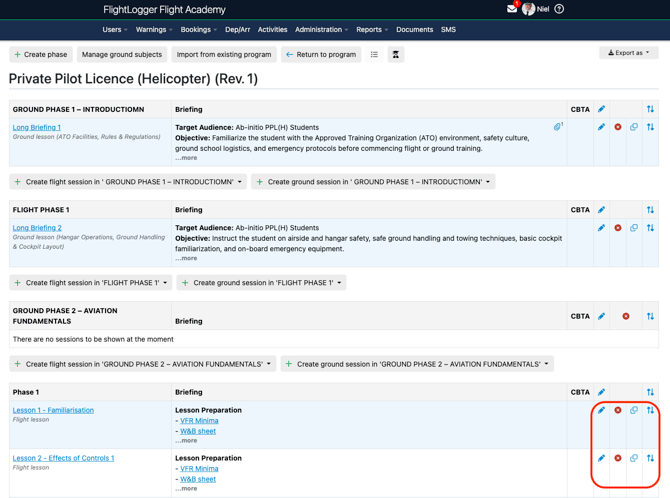
From there, you can edit, clone, delete, or reorder individual lessons. You can also create extra phases and move lessons between them to organize your ideal program structure.
Your finished program is now fully structured and ready to use.
Review the syllabus structure
Before assigning students, review the program carefully.
Check that:
- All required phases have been created
- Flight lessons are placed in the correct phases
- Ground training sessions are placed in the correct phases
- Syllabus times are correct
- Briefing content, documents, and links are added where needed
- The program structure matches your approved training manual or internal training plan
Assign students to the Combined Syllabus program
Once the Combined Syllabus program is ready, students can be assigned to the program and training can begin.
Use the same general workflow your school normally uses for assigning students to programs in FlightLogger.
After assigning students, the program can be used for bookings, training registrations, and progress follow-up.
Need help?
If you need assistance, feel free to contact our support team via the Get Support tab inside FlightLogger.