
With Multiple Grading Scales, your FlightLogger account can maintain up to five distinct grading scales. Each training program can be assigned its own specific scale, allowing flight schools to run courses under different regulatory frameworks or client requirements without forcing all syllabi onto a single standard.
For example, your standard EASA programs can operate on a traditional 1–5 scale, while an airline partner's type rating or CBTA program uses a letter-based scale (A–E), both operating seamlessly side-by-side in the same account.
*Note: Account Limits & Default Behavior
- Scale Capacity: Each account can host up to five named grading scales.
- Legacy Compatibility: Your account’s original default grading scale serves as your initial named scale, ensuring all existing historical data remains intact.
- Program-Level Assignment: A grading scale is assigned per training program. Every lesson and exercise inside that program will consistently use its assigned scale.
Setting Up a Grading Scale
For modification of a grading scale assigned to a program with enrolled students, review the following article about Updating Grading Scales.
*Note: Regarding modification of grading scales on programs with existing student data, we strongly recommend notifying active students in advance of the change. In addition to that, we recommend clients to obtain a complete historical archive on the original scale, for example by ensuring the Data Backup Module is enabled on your account prior to updating the scale.
Plan Your Scale Structure
Before creating a new scale, determine:
- Program Mapping: Which programs require a dedicated scale.
- Grade Hierarchy: The exact order of grade values
- Grade Name: Enter a clear name or brief description for the grade.
- Abbreviation: Specify the code or label that appears on the digital grade slip.
- Value: Set the numerical weight or performance status assigned to the grade (for example, assigning a status of "Fail" to Grade 1).
- Grade: Choose whether this entry acts as an assessed grade. Turning this off creates non-graded options¨, such as N/A (Not Applicable) or Hold Items (HIL), which track exercise status without altering grade averages or calculations.
- Default: Sets this value as the baseline or average grade for the lesson. Clicking the grade symbol automatically applies it across all exercises, allowing instructors to quickly adjust only the items that performed above or below that baseline.
- Carry forward: Marks hold items (HIL) and specific exercises that require extra focus so they automatically carry forward into future training lessons.
- Subgrade: Designates a grade as unsatisfactory or below standard, which requires the instructor to add a written exercise comment before submitting the lesson.
- Auto flag: Automatically flags the lesson or exercise for repetition whenever this grade is selected.
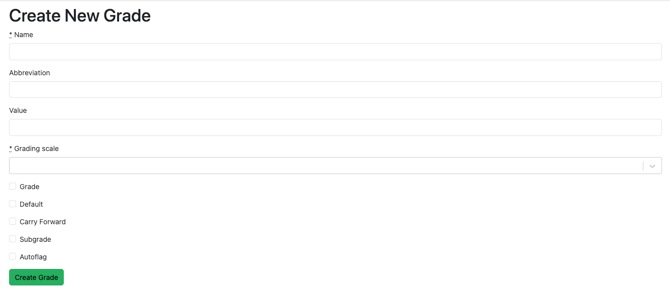
Once you have finalized your scale structure and grade behaviors, simply send the details to support@flightlogger.net, and our team will get everything configured for you.
Permissions
To work with training programs, you must, as a minimum, have the permission to view and edit programs
See this article to learn more about Permissions.
Assigning a Grading Scale to a Program
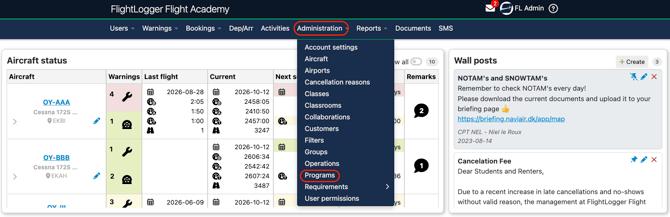
Go to Administration - Programs and open the target training program.
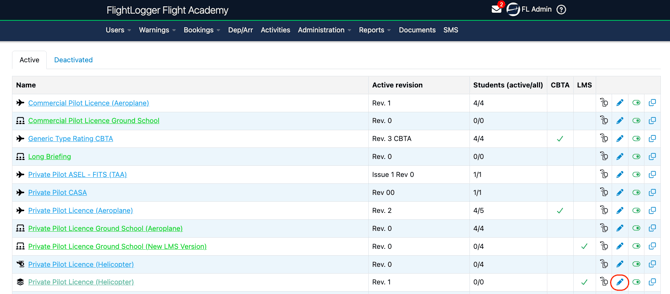
Find the target program and click the Edit tab.
Locate the Grading Scale dropdown field in the program settings. Select the appropriate scale for that syllabus and Update the program.
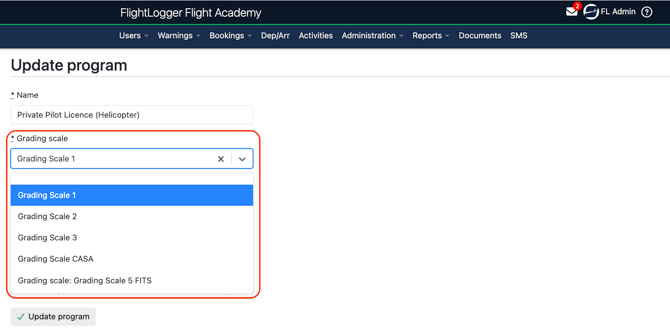
*Note: New grading scales can only be assigned to programs with zero student history, such as a brand-new program or a cloned copy of an existing syllabus. If a program currently has, or has ever had, active student enrollments, its assigned grading scale cannot be changed by assigning a new grading scale.
Instructor Experience & Lesson Debriefing
Instructors do not need to change their daily workflow:
- When registering a lesson, FlightLogger automatically displays the specific grading scale assigned to that program.
- If a student is enrolled in different programs, they will be evaluated on the respective scale assigned to each program.
Need help?
If you need assistance, feel free to contact our support team via the Get Support tab inside FlightLogger.