
This guide explains how to set up and manage certificate requirements across users, programs and resources in FlightLogger. It shows how certificate tracking helps you maintain compliance while giving clear and up to date visibility to everyone involved, from administrators to day to day users.
Permission
To create and assign user related requirements, you must have the role of Administrator.
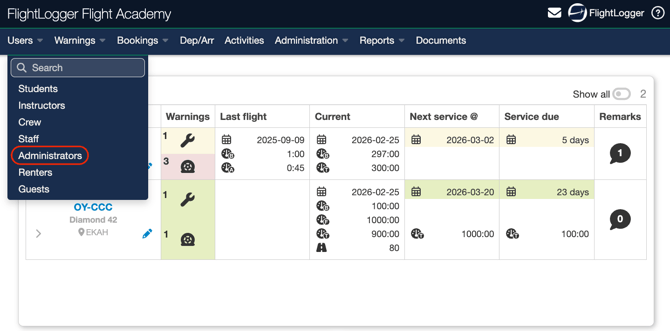
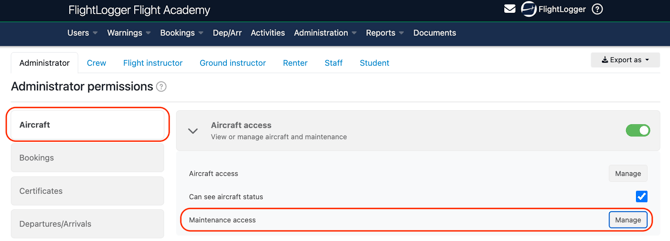
All users can be allowed to create maintenance requirements, as long as they are given the correct permission.
Access can be granted either to an entire user group or to an individual user.
*Note: To learn more about permissions, have a look at this article.
To grant access at group level, go to the relevant user group settings, locate the permissions section under Aircraft, and enable maintenance access.
Information on Requirements
To start with requirements, go to Administration, open the drop down menu, select Requirements, and choose Create.
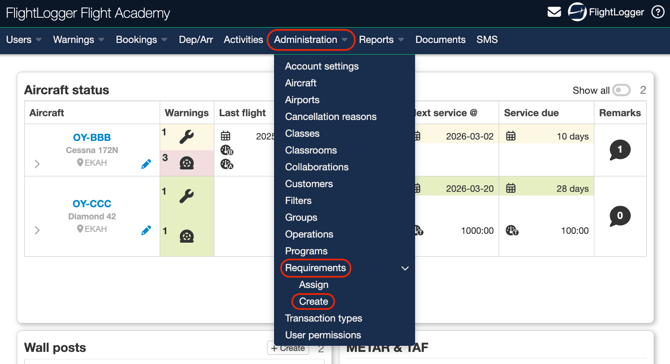
This opens the Certificate requirements area, where you decide what type of requirement you want to set up.
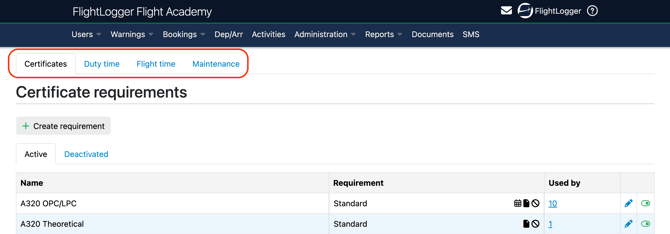
*Note: The example shown in the image above, applies when the Flight Time Limitation Module (FTLM) is enabled on your account. You will therefore manage the creation of flight time and duty time requirements on the same page.
You will also see the Active and Deactivated tabs. The Active tab is shown by default and displays all current requirements for the selected area, whether they are certificate requirements, maintenance requirements, or, if the flight time limitation module is enabled, duty time and flight time requirements.
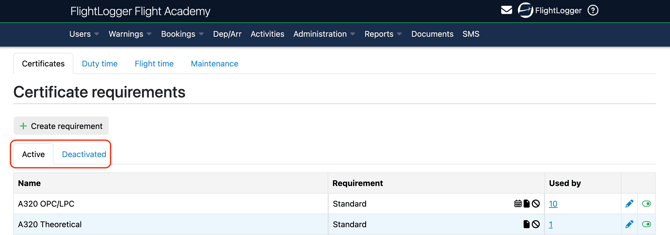
The Deactivated tab contains requirements that are no longer in use.
It is important to note that deactivating a requirement does not remove it from users, programs, or other items it is already attached to. The requirement will remain active for those assignments. If you want a requirement to be completely removed, you must first remove it from all users, programs, or resources, and then deactivate it.
The removal process is explained in more detail later in this guide.
All requirements are listed and divided into columns to make the information easy to review.
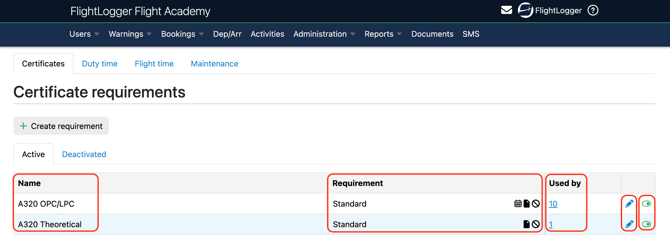
The first column shows the Name you have given the requirement.
The Requirement column shows the type of requirement, either:
-
a Standard certificate
-
a Medical requirement
-
a Language proficiency

To the right hans side of the Requirement column, you will see a set of icons that reflect how the requirement is configured.

A calendar icon indicates that the requirement has an expiry date.
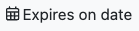
A document icon shows that a document upload is required.

A circle with a line through it indicates that the requirement is a blocking requirement.

The Used by column shows how many users, resources, or programs the requirement is currently attached to. Selecting this number lets you see exactly where the requirement is applied.
The edit option, shown with a pencil icon, allows you to change the requirement. If users, programs, or resources are already attached, you can only edit the name, the default warnings and whether the requirement/certificate should have a blockable function. If nothing is attached yet, you can change other settings, such as whether an expiry date is required etc..
The final column contains the toggle used to activate or deactivate the requirement.
Understanding the Used By column
In the Used by column, select the number shown.

*Note: In FlightLogger, any text shown in blue is a quick link that opens additional information.
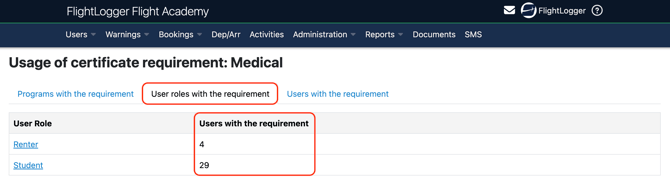
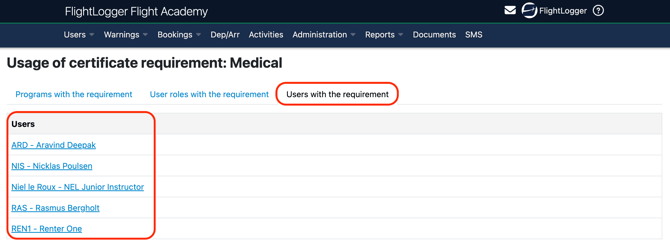
Selecting this number opens the of Usage of certificate requirement view. Here you will see three sections.
The first section shows programs with the requirement. This lists all programs the requirement is attached to. In the column on the right, you can also see how many users are currently affected through each program.
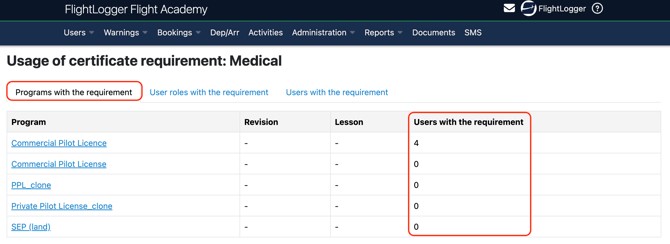
The next section shows user roles with the requirement. This breaks the usage down by role and shows how many individual users have the requirement through each role.
The final section shows users with the requirement. This lists the individual users who have the requirement directly attached to them.
Need help?
If you have questions about setup, permissions, or best practices, contact us at support@flightlogger.net