
How to Use the FlightLogger Message Center
The FlightLogger Message Center is an internal communication tool that allows users to send updates, report maintenance issues, submit feedback, and distribute operational bulletins requiring mandatory sign-offs.
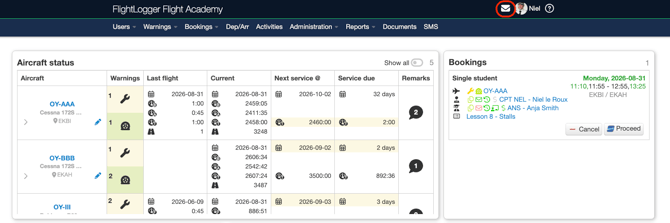
You can access the Message Center at any time by clicking the Message Icon in the top right corner of your screen. A red notification badge displays the number of unread messages waiting for your review.
Message Types and Role Permissions
Your user role determines which message types you can send within FlightLogger:
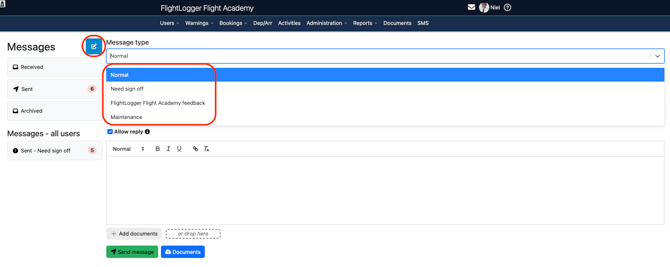
- Administrators, Staff, Instructors, and Crew: Access to all four message types (Normal, Maintenance, Need Sign-off, and Company Feedback).
- Students and Renters: Access to three message types (Maintenance and Company Feedback).
Overview of Message Types
- Normal Message: General internal communication sent to selected individual users, student classes, or specific user roles.
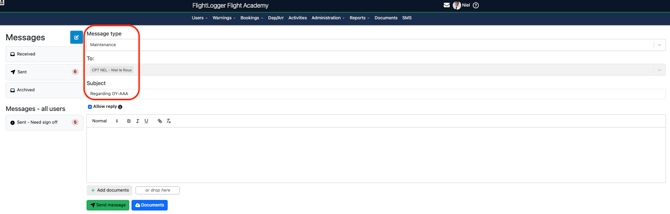
- Maintenance Message: Used to report aircraft discrepancies, technical issues, or maintenance squawks. These are automatically routed to your organization's predefined maintenance team.
- Company Feedback: Used to submit suggestions, operational comments, or feedback directly to designated company representatives.
- Need Sign-off: Used for critical updates, such as cockpit bulletins or updated SOPs, that require recipients to formally read and acknowledge the content.
How to Compose and Send a Message
- Open the Message Center from the top right navigation icon.
- Select your desired Message Type.
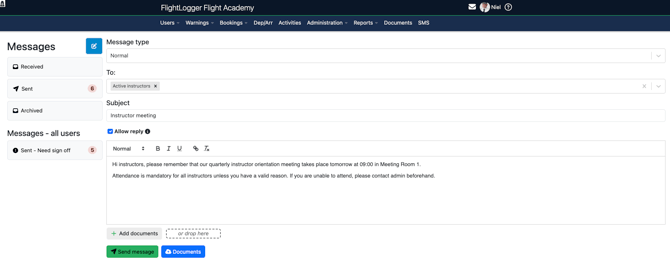
- Choose your recipients by searching for individual users, selecting entire student classes, or choosing specific user groups.
- Enter your subject line and message text.
- Optional Settings:
- Disable Replies: Uncheck the reply box if you want to prevent recipients from responding to the message.
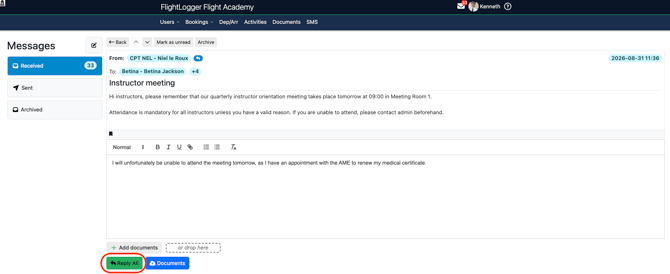
- Enabling replies: Means the response will be visible to everyone in that recipient group. You cannot reply individually to a single person within a group message.
- Add Attachments: Attach files directly from your computer, or click Document Center to select files already stored in your FlightLogger document library.
- Click Send.
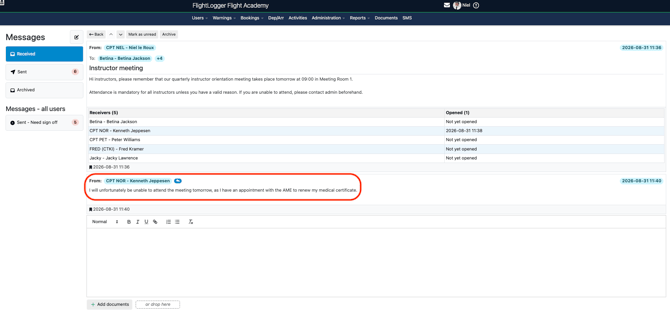
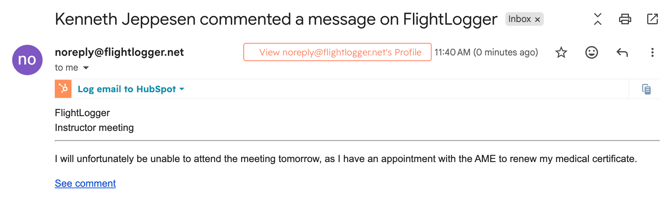
Recipients will receive an in-app message notification within FlightLogger as well as an email notification.

Any replies sent to the message will also be delivered directly to the sender's email address.
Tracking "Need Sign-off" Bulletins
When you send a Need Sign-off message, FlightLogger provides real-time tracking to ensure compliance:
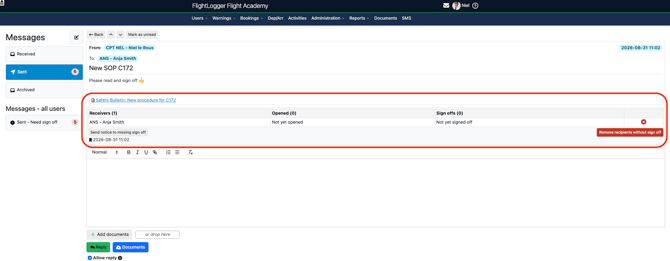
Sign-off Overview: Go to your sent messages to view a list of recipients, complete with date and time stamps showing when each user opened and signed off on the document.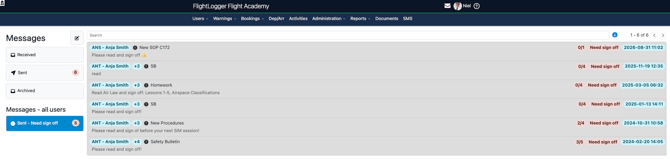
Reporting During Daily Flight Workflows
Instructors and crew members can also send messages directly while registering flights or grading lessons:
When proceeding through a booking, briefing, or lesson registration, scroll to the report and message section.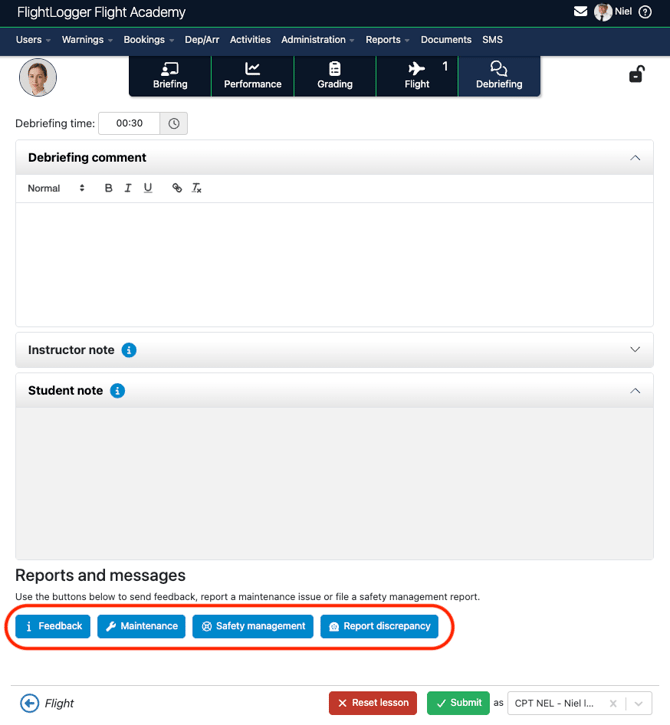
FlightLogger will automatically open the Message Center with the correct message type and aircraft details preselected, allowing you to report issues without leaving your operational workflow.
Administrative Setup: Predefined Recipients
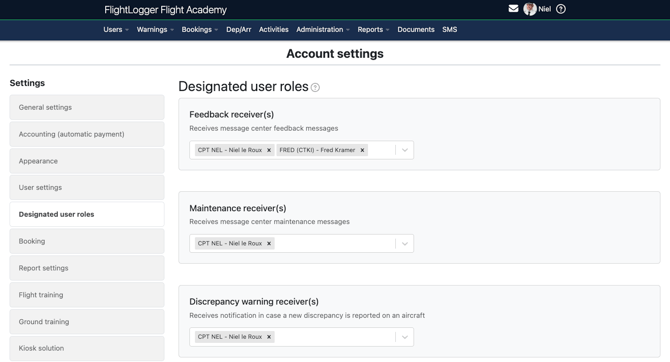
To ensure maintenance issues and feedback reach the right personnel, account administrators can set predefined message receivers:
Navigate to Administration > Account settings > Designated user roles.Locate the recipient fields for Feedback messages, Maintenance messages and Discrepancy messages.
Click Save to apply your changes.
Need help?
If you need assistance, feel free to contact our support team via the Get Support tab inside FlightLogger.