
Permissions
To access and work with to unpublished bookings, you must, as a minimum, have the Bookings permission to create, edit unpublished bookings. To delete them is an optional permission.
See this article to learn more about Permissions.
*Note: Preserving Draft Work: Lowering a user's permission level does not delete their draft bookings. Any unpublished bookings they created remain in place for other authorized team members to manage.
Creating, Editing, and Deleting Draft Bookings
Creating an Unpublished Booking
Open the standard booking modal on your calendar.
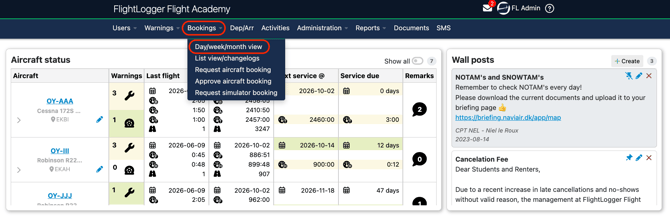
Enter the booking details as normal (all standard mandatory fields apply). Check the Unpublished box inside the modal. Click Create.
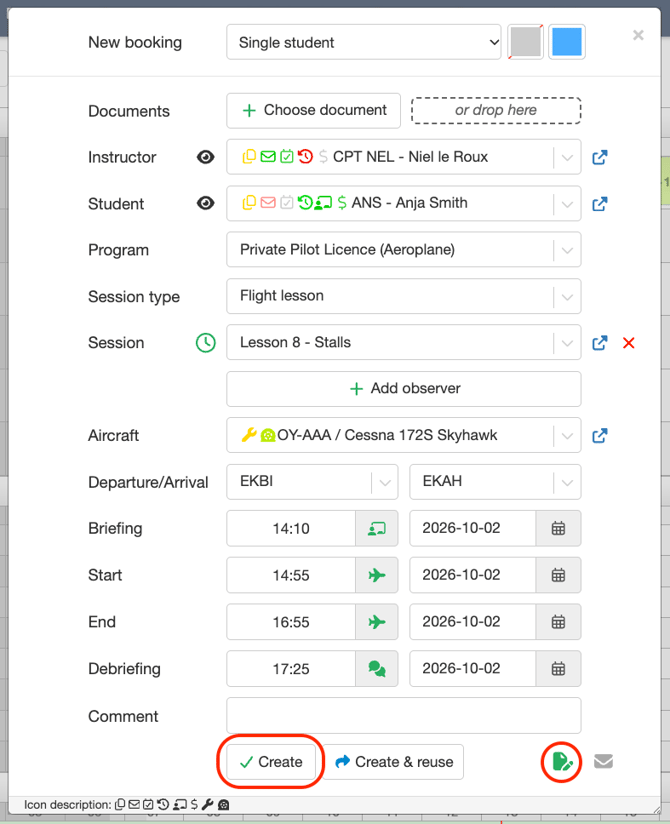
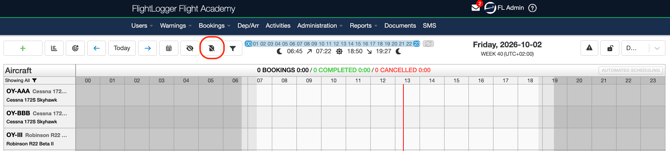
If your booking is not visible, click the Show Unpublished Bookings Tab.
The booking appears on the calendar screen with an Unpublished label, making draft entries easy to spot.

*Note: Supported Types: Draft bookings can be created for all standard booking types. However, recurring bookings are not supported in draft mode. The Unpublished and Repeat options cannot be selected together.
Editing Draft Bookings
Click any unpublished booking card to modify details as needed. Edits can be updated freely and generate no notifications or calendar updates for assigned students or instructors.
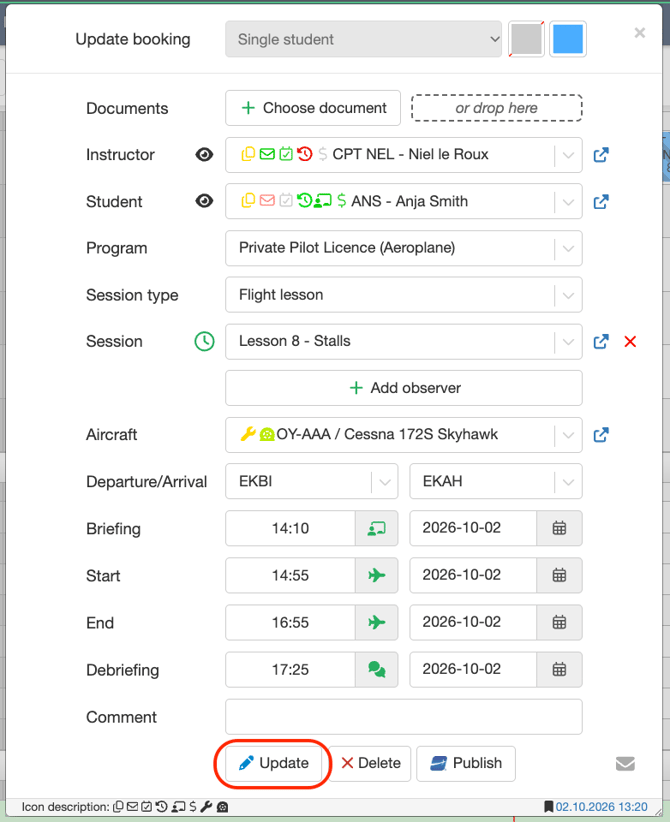
Deleting Draft Bookings
Unpublished bookings cannot be canceled because they are not live yet; they can only be deleted.
*Note: Deleting unpublished bookings requires the Create + Edit + Delete permission.
Single Booking: Open the target unpublished booking and select Delete. No cancellation record is stored, and no notifications are sent.
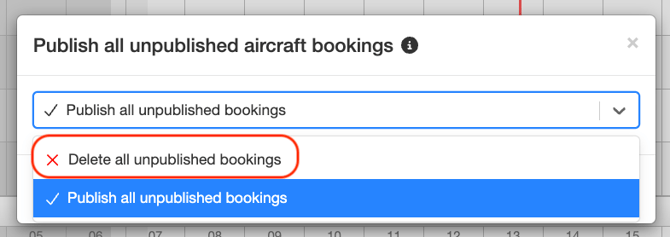
Bulk Day Clean-up: Choose the Unpublished tab.

Select the Delete All Unpublished Bookings action for a specific day and confirm. This removes all draft entries on that day without touching live, published bookings.
Publishing Bookings to the Live Schedule
Publishing converts draft entries into official, live operational bookings. This action cannot be reversed. Once published, a booking can only be canceled or deleted using standard live booking workflows.
How to Publish
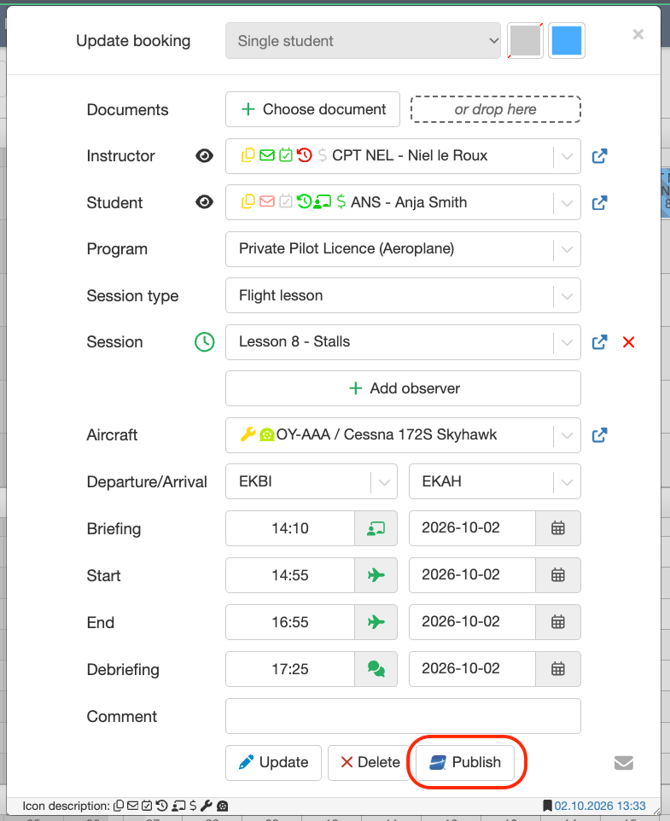
Individual Booking: Open the draft booking and select Publish.
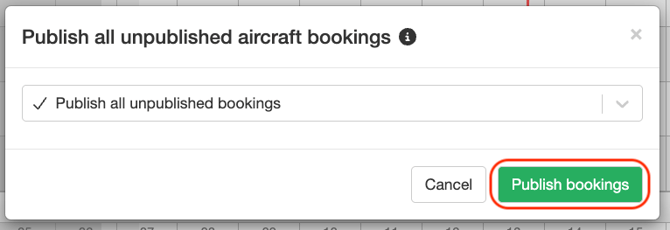
Bulk Day Publishing: Choose the Unpublished tab.
Select Publish Bookings for a specific day. FlightLogger will publish every draft booking, if there are no conflicts.
Validation Checks at Publish Time
When publishing, FlightLogger re-evaluates each booking against the current live schedule to account for any changes made since the draft was created:
Successful Publish: Bookings that pass all conflict checks go live immediately. Assigned students and instructors receive standard booking notifications, and the booking integrates into the Conflict Center, dispatch, check-in, and billing workflows.

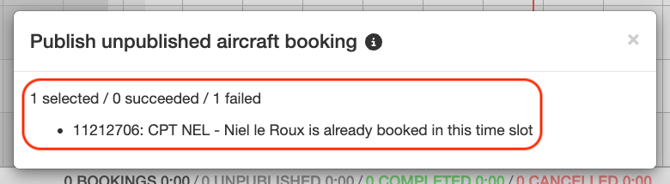
Failed Publish (Conflicts): If a conflict exists with the live schedule or another draft booking, the publish action for that item is blocked, and the booking remains unpublished with a clear explanation displayed. Unlike draft creation, conflict overrides are not permitted when publishing.
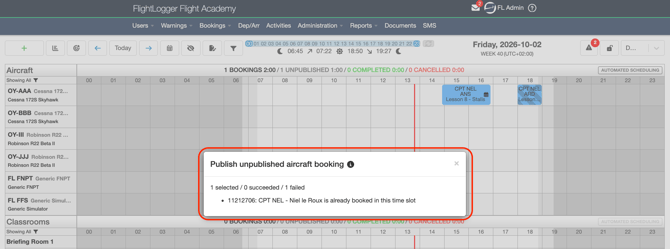
Bulk Results: When publishing an entire day, valid bookings go live while conflicting entries remain in draft status.

A summary report details how many items succeeded, failed, or were previously modified by another user.
Operational Impact & System Visibility
Until published, draft bookings remain strictly inside the planner staging area:
- They do not display as confirmed sessions for students or instructors.
- They do not trigger booking notifications.
- They do not interact with the Conflict Center, billing, logbooks, or training records.
- They do not block colleagues from scheduling live bookings in the same time slot (conflicts are flagged when you attempt to publish).
Bookings Changelog Integration
Users with unpublished permissions gain access to a Show Unpublished Bookings toggle within the Bookings Changelog view.
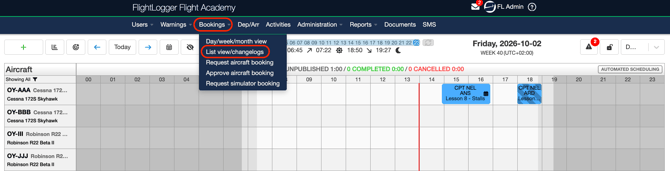
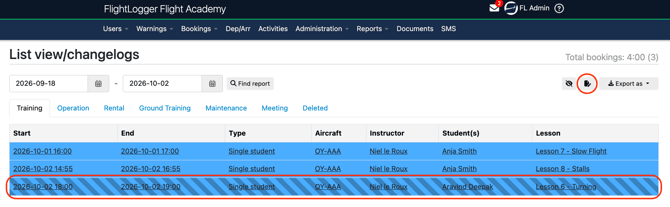
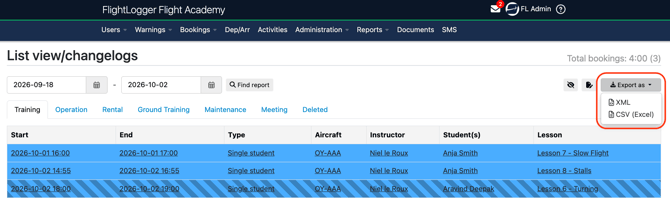
This functions similarly to the canceled bookings filter, and choices carry over to XML and CSV exports. The changelog records the full audit history of a draft booking, including edits made prior to publishing and the exact moment it transitioned to live status.
Frequently Asked Questions
Why can I not see the Unpublished checkbox in the booking window?
Your user permission is likely set to None. Ask an administrator to grant your account Create + Edit or Create + Edit + Delete under user permissions.
I am an administrator. Why can I not see my team's unpublished bookings?
Administrator status does not bypass permission rules for unpublished bookings. You must explicitly assign the permission to your own user account.
Can I revert a published booking back to an unpublished draft?
No. Publishing is permanent. If a booking was published by mistake, cancel or delete the live booking on the schedule, as you would normally do.
Why did my draft booking fail to publish when it saved without issues earlier?
Draft creation allows conflict overrides, but publishing to the live schedule strictly forbids them. Additionally, another user may have created a live booking in that time slot while your booking was in draft status. Review the error message, resolve the schedule overlap, and try publishing again.
Will students or instructors receive alerts while I am building draft schedules?
No. Notifications are sent only when bookings are officially published to the live schedule.
Need help?
If you need assistance, feel free to contact our support team via the Get Support tab inside FlightLogger