
To complete the requirement:
Log in to your FlightLogger account.
Please refer to the following article on logging in for the first time. Getting started as a new user: The Registration and Login Process
On your front page, you can add the required details directly.
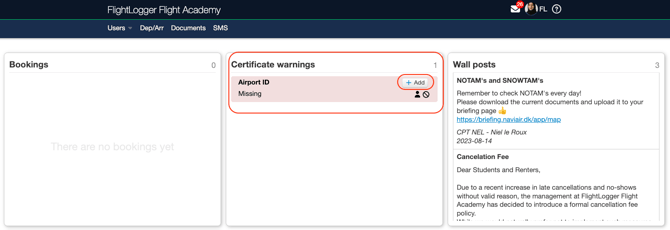
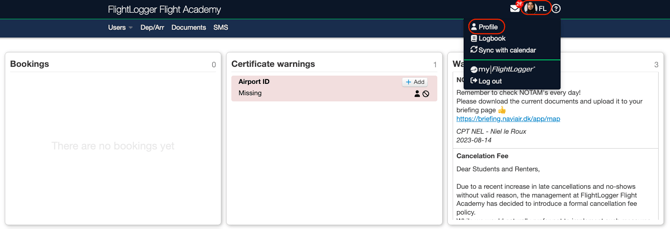
Another way to find the requirement is on your profile page. Click on your name and then choose "Profile"
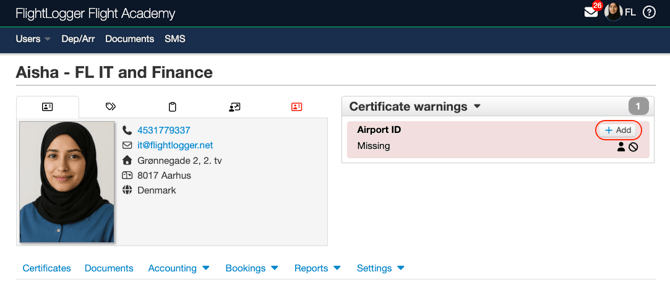
On your profile page, you’ll see all outstanding requirements in the top right-hand corner. Simply open the requirement you want to complete.
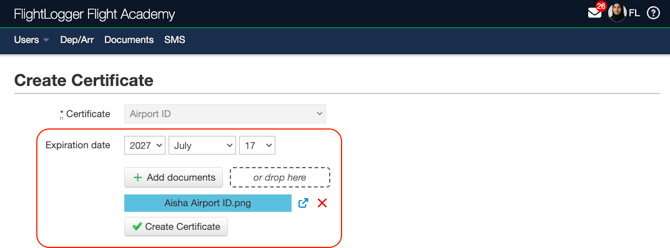
Upload the required information and create the certificate.
The requirement will now turn blue, which means it has been sent for approval to the person or people responsible. Under the "Certificates" tab, it will appear in the "Requiring approval" section.
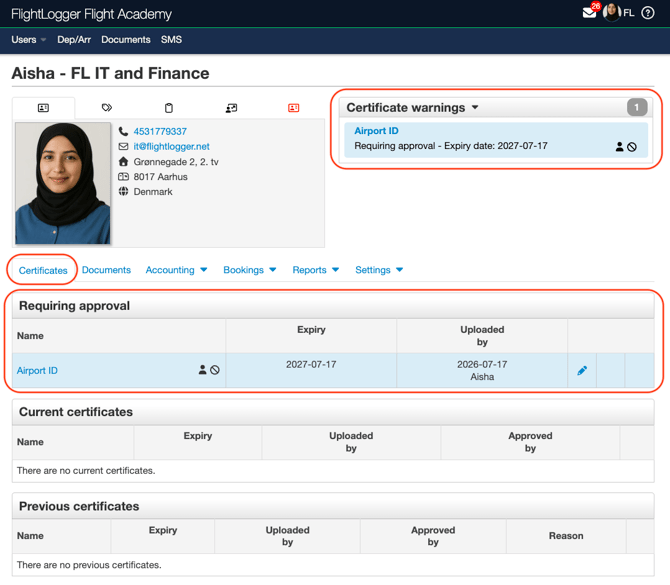
Once submitted, your flight school will review the uploaded information. If anything is missing or incorrect, they may ask you to update or reupload the document. If everything is in order, they will approve your document(s), and the certificate will move to the "Current certificates" section.
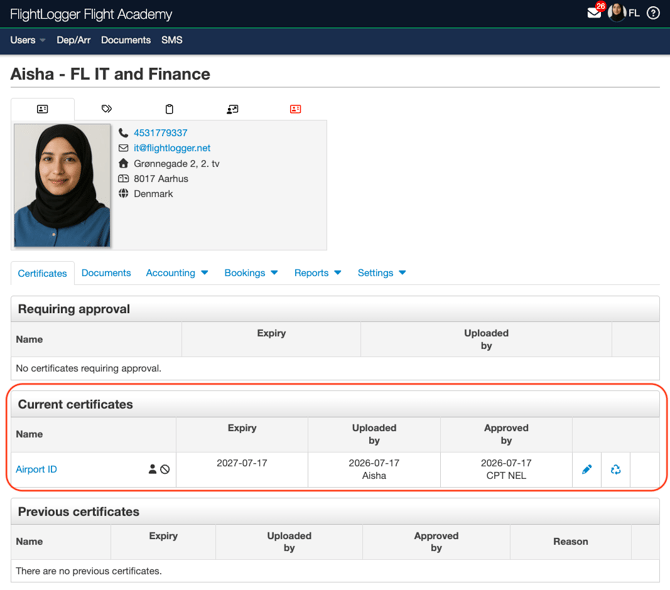
From here, if your administrators have given you permission, you can click on the document name to download or edit it.

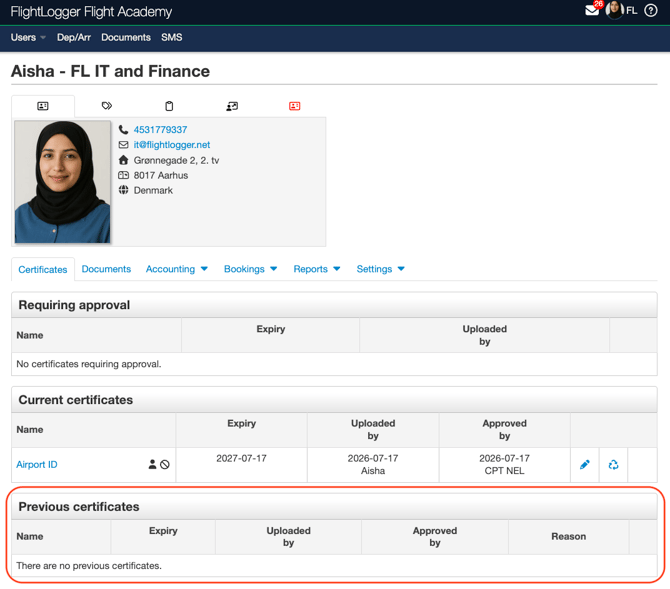
When the certificate expires and you upload a new document, the old certificate will be stored under "Previous certificates."
Before uploading your requirements, we recommend that you:
-
Make sure your files are clear and easy to read
-
Check that all expiry dates are valid before submitting
-
Contact your flight school directly if you are unsure what to upload, as they decide which documents are required and what format is accepted
Need help?
If you need assistance, feel free to contact our support team via the Get Support tab inside FlightLogger.