
Permissions
To see and export reports, you must, have the permission to view them.
See this article to learn more about Permissions.
Exporting Flight Data from FlightLogger
Every recorded flight, with all relevant data, in FlightLogger can be exported into spreadsheet formats. Whether you are extracting raw flight logs or pulling specific operational summaries, the majority of reports in FlightLogger can be exported as a CSV or Excel file for custom analysis.
The workflow
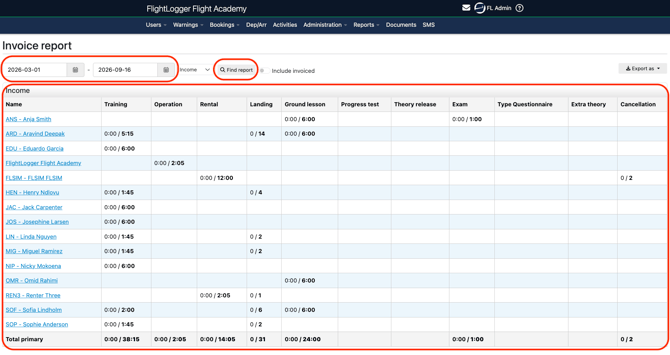
Select your desired date range using the date filters. Click Find Report to generate the on-screen preview.
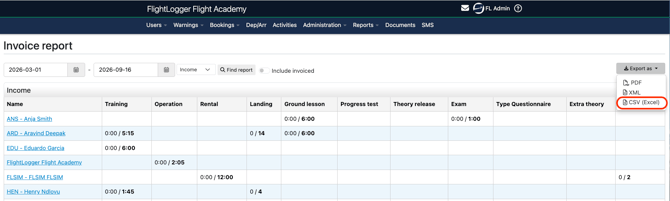
Click Export to CSV File to download the raw data file to your computer.
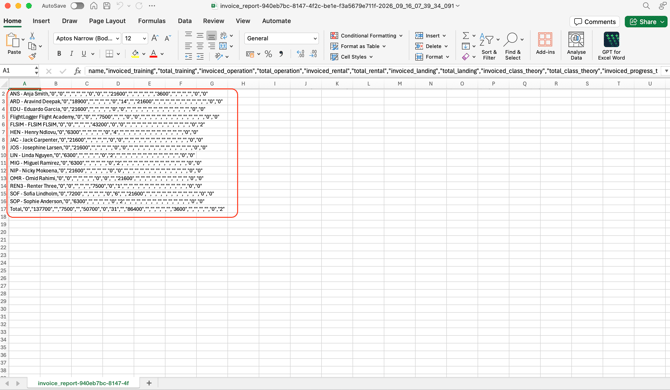
The exported comma-separated values (CSV) file contains structured records for all flight data within the chosen date range.
You are now ready to import your data.
Option A: Microsoft Excel (Legacy Import Wizard)
To preserve special characters and format decimal values correctly across different region settings:
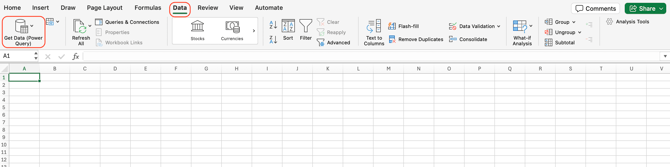
Open Microsoft Excel and create a blank workbook.Go to the Data tab in the top menu bar, click Get Data (Power Query).
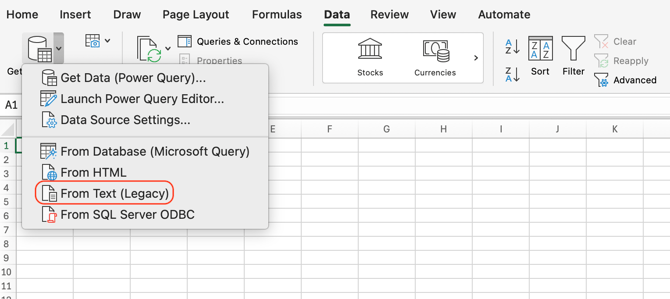
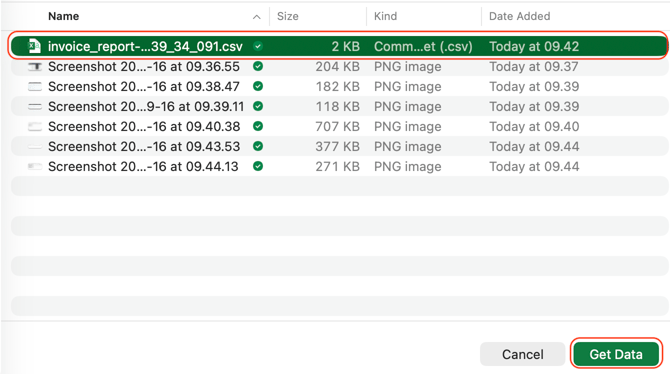
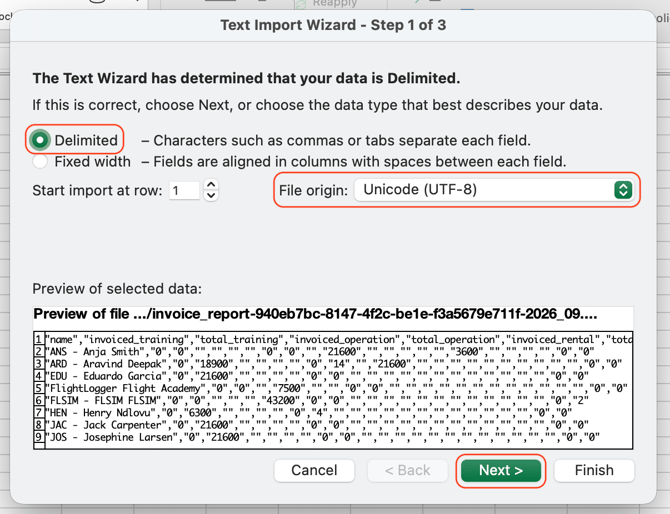
Text Import Wizard - Step 1 of 3
Select Delimited as the file type. Change the File origin drop-down menu to Unicode (UTF-8) to prevent special characters from breaking.
Click Next.
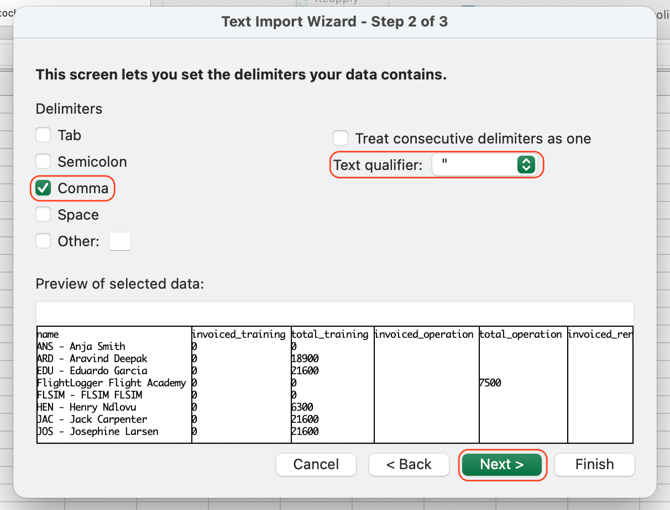
Text Import Wizard - Step 2 of 3
Under Delimiters, check the box for Comma and uncheck any other delimiters.
Set the Text qualifier to quotation marks (").
Click Next.
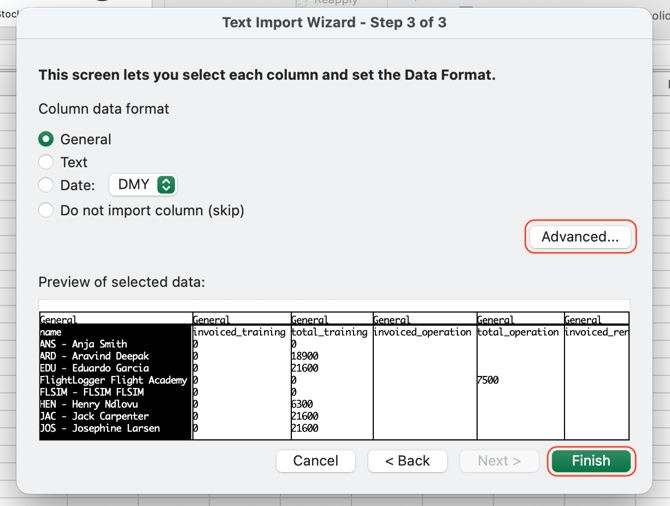
Text Import Wizard - Step 3 of 3
(Optional) If your local region uses commas for decimal points instead of periods, click Advanced... to set the Decimal separator to a period (.) and the Thousands separator to a comma (,).
Click Finish.
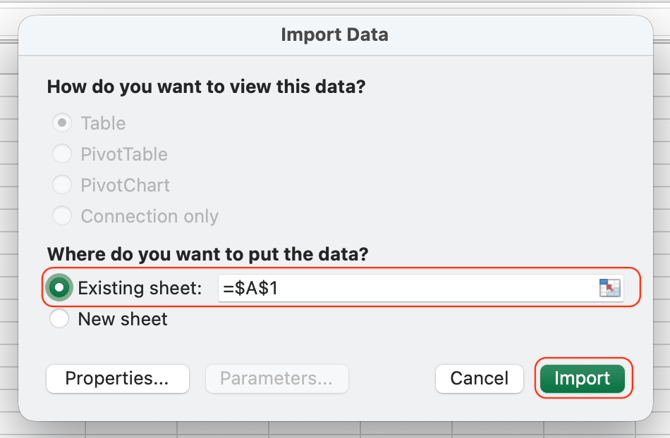
Choose where to place the data (default is cell $A$1) and click OK.
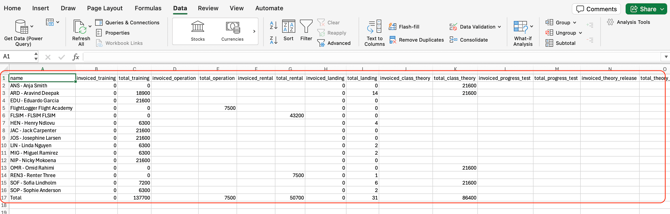
Your report is now loaded into the worksheet.
Option B: Google Sheets
Google Sheets handles UTF-8 character encoding automatically, making the import process quick and simple.
Open Google Sheets and create a new spreadsheet (or open an existing one).
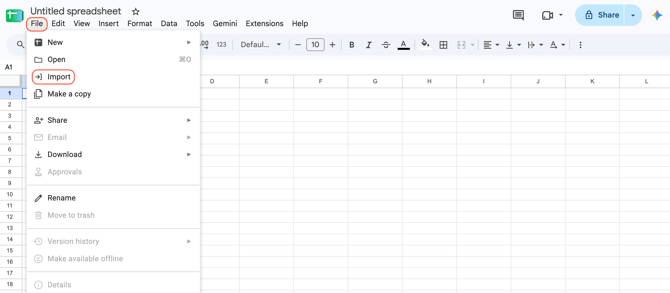
Go to File - Import.
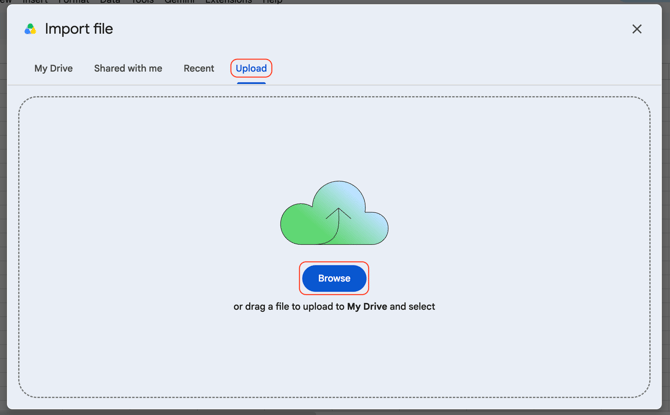
Select the Upload tab and click Browse (or drag your downloaded FlightLogger CSV export file directly into the window).
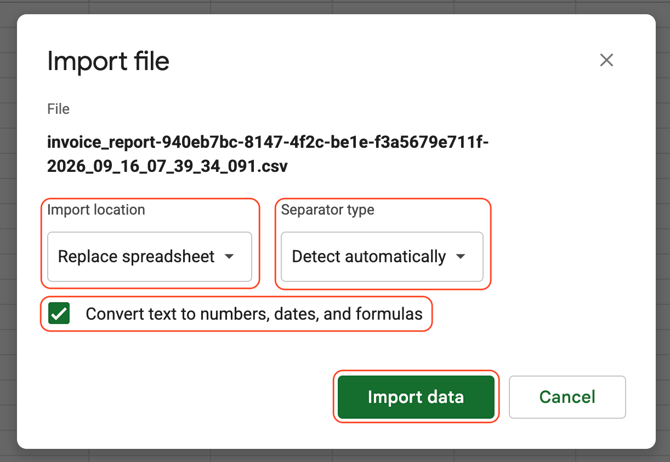
In the Import file options window, select the following:
Import location: Select Replace current sheet or Insert new sheet(s).
Separator type: Select Comma or Detect automatically.
Convert text to numbers, dates, and formulas: Keep this checked (Yes) so Google Sheets automatically formats dates and numerical flight hours.
Click Import data.
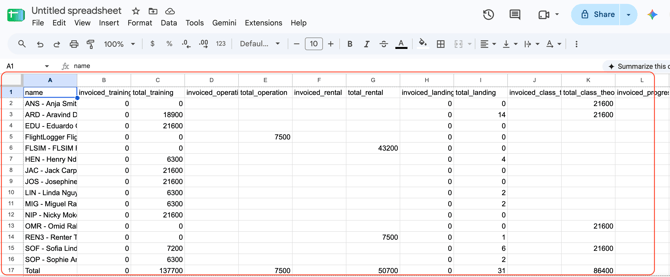
Your report is now loaded into the worksheet.
Sample Excel Template and Advanced Capabilities
FlightLogger offers a downloadable sample Excel file to demonstrate how raw flight data can be turned into automated operational insights.
What You Can Explore in the Sample Template
- Aircraft Hours Report: Track total flight time broken down by aircraft category (single-engine, multi-engine, or simulators), operation type (dual instruction, solo flights, rentals, or operational flights), and date range.
- Instructor Activity: View total flight counts and logged hours per instructor.
- Student Activity: Monitor student flight time and progress, categorized by specific training programs.
- Operational Breakdown: Categorize flight hours by activity type for cost and revenue analysis.
- Airport Utilization: Analyze departure and arrival airport frequency across your fleet.
- Dynamic Date Filtering: Adjust the custom date range at the top of the sheet to update all summaries and calculations automatically.
Download the Sample Excel File
*Note: If you are using our sample Excel template or a custom master reporting sheet, follow these guidelines to keep your automated calculations intact:
- Always Paste as Values: Copy your imported data, right-click the destination cell, select Paste Special, and choose Values. This avoids overwriting or breaking cell formulas.
- Do Not Delete Rows: Avoid deleting entire rows or columns in your template, as this can break references across other summary tabs.
- Replace FLData Only: Update only the contents of the dedicated FLData worksheet, leaving all formula and summary tabs untouched.
*Note: This sample spreadsheet was built around an earlier version of the FlightLogger raw data export. While it may not work completely out of the box with your current data without minor adjustments, it serves as a practical blueprint for designing your own custom reporting system.
*Note: FlightLogger provides the CSV export tools within the system, but our support team does not offer technical assistance for Excel formula building, macro troubleshooting, or third-party spreadsheet setup.
Need help?
If you need assistance, feel free to contact our support team via the Get Support tab inside FlightLogger.