
Creating the multi student booking
This is done by a scheduler or a user with permission to create bookings in FlightLogger.
Click through the interactive guide below at your own pace.
Steps to create a multi student booking
Set the booking type first. Choose Multi student in the booking type dropdown at the top of the booking window. Use this type whenever two students share the same flight.
Both students need a program and a session. Student 1 and Student 2 each get their own program and session selection. A multi student booking where only one student has a session will not register correctly afterwards.
Check the status icons. The coloured icons next to each student, the instructor and the aircraft show certificate status, sign-off messages, availability, flight and duty time limitations, ground training warnings and account status. Red or amber icons here are the same warnings that can block the booking — see Blocking of booking creation in case of warnings.
Booked the wrong aircraft? If the resource is wrong, open the Aircraft dropdown inside the booking window and pick the correct aircraft or simulator. You do not need to cancel and start over.
Use the clock icon to match the times. The clock icon next to Session sets the booking times from the selected session. Clicking it twice sets both the briefing times and the flight time. When the clock is green, the booking matches the session.
Click Create to save the booking.
Registering the flight afterwards
This is done by the instructor during or after the flight session.
Each student is registered separately from the same booking. Open the booking and use Proceed 1 for the first student. When that registration is submitted, return to the booking and use Proceed 2 for the second student. Each student gets their own grading, flight times and debriefing.
How PF/PM time appears in your reports
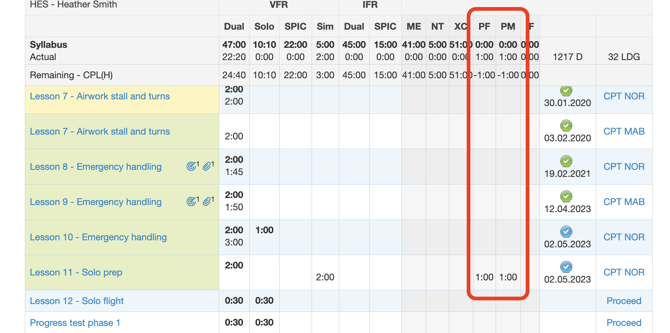
The time going into the aircraft report will only be the PF time, so you do not get a double registration in the reports — it shows as 2 lines, one for each PF. In the instructor's logbook it also shows as 2 lines, one with each student (the one who is PF).
For the students it goes into one line, but in their student folder you can see how many hours they have had as PF and as PM.
Registering a multi student booking video
Please see the video below for the instructor multi student workflow
Need to change a registration afterwards?
Please see the article Editing/deleting completed activities.