
*Note: Supported Program Types: Prerequisites apply to Combined Syllabus programs and Flight Training programs. Legacy Theory and pure LMS Theory programs do not support prerequisite rules.
Permissions
To set up prerequisites on a training program, you must, as a minimum, have the permission to view and edit programs
See this article to learn more about Permissions.
Setting Up Prerequisites
Prerequisites are configured directly inside the program settings.
Go to Administration - Programs and open your program.
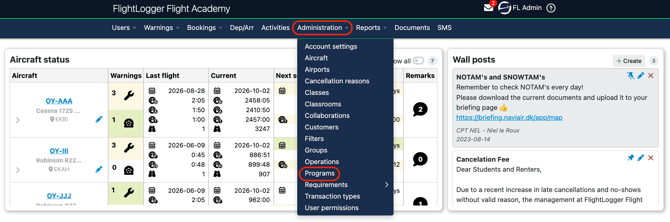
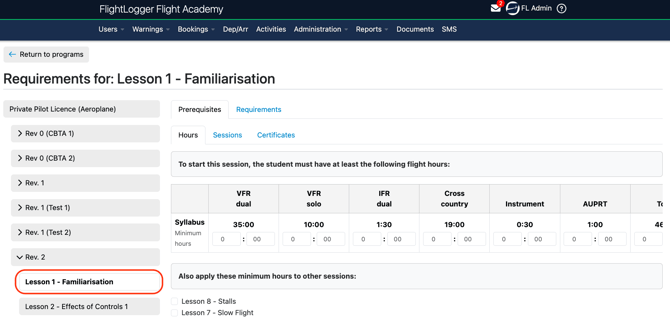
Select the program specific Requirements, Prerequisites, or Flight Duty Time tab.
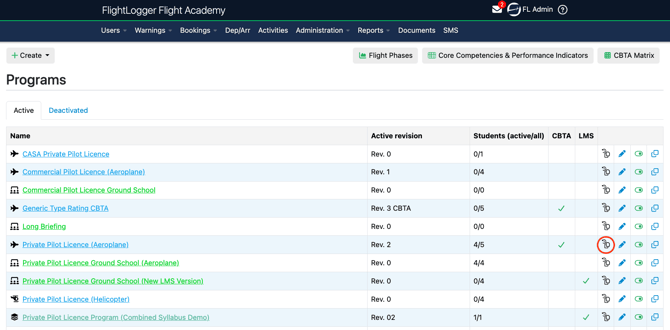
Locate the Prerequisites tab in the requirements section (positioned next to the standard Requirements tab).
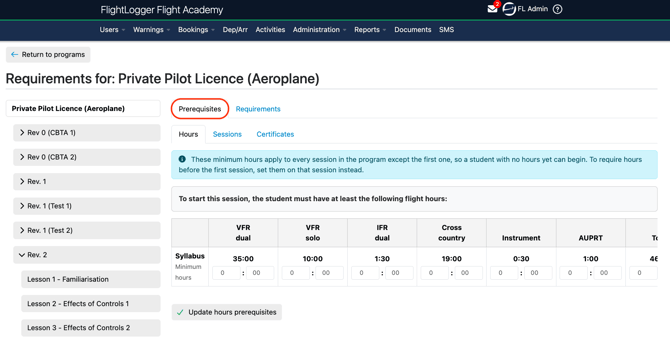
FlightLogger supports three distinct prerequisite rules, which can be used individually or combined.
*Note: All prerequisites block progress by default when requirements are unmet, displaying clear visual reasons to affected users.
Minimum Hour Requirements
Prevents a student from proceeding until they log a specific number of flight or ground hours.
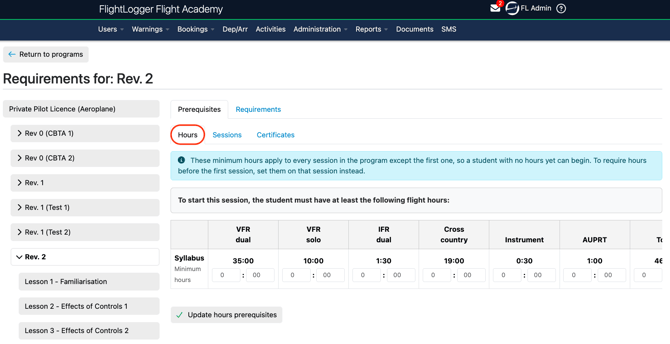
Minimum hour rules ensure students meet experience thresholds before attempting key checks or advanced maneuvers:
- Flight Hours: Define minimum total flight hours across specific hour types (e.g., IFR, SIM, PF, or PM). FlightLogger evaluates both syllabus time and additional logged time.
- Ground Hours: Specify required classroom hours across the entire program or within a specific subject.
Options in the configuration menus are automatically pulled directly from your syllabus structure.
Prerequisite Sessions
Blocks a session from starting until specified prior lessons or checks are completed.
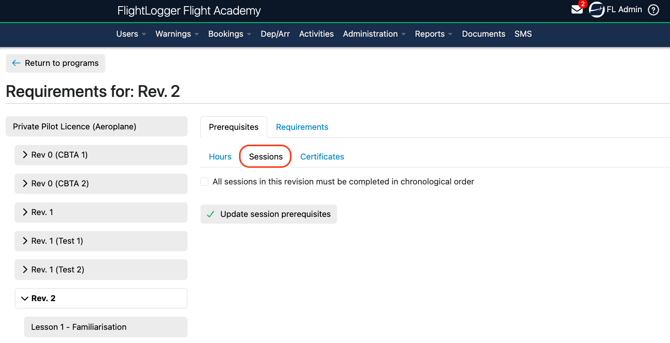
Session prerequisites ensure core skills are mastered before advancing:
- Specific Session Rules: Select precise lessons that must be completed before another session opens (for example, completing a specific ground lesson before a flight).
- Chronological Order: Toggle All sessions in this program must be completed in chronological order at the program or revision level to automatically require each session in sequence.
Prerequisite Certificates
Restricts students or instructors from proceeding or instructing until they hold a current, required certificate.
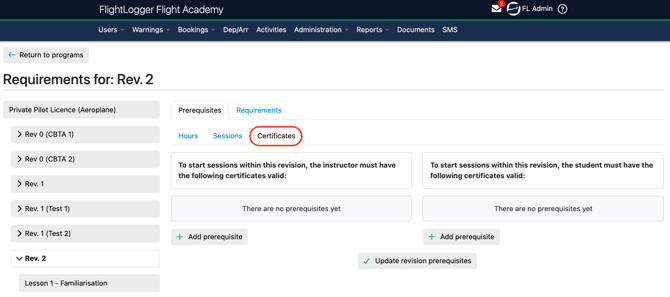
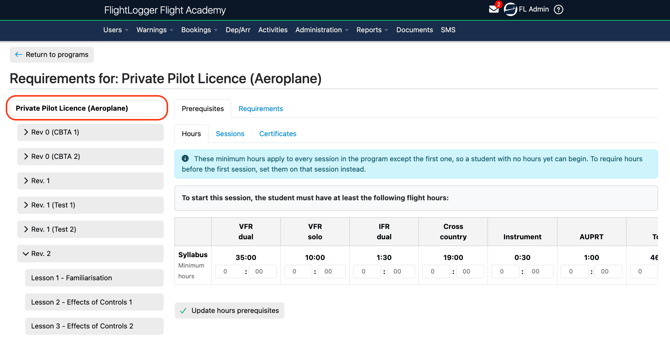
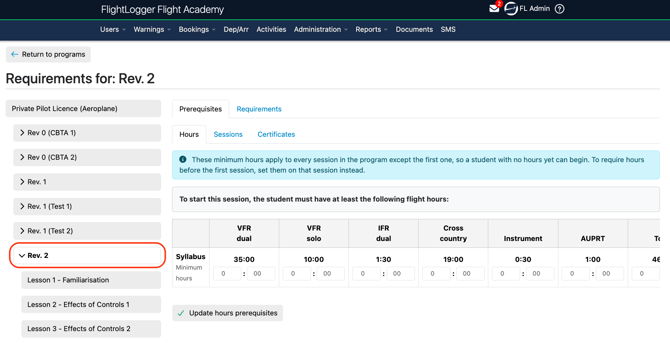
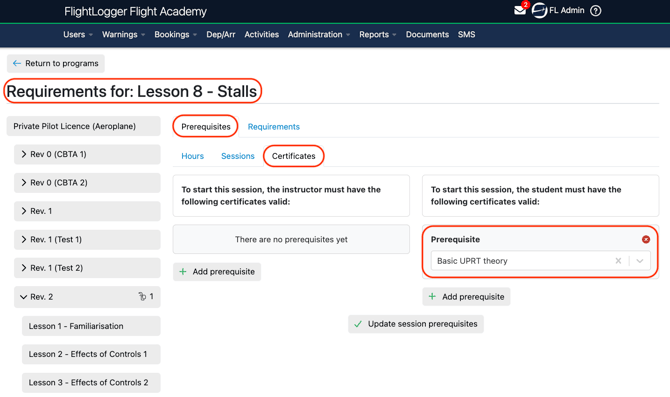
Prerequisites can be attached at three levels
Program Level: These prerequisites apply across the entire program, affecting every student enrolled regardless of their revision.
Program Revision Level: These prerequisites apply strictly to a specific revision, affecting only students enrolled in that particular version.
Individual Session Level: These prerequisites apply solely to a single session, lesson, or mission within the chosen program revision.
*Note: Prerequisite vs. Standard Certificate Requirements: A standard certificate requirement triggers after a session is completed. A prerequisite certificate attaches directly to a lesson, requiring a valid, current certificate before the session can begin.
*Note: Every prerequisite certificate must be explicitly set as either a Student Prerequisite Certificate or an Instructor Prerequisite Certificate. Students are validated strictly against student certificates, while instructors are validated against instructor certificates.
Prerequisites Are Additive, Not Interchangeable
Requirements set at the program, revision, and session levels all apply together—they never replace or overwrite one another. To instruct or participate in a given lesson, a user must hold every active prerequisite certificate required for their role across all three levels. Being current on a program level certificate does not automatically satisfy a session level requirement, and vice versa.
Example: A program requires instructors to hold a Flight Instructor Rating. A specific session inside that program additionally requires an IRI Rating. An instructor who only holds Flight Instructor Rating cannot instruct that session until they also have a current IRI Rating on file, as both certificates are required.
How Assignment Differs by Role
Students
When a certificate prerequisite is attached at the program or revision level, it activates immediately and affects the student's certificate warning icon right away. When attached to a specific session, the requirement is assigned to the student immediately, but it remains in a pending state (with no effect on their warning icon) until they complete the session directly before the one requiring the certificate.
Instructors
Prerequisite certificates are not assigned automatically. They must be added to the instructor's profile manually.
Understanding Pending Certificates
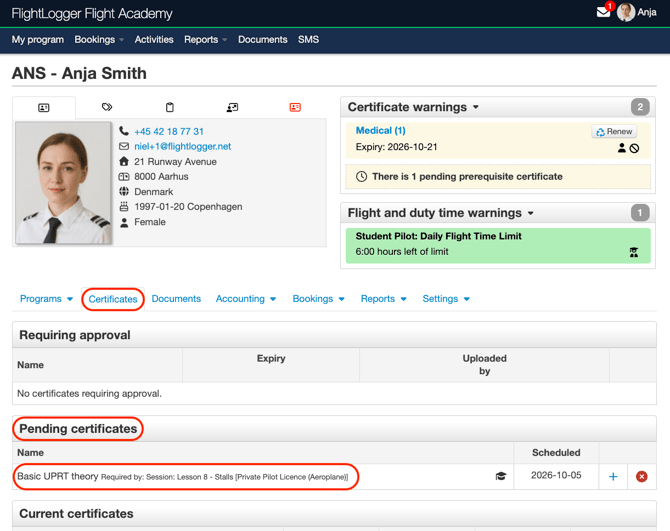
Pending certificates allow students and instructors to see upcoming requirements ahead of time.
Profile View: Users can view future requirements under Certificates - Pending Certificates on their user profile, showing why the certificate is needed and allowing early document uploads.
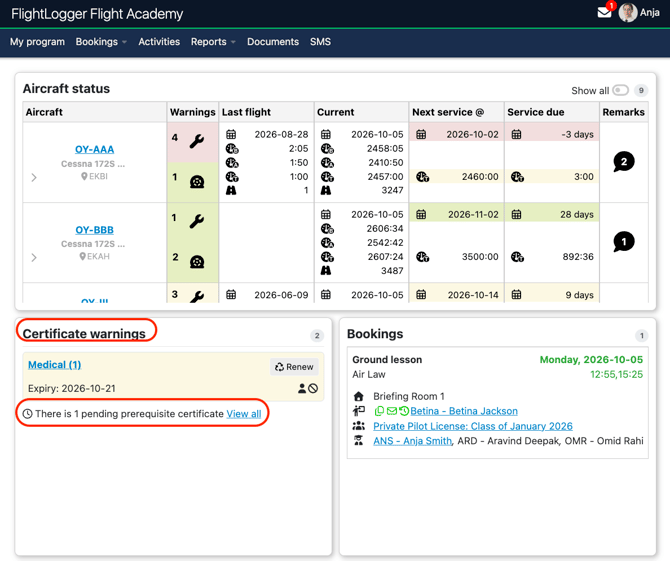
Dashboard Shortcut: The front-page certificate warnings widget includes a direct link to view pending items.
Non-Blocking Status: Pending certificates never block bookings or daily activities until they officially become active for the target session.
How Prerequisites Display When Blocked
Student Experience
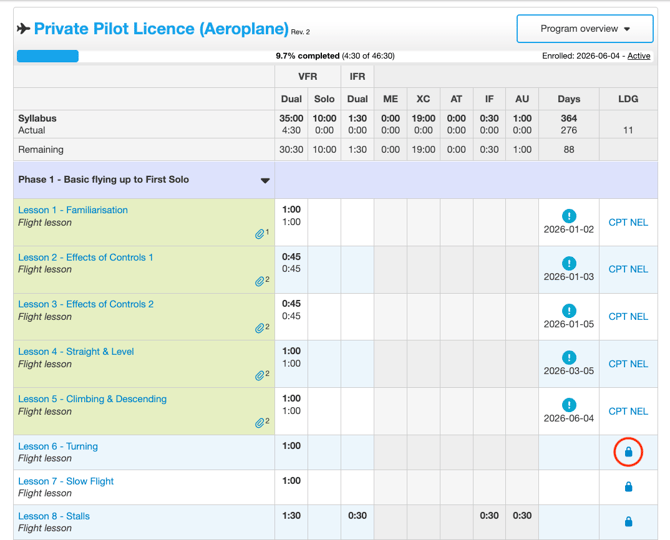
When a session is blocked, the Proceed button is replaced by a Padlock icon on the Syllabus view.
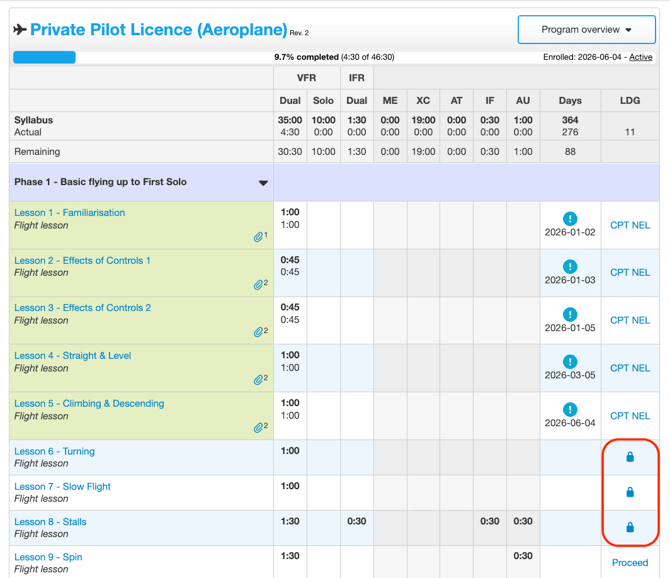
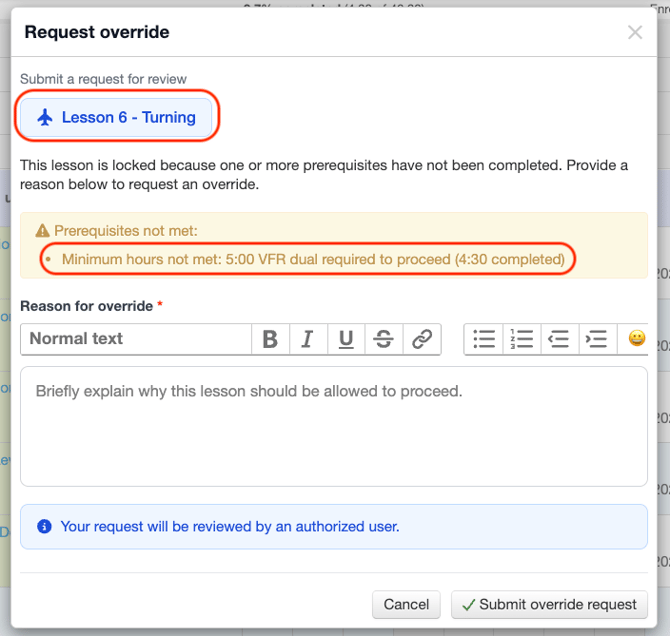
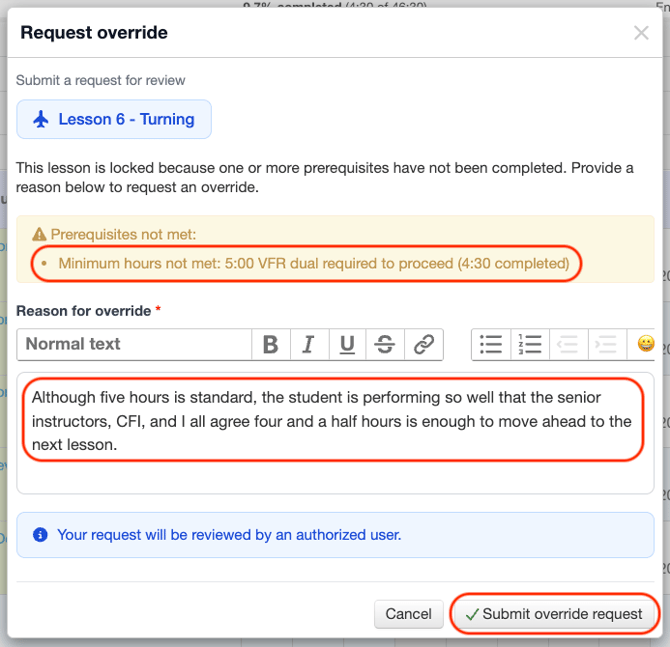
Clicking the padlock opens a pop-up detailing the exact missing item:
Minimum Hours: "[Requirement] required to proceed ([Amount Completed])"
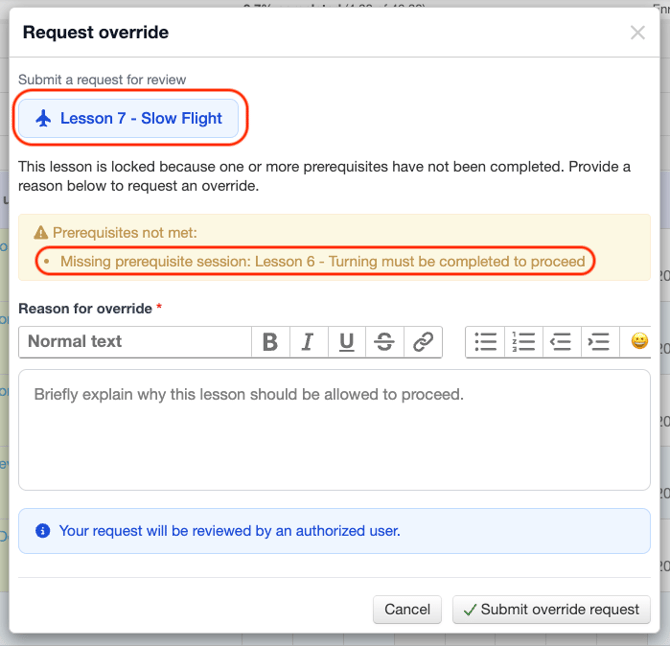
Missing Session: "[Session Name] must be completed to proceed"
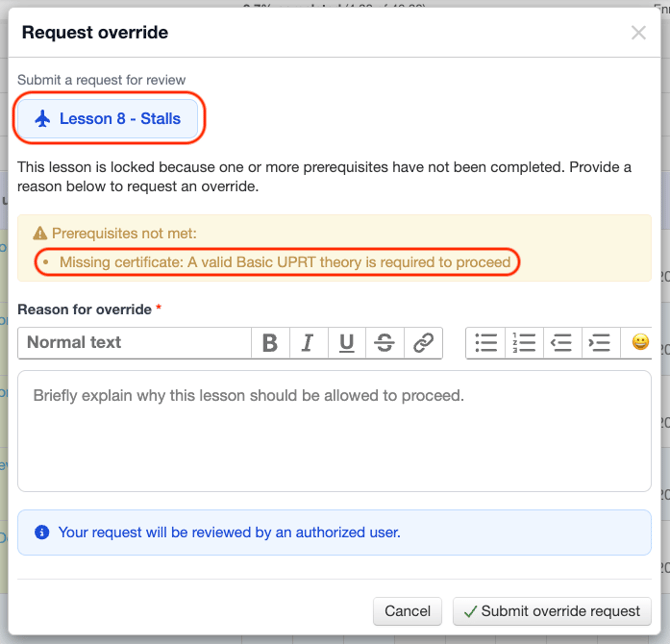
Missing Certificate: "A valid [Certificate Name] is required to proceed"
Instructor Scheduling Restrictions
If an instructor lacks a required prerequisite certificate, their name displays in red on the booking screen, preventing them from being scheduled for that session or program.
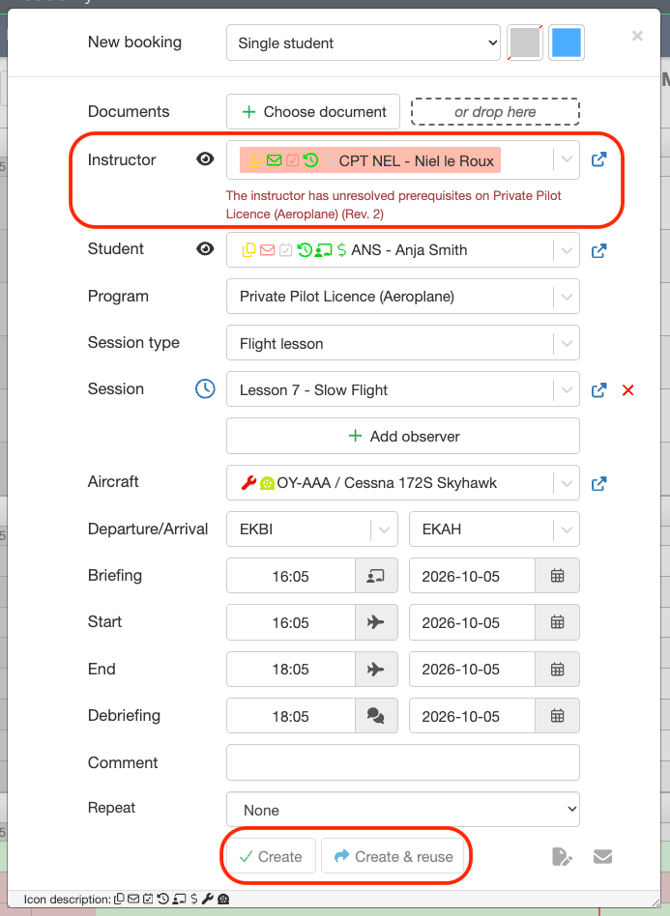
*Note: Student missing items never block instructors, and instructor missing items never block students.
Requesting and Managing Overrides
Attempting to book any lesson with an active prerequisite will automatically block the slot for the scheduler, displaying a notification that the prerequisites have not been met.
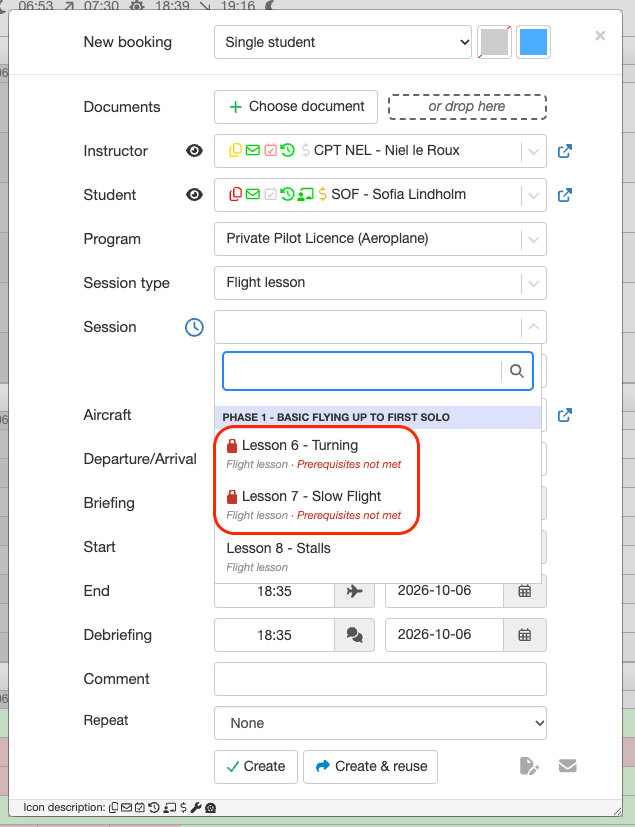
However, the instructor still has the option to bypass the restriction by clicking the Padlock icon, which opens a pop-up window detailing the exact missing items and thereby requesting an override, thereby allowing them to proceed.
Requesting an Override
Click the Padlock icon on the blocked session.
Review the unmet prerequisites and enter a mandatory explanation. Submit the request.
Approving Requests
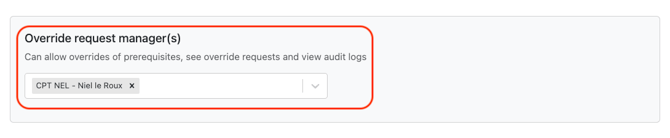
Override approval rights are governed by the Override Manager role, configured under Administration - Account Settings - Designated User Roles - Override request manager(s).
 Designated Override Managers review requests under Warnings - Override Requests.
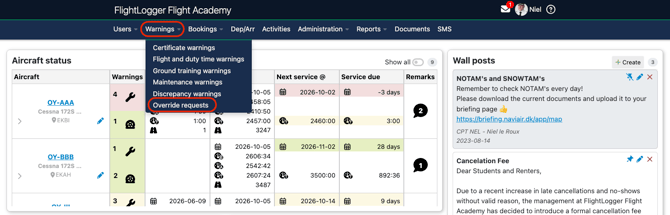
From this screen, the Override Manager can either accept or reject the pending request.

If accepted, the status updates to Accepted. If the Override manager(s)need to change the decision, they can reverse this action using the circular icon button next to the status.

Once approved, the request officially unlocks the specific session, lesson, or mission for the student.
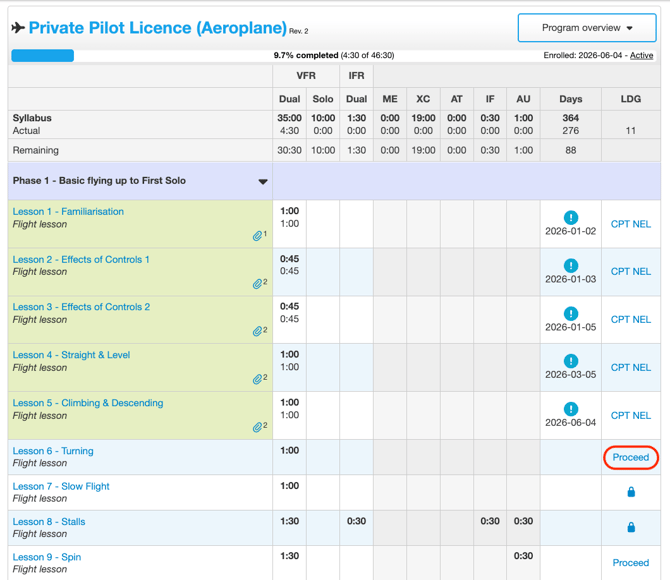
Audit Log
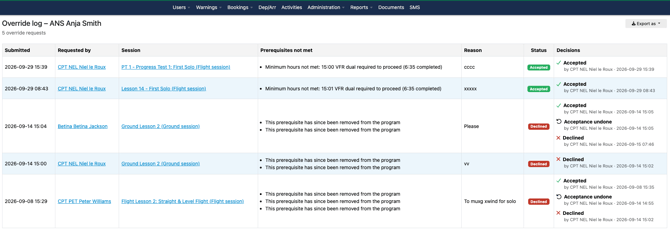
Every override action is recorded in a permanent compliance log, capturing requester details, timestamps, reason statements, affected sessions, and the approving manager.
To review this information, go to the student's profile page, select Reports, and click Override Log.
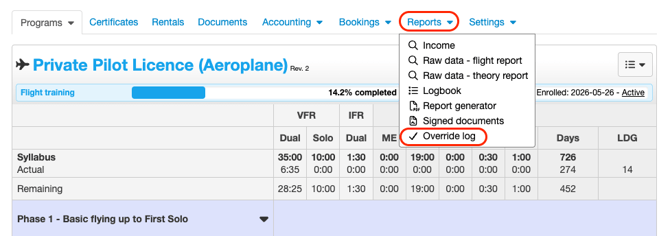
You can now view the complete audit details.
Need help?
If you need assistance, feel free to contact our support team via the Get Support tab inside FlightLogger.