
All instructor workflows in FlightLogger follow the same structure, whether you are using a laptop, tablet or any other mobile device. The steps for registering and completing a flight are identical across devices, ensuring a consistent experience regardless of where you access the system.
Click Here to see video presentation 👈🏻
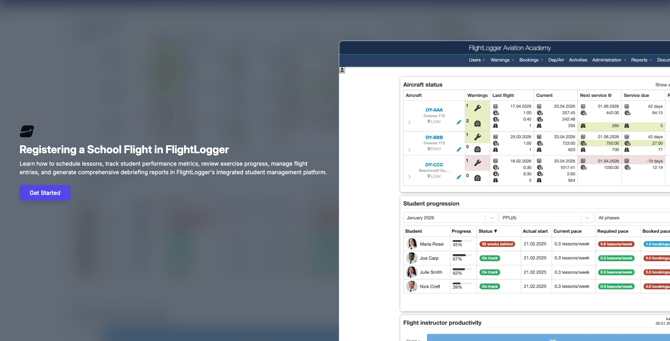
Below, you will find a step-by-step guide on how to complete a flight as an instructor, including a detailed explanation of each stage to ensure accurate and complete training records for your students.
Instructor proceeding on a flight
To begin a flight, access the Booking widget directly from your FlightLogger dashboard.
From the booking overview, you will see any relevant warnings related to:
- You as the instructor
- The student
- The aircraft
Before proceeding, make sure to review these warnings carefully.
As an instructor, one of your most important responsibilities in FlightLogger is to register your flights accurately, ensuring that all data is up to date and available to the rest of the organisation.
Click Proceed on the booking to continue.
Accessing the student and lesson
After clicking Proceed, you are taken to the student profile.
Here, you will see:
- An overview of the student’s previous performance
- The lesson linked to the booking (highlighted in blue)
If no lesson is linked to the booking, no lesson will be highlighted. In this case, you can manually select the relevant lesson by clicking Proceed next to the desired lesson.
Flight registration
Once you proceed, you will enter the flight registration view, which consists of the following tabs:
- Briefing
- Performance
- Grading
- Flight
- Debriefing
This view supports offline functionality. If your internet connection is lost, a red indicator will appear. Any entered data will be synchronised automatically once the connection is restored.
Briefing
The briefing tab is available to both instructors and students prior to the flight.
Students can:
- Review briefing content and materials
- Upload attachments (e.g. weight & balance, performance calculations)
These attachments will be visible to the instructor.
At the bottom of the page, instructors can add briefing comments to document important notes before the flight.
Performance
The performance tab provides insights into the student’s recent progress.
This includes:
- An AI-generated summary based on the student’s last three flights
- Recommended focus areas for the upcoming lesson
The summary is generated from previous debriefings.
Depending on your organisation’s setup, additional data may be available:
- Business Insights (grading insights)
- CBTA Pro data (if enabled)
Grading
The grading tab contains the exercises to be assessed during the flight.
The grading scale is defined by your organisation.
Use this tab to evaluate student performance across the relevant exercises for the lesson.
Flight
The flight tab contains all flight-related data.
- The aircraft will be pre-selected based on the booking
- If no booking is used, the aircraft must be selected manually
Flight data is initially populated based on the lesson setup, but can be adjusted as needed.
You can:
- Edit flight times and types
- Add additional landings (e.g. touch-and-go or full stop)
- Add additional flight legs if required
It is also possible to submit the flight before completing grading and debriefing.
This ensures that:
- Aircraft usage is recorded
- Operational data is updated in the system
You can return later to complete the remaining sections through you dashboard.
Debriefing
In the debriefing tab, instructors can document the outcome of the flight.
We strongly recommend writing a detailed debriefing, as this:
- Supports student learning
- Improves the quality of AI-generated summaries
You can also use:
- Instructor notes (internal only – not visible to students)
- Student notes (visible and editable only by the student)
Additional actions before submission
Before submitting the flight, you have quick access to:
- Contact feedback receivers
- Contact maintenance
- Submit a safety report
- Report an aircraft discrepancy (Squawk)
Need help?
If you have any questions about instructor workflows or flight registration in FlightLogger, please contact us at support@flightlogger.net.