
*Note: The rental registration workflow described below applies to both aircraft and simulator rentals. So, whether you are registering a flight in an aircraft or a session in a simulator, the layout, time logging, document attachments, and debriefing steps remain the same.
Open the Booking from Your Overview
Once logged in, your main page displays your assigned operations alongside your certificate warnings, wall posts, and aircraft status overview.
Locate the relevant rental booking on your main page.
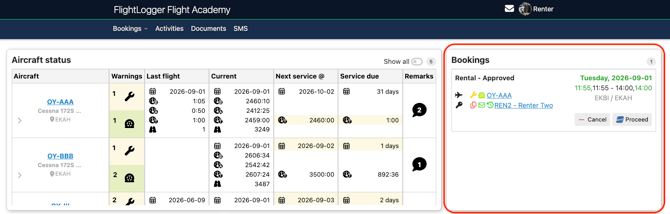
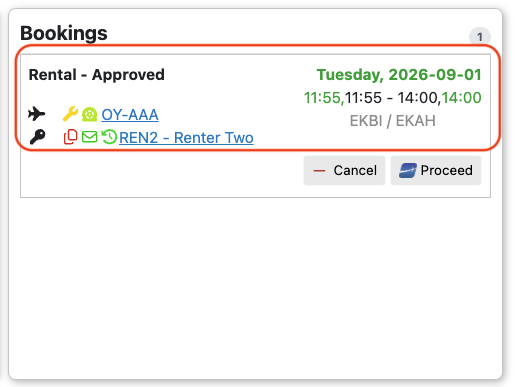
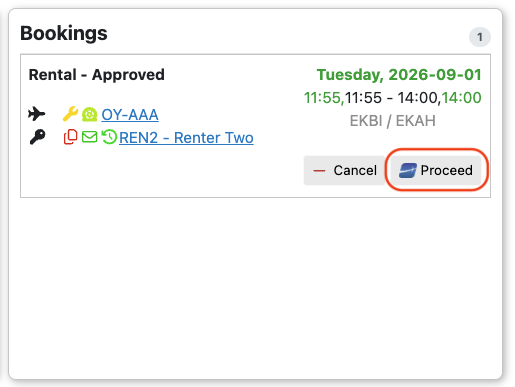
In the booking widget, you can see all key details regarding your operation. This includes the flight date highlighted in green, the assigned aircraft, your name, and just as important, the fact that your rental request has been approved.
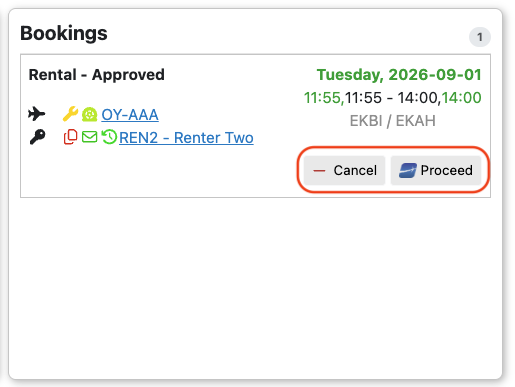
From the booking widget on your front page, you can either cancel the booking if needed, or proceed directly to the flight registration page.
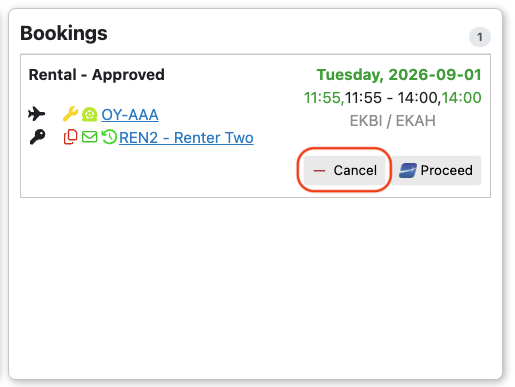
Choosing to Cancel the booking
If you need to cancel a booking due to weather, maintenance issues, or any other reason, simply click Cancel on the booking widget.
This will open the booking cancellation page, where you must select a default cancellation reason. If you wish to provide more details, you can elaborate in the comments field.
If you know in advance that the flight will not take place, you can also notify the client via email.
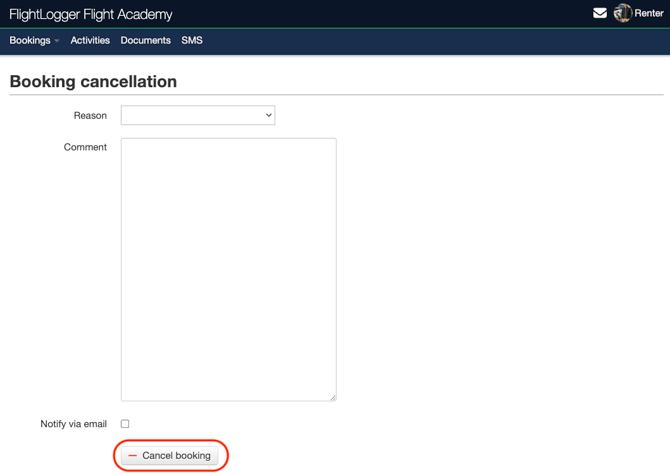
Once you click Cancel Booking, the following actions occur automatically:
- The flight is removed from your main dashboard page.
- The cancellation can be found on your personal profile page, under the Bookings tab.
- The booking status updates to Canceled for the schedulers overview.
- The flight is recorded in the administrative cancellation report for your organization's administrators.
Proceeding on the booking
Clicking Proceed will open the flight registration page, where you can log all your flight data.
Briefing Tab
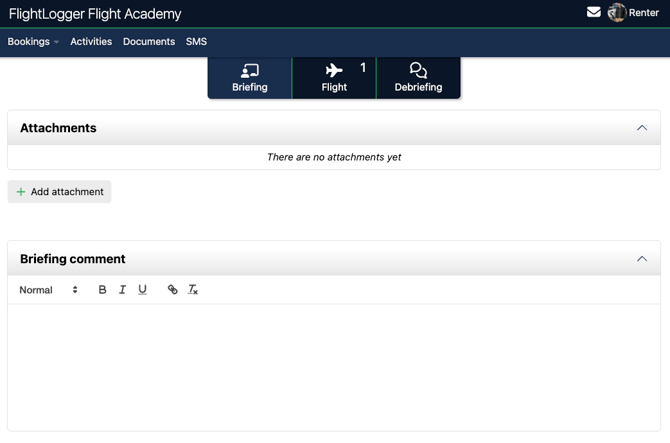
- Attachments: You can add any relevant attachments, such as weight and balance calculations, fuel receipts, or flight plans, directly to the booking. These files will be saved automatically to the flight record.
- Briefing Comment: Enter relevant pre-flight notes, operational instructions, or briefing details.
* Note: FlightLogger automatically saves your progress as a draft while you work. If your browser refreshes or you accidentally navigate away from the page, your entered data remains saved when you return.
Flight Tab
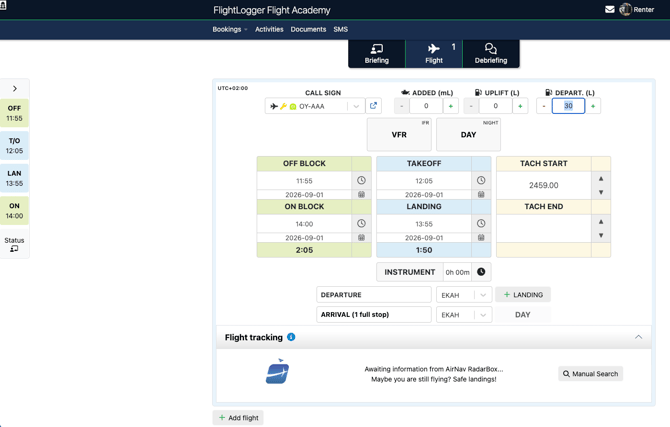
This tab contains the primary logging data for your operation:
- Flight Details: Confirm the aircraft and register oil and fuel uplift.
- Flight parameters: Set your flight parameters, including VFR/IFR, as well as Day/Night.
- Quick Action Buttons: Use the action buttons on the left hand side of the page to record Off Block, Takeoff, Landing, and On Block times in real time, even while offline. These buttons automatically populate the time fields based on your operational progress and aircraft taxi settings. You can hide or show these action buttons at any time using the arrow icon.
- Manual Timer Input: If you prefer to enter times manually after the flight, adjust the single combined hours and minutes dropdown field.
- Departure, Arrival & Landings: Confirm your departure and arrival locations. You can log additional full-stop landings, touch and goes, or published approaches at different airports by selecting the amount, type, and location.
- Multi-Leg Flights: For operations involving multiple legs or destinations, click Add Flight at the bottom of the page to add extra flight segments.
- Flight Tracking: If your organization integrates with a tracking provider, your flight tracks will be shown here.
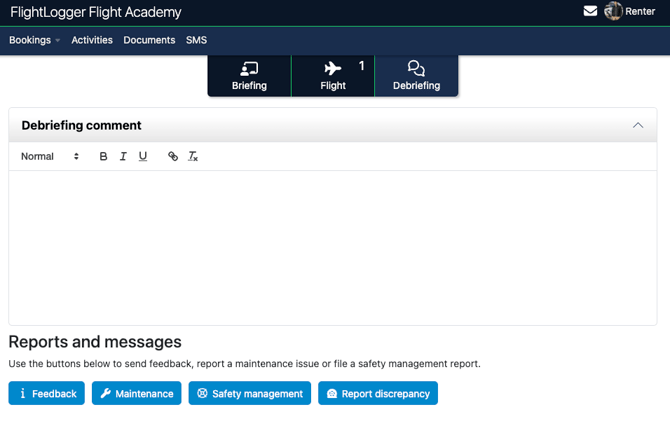
Debriefing Tab
- Debriefing Comment: Record post-flight notes or general operational feedback.
- Direct Reporting: Use the dedicated action buttons to file a Maintenance Report, Discrepancy report, send general Feedback, or submit a Safety Management System (SMS) Report directly to your safety manager.
Submit the Registration (Electronic signature)
If enabled by your organization, FlightLogger will prompt you for an electronic signature to officially sign off on the flight.
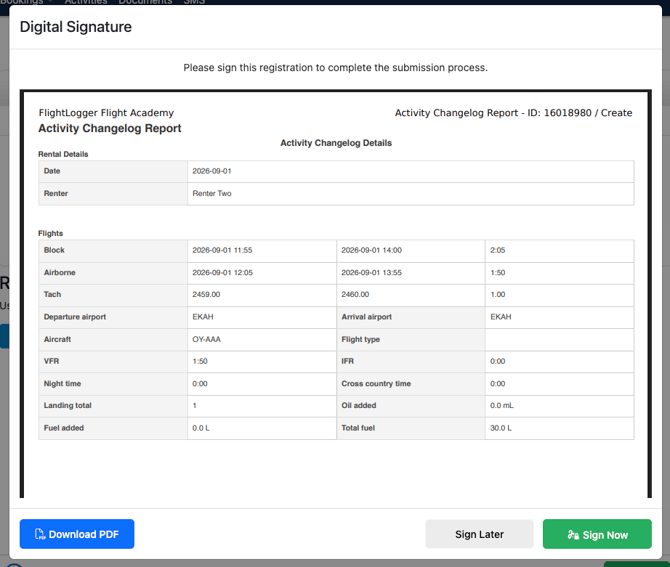
FlightLogger will validate all entered times and details. Once successfully registered, you will return to your dashboard, and the completed operation will be removed from your active list and stored in your account history and logbook.
Need help?
If you need assistance creating or structuring your training programs, feel free to contact our support team via the Get Support button inside FlightLogger