
Prerequisites & Role Access
Only users assigned the Renter role in FlightLogger can access and request simulator slots.
*Note: If you do not see the option to request a simulator rental, contact your provider's FlightLogger administrator to confirm that your account permissions are active.
Step-by-Step: How to Request a Dry-Lease Simulator Slot
Navigate to the Simulator Booking Calendar
Log in to your FlightLogger account:
In the top navigation bar, go to Booking. Select Request Simulator Rental.
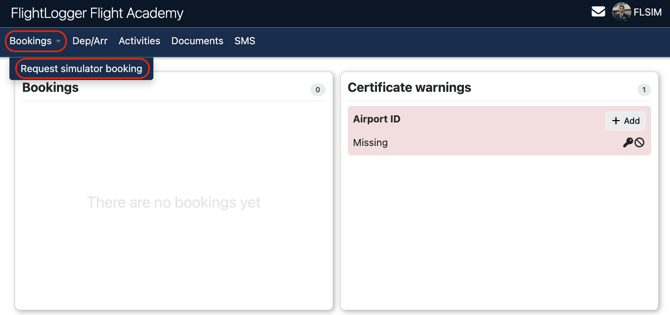
This opens the Simulator Rental Calendar, displaying all assets assigned to your account.
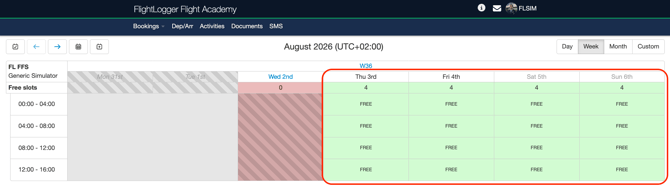
The calendar displays all open, pre-configured simulator slots published by your provider.
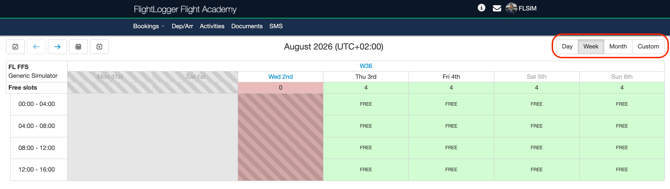
Calendar View Modes: Switch between Daily View (hour-by-hour details), Weekly View (full week overview), or Monthly View (long-term schedule planning) using the view toggles at the top of the calendar.
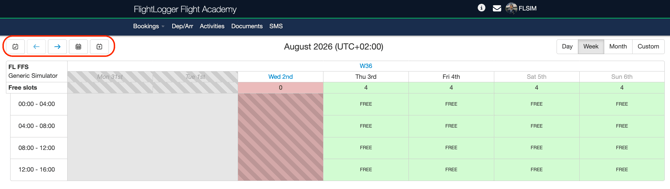
Navigation Tools: Use the forward/backward arrows to jump between weeks or select a specific target date.
Fixed Slots: You must request complete, published availability blocks (e.g., a full 4-hour slot). Partial slot requests or bookings outside published availability are not permitted.
*Note: If you do not see the specific simulator you need on your calendar, contact the FlightLogger administrator at the facility you are renting from so they can update your account permissions to include that asset.
Select and Configure Your Slot Request
When you find an open slot that meets your operational requirements:
- Click directly on the desired time slot block to open the request window.
- Complete the request form:
Attachments: Upload required documentation (e.g., dry-lease agreements, crew credentials, or approvals) if requested by your provider.
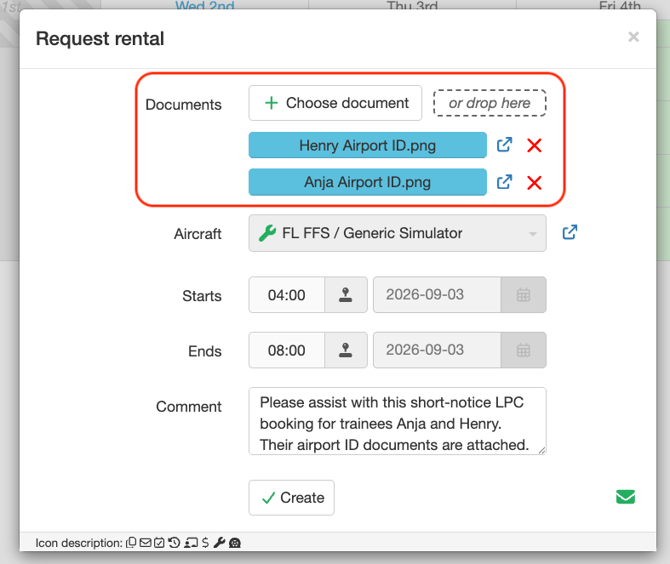
Booking Comments: Enter operational details (e.g., flight numbers, training purpose, or specific crew notes).
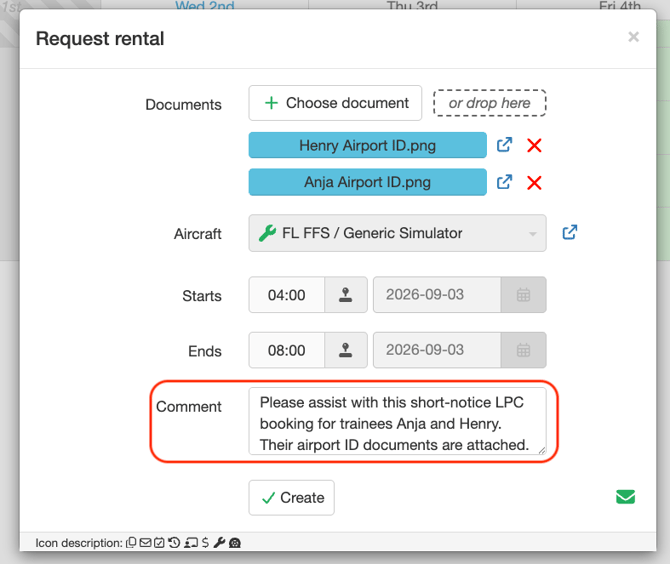
Click Create to submit the reservation request.
Your request will immediately appear on your FlightLogger Front Page with the status set to Pending Approval.
Confirmation and Next Steps
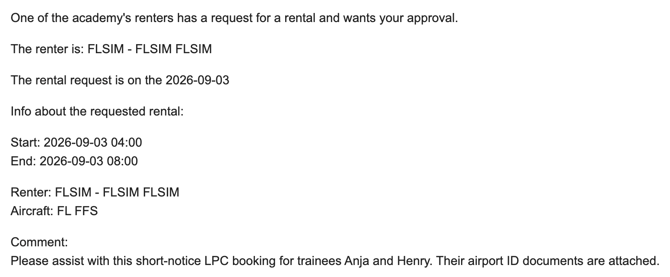
Your request is routed to the provider's booking administrator for review. The admin will get notification via:
Email Notification
On the Admin Dashboard
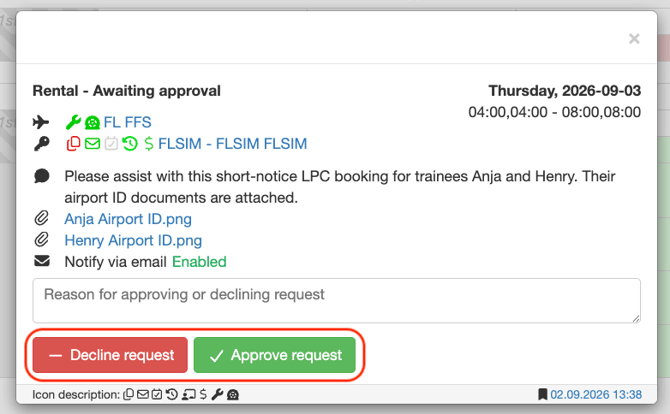
Once approved, the slot becomes a confirmed booking on your schedule. Following your session, you can proceed with registering the completed simulator time (if self-registration is enabled for your account).
For more information on completing and logging your flight, please see our detailed guide on Registering an Rental Flight.
Best Practices & Tips
- Unscheduled Availability: If you require a simulator slot at a time not currently listed on the calendar, contact the facility's administration team directly. They may be able to publish an additional slot for your session.
- Documentation: Always upload necessary training or lease documentation during the initial slot request to expedite the administrator's approval process.
- Cancellations & Adjustments: If you need to cancel or modify a pending or approved slot request, contact your provider's operations team.
Need help?
If you need assistance creating or structuring your training programs, feel free to contact our support team via the Get Support button inside FlightLogger