
Submitting a Booking Request
Log in to your FlightLogger account. Navigate to the Bookings tab in the top navigation bar. Select Request Aircraft Booking
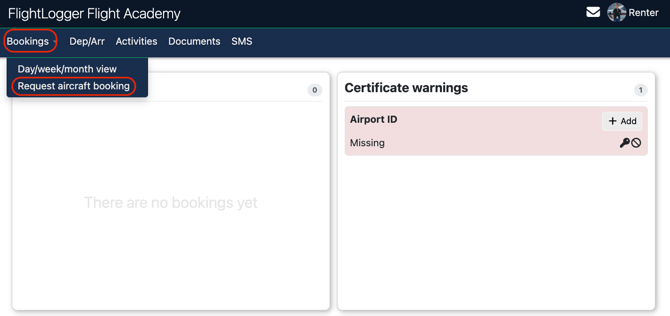
This will open the Rental Calendar, select your target dates using the navigation tools:
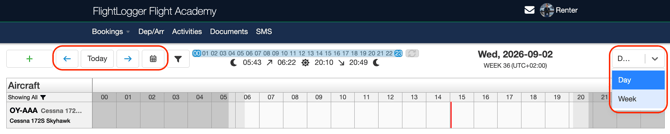
- View Toggles: Switch between Day or Week views to adjust the display range.
- Date Navigation: Use the date controls or forward/backward arrows to jump directly to specific dates or periods.
- Simply drag and drop the time period you want to rent the aircraft for.
.Fill in the required booking details on the request form:
Date and Time: Select your target departure and return times.
Resource Selection: Choose your preferred aircraft tail number or simulator.
Flight Details: Specify departure and arrival locations
Comments & Documents: Include any notes for operations or attach required documents (e.g., license or medical updates).
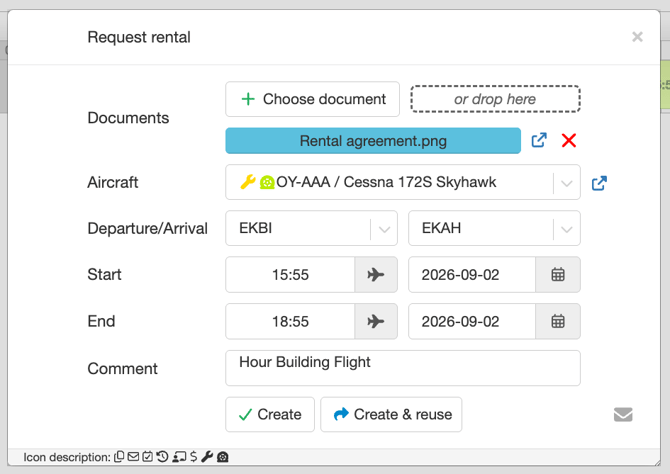
Click Create to submit your request.
Confirmation and Next Steps
Your request is routed to the provider's booking administrator for review. The admin will get notification via:
Email Notification
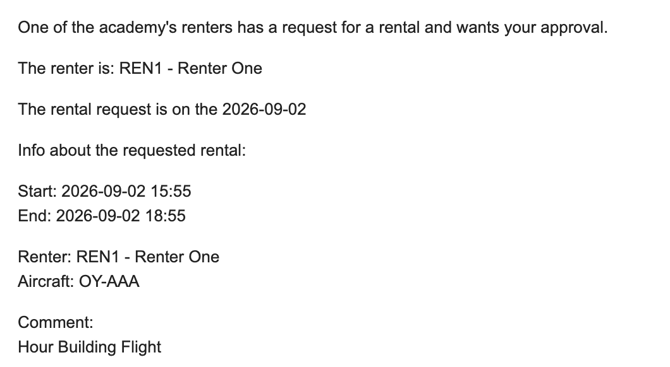
On the Admin Dashboard
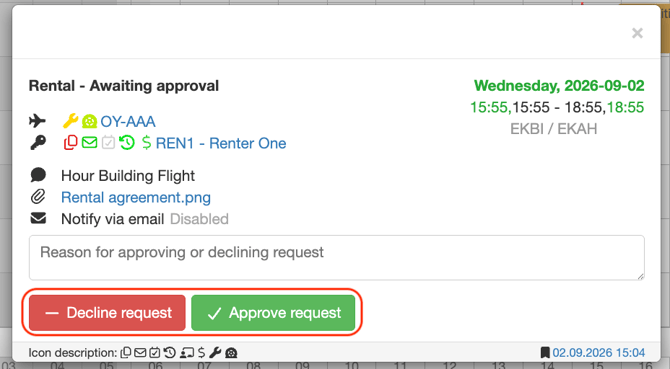
Once approved, the slot becomes a confirmed booking on your schedule. Following your session, you can proceed with registering the completed simulator time (if self-registration is enabled for your account).
For more information on completing and logging your flight, please see our detailed guide on Registering an Rental Flight.
Best Practices & Tips for Aircraft Renters
To ensure a smooth rental process and avoid delays on your flight day, keep these tips and best practices in mind:
- Keep Your Documents Current: Documents like a valid pilot license, medical certificate, flight review (BFR), and passport or ID ahead of time. Missing or expired documents can prevent administrators from approving your booking requests.
- Double-Check Currency Requirements: Verify that you meet your organization’s recency requirements (such as 90-day landing currency or club checkout status) before submitting a booking.
- Provide Detailed Booking Notes: When submitting a request, use the Comments field to inform operations of your flight intent, especially if you are planning cross-country flights, night operations, or off-field landings.
- Book Margin Time for Flight Prep: When selecting your booking window, include adequate buffer time before takeoff for preflight inspections/weather briefings and after landing for post-flight registration and secure tie-down.
- Monitor Your Request Status: Always check your FlightLogger dashboard to verify that your booking status has updated from Awaiting Approval to Approved before arriving at the flight line or airfield.
- Prompt Post-Flight Registration: Complete your flight registration and log tach/hobbs times immediately after shut down while all operational data and fuel receipts are fresh.
Need help?
If you need assistance creating or structuring your training programs, feel free to contact our support team via the Get Support button inside FlightLogger