
Setting Up Before Your First Run
To ensure accurate suggestions, review these account settings prior to generating a schedule.
- Set up User Permissions
- Confirm target dates and active statuses are set in the Student Progression module.
- Define your weekday operating hours for day, night, and simulator flying.
- Review turnaround times and gap buffers under your account booking settings.
- Check that instructor certificates, aircraft qualifications, and base locations are up to date.
- Ensure student and instructor availability windows are correctly logged.
User Permissions
Under the user role or permission group settings, set the permission to view, create, edit, or delete unpublished bookings to the create and edit level or higher.
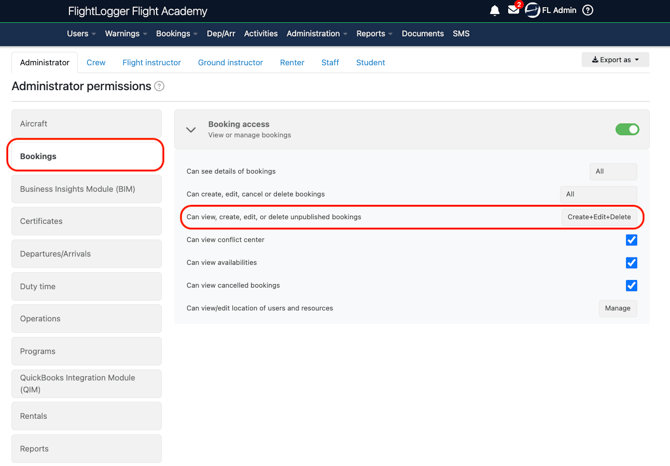
This allows schedulers to start runs, inspect suggestions, and modify draft proposals. Deleting suggestions requires the delete permission.
Learn more about Permissions in our article Permissions
Student Progression Setup
The engine relies on the Student Progression module to prioritize bookings, therefore you will need this module to be activated to run Sugested Scheduling succesfull.
Ensure every active student has an assigned start date and desired completion date.
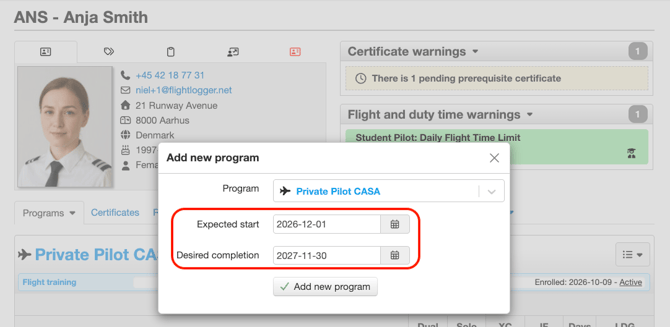
If a student lacks a completion date, the engine falls back to the lessons per week pace set on the program revision.
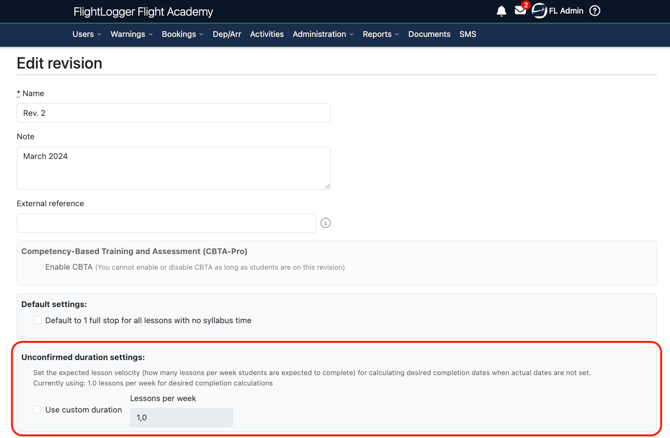
Falling back on this option, Suggestive Scheduling will mark the student as on track, and flags a warning in the run summary.
*Note: Only students with active enrollments are planned; Standby, Completed and Discontinued students are skipped.
Operating Hours
Set your daylight flying, night flying, and simulator windows under Administration - Account Settings - Booking.
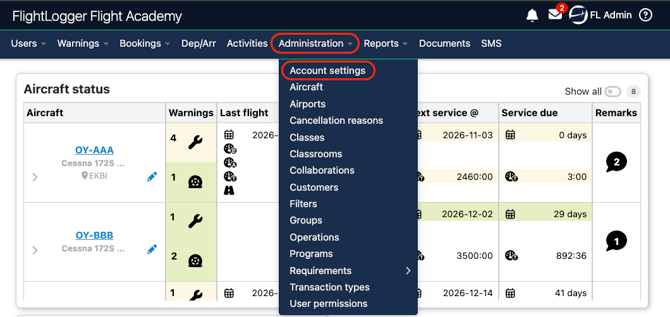
Windows can be configured identically for all seven days.
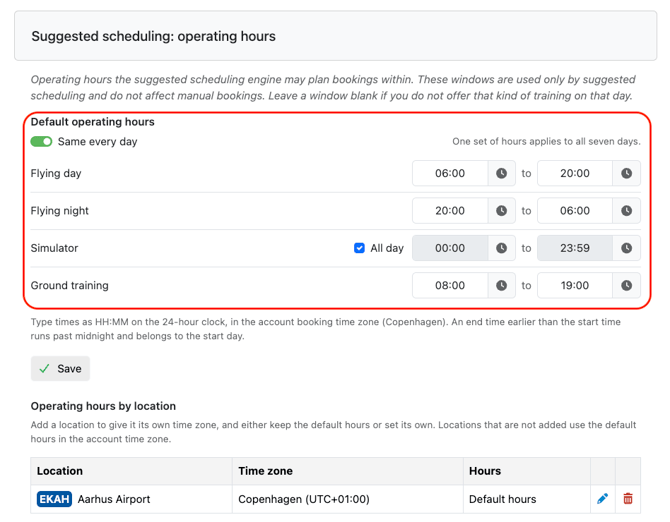
It can also be customized per weekday.
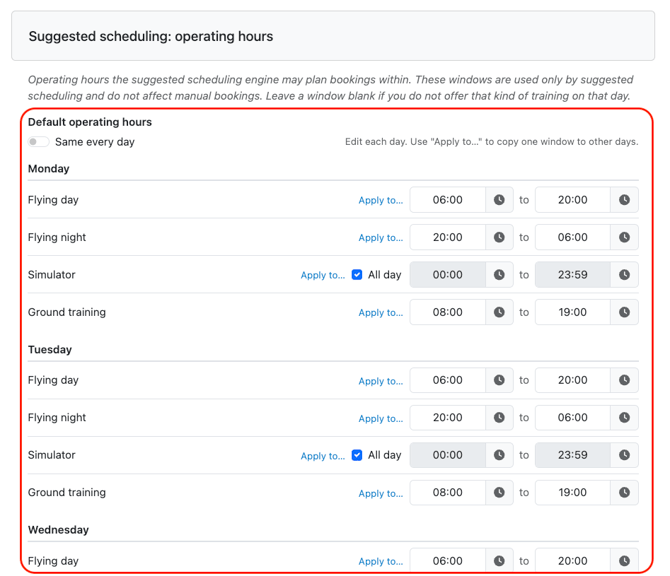
Blank days are treated as closed, meaning no flights of that type will be planned on that day. While flight times must fit strictly inside the window, briefing and debriefing times are permitted to extend up to 60 minutes outside operating hours. All flights start on a 15 minute grid in the departure location time zone.
Operating Hours by Location
You can also assign specific locations their own time zone.
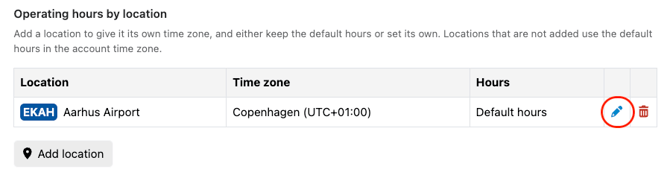
You can choose whether they follow your account default operating hours or use custom hours of their own.
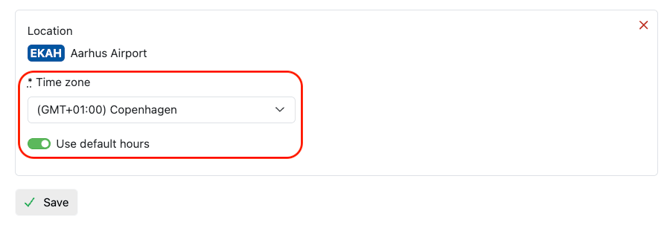
Any location you do not configure individually will automatically use the default operating hours set in your account time zone, under General Settings.
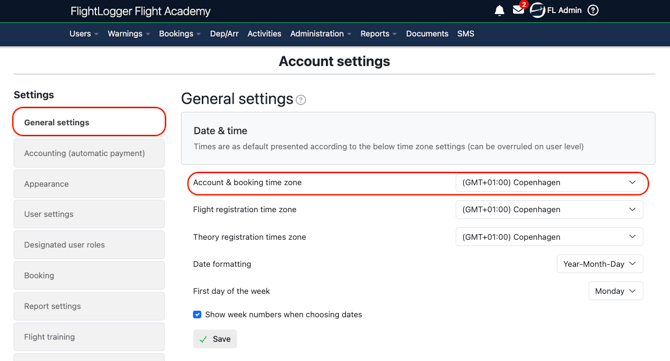
Gaps Between Bookings
Gaps between bookings set how much free time Suggested Scheduling keeps between two bookings that share an aircraft, simulator, instructor, or student. Once set, Suggested Scheduling will not book that resource or person back to back.
To adjust these settings, navigate to Administration - Account settings - Booking and scroll down to Suggested scheduling: gaps between bookings.
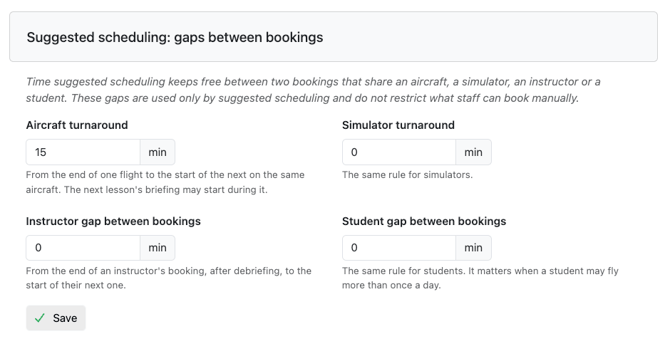
The Four Gap Settings
- Aircraft Turnaround (Default: 15 minutes): Measured from the end of one flight to the start of the next flight on the same aircraft. The next lesson briefing may occur during turnaround.
- Simulator Turnaround (Default: 0 minutes): Measured from the end of one simulator session to the start of the next on the same device.
- Instructor Gap Between Bookings (Default: 0 minutes): Measured from the end of an instructor booking, after debriefing, to the start of their next booking.
- Student Gap Between Bookings (Default: 0 minutes): Measured from the end of a student booking, after debriefing, to the start of their next booking when flying multiple times per day.
Aircraft and Simulator turnaround is measured between flight times, allowing briefing and debriefing to happen while the aircraft is being prepared.
Instructor and student gaps are measured across full bookings, including briefing and debriefing. A gap of zero minutes means bookings can follow each other directly.
*Note: Instructor Daily Caps: Instructors are capped at a maximum of 4 sessions or 8 block hours per day, including existing bookings.
Student Daily Limits: Schedulers can choose a daily cap of 1 to 3 sessions per student, which applies across all of the student programs combined.
Program Sessions and Times
In the Program Builder, ensure to configure each lesson with accurate syllabus times.
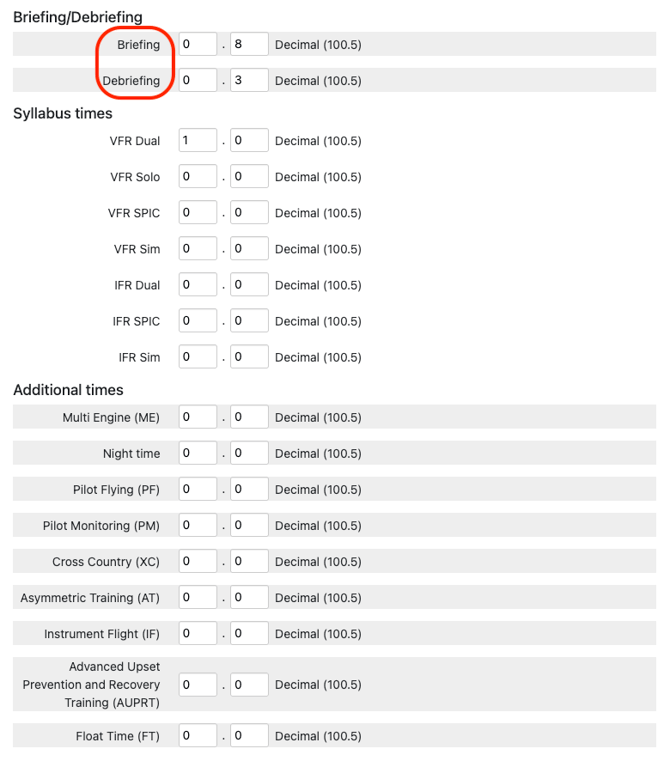
Briefing and Debriefing: Briefing is added before the flight and debriefing is added after the flight. The instructor and student are considered busy for the entire block. If customized times exist on a student individual copy of the session, those values take priority over program defaults.
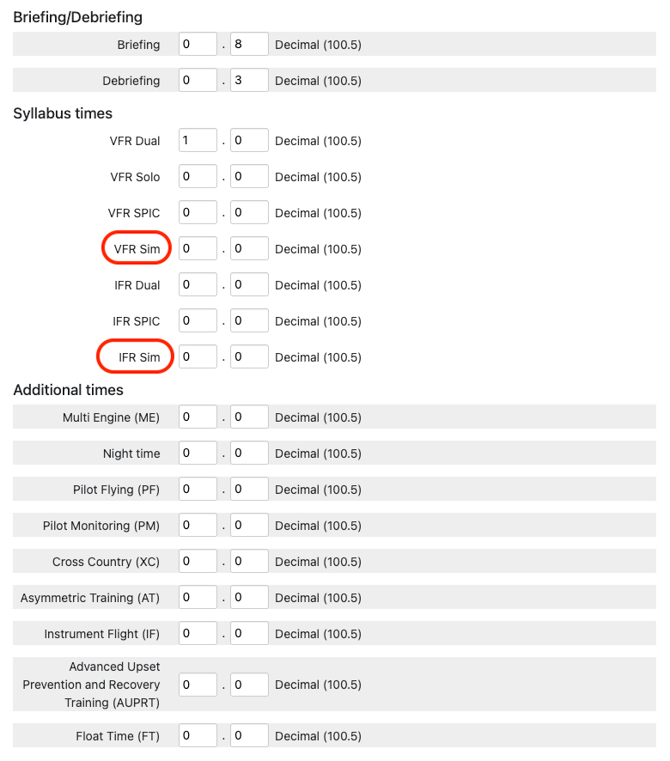
Flight Length: The total flight time is calculated by adding up all syllabus fields (VFR Dual, VFR Solo, VFR SPIC, VFR Sim, and IFR Dual, IFR SPIC, IFR Sim). If these fields add up to zero, the system defaults to an assumed 60 minute flight, so ensure your syllabus times are populated.
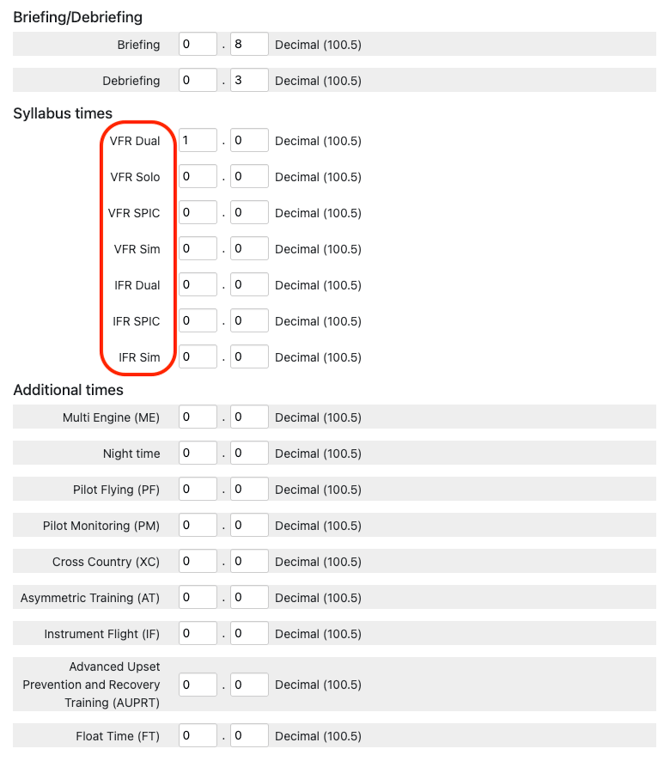
Simulator Sessions: Any lesson with simulator time is scheduled inside your simulator operating hours on an approved simulator.
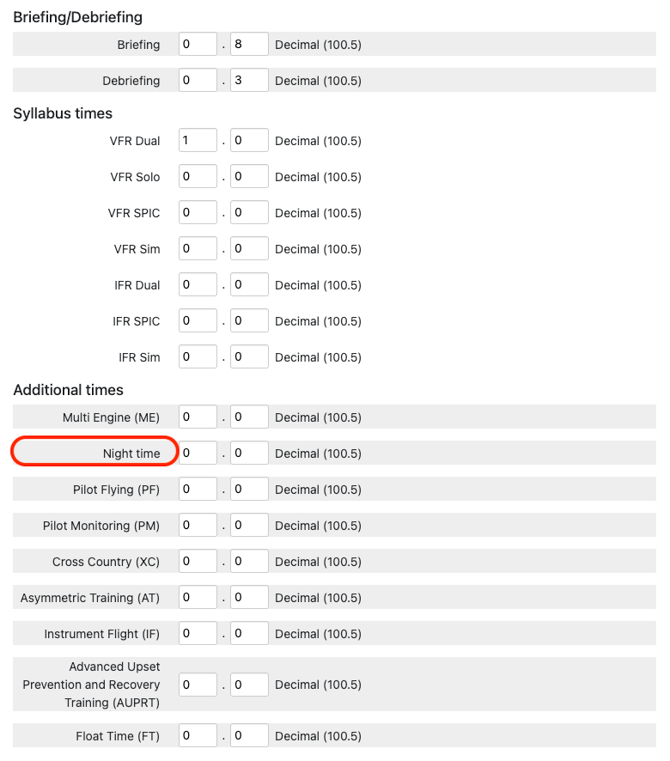
Night Flying: Any lesson with night time specified in the syllabus is scheduled during your night operating window. If your daytime window ends at the exact minute your night window starts, they join seamlessly so a day lesson can extend into the evening.
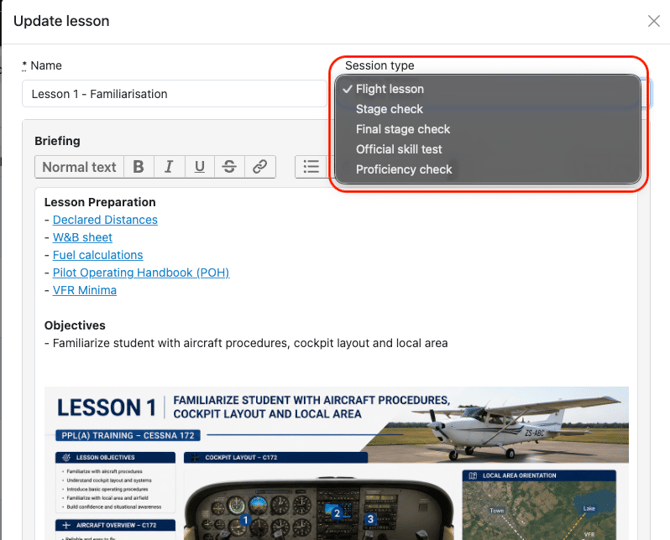
Session Types: Lessons marked as stage checks, final stage checks, official skill tests, or proficiency checks are never scheduled automatically. Planning stops immediately before them.
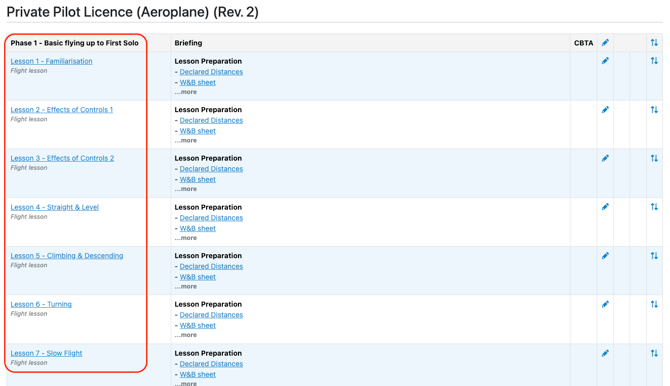
Lesson Order: Lessons are planned in syllabus order by phase and session number unless explicit prerequisites dictate otherwise.
Program Prerequisites in Suggested Scheduling
Prerequisites make sure Suggested Scheduling only proposes lessons a student is genuinely ready to fly, pairing them with an instructor who holds the right credentials to teach that specific session. You can configure these rules under the Prerequisites tab in the Program Builder, setting them across an entire program, within a specific revision, or directly on an individual lesson.
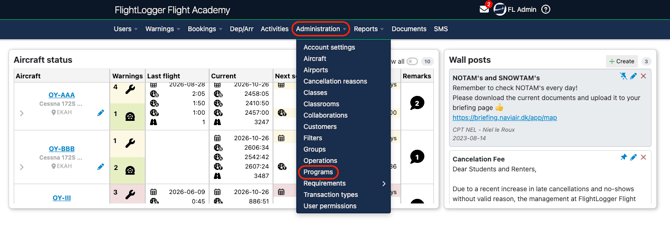
Navigate to your programs.
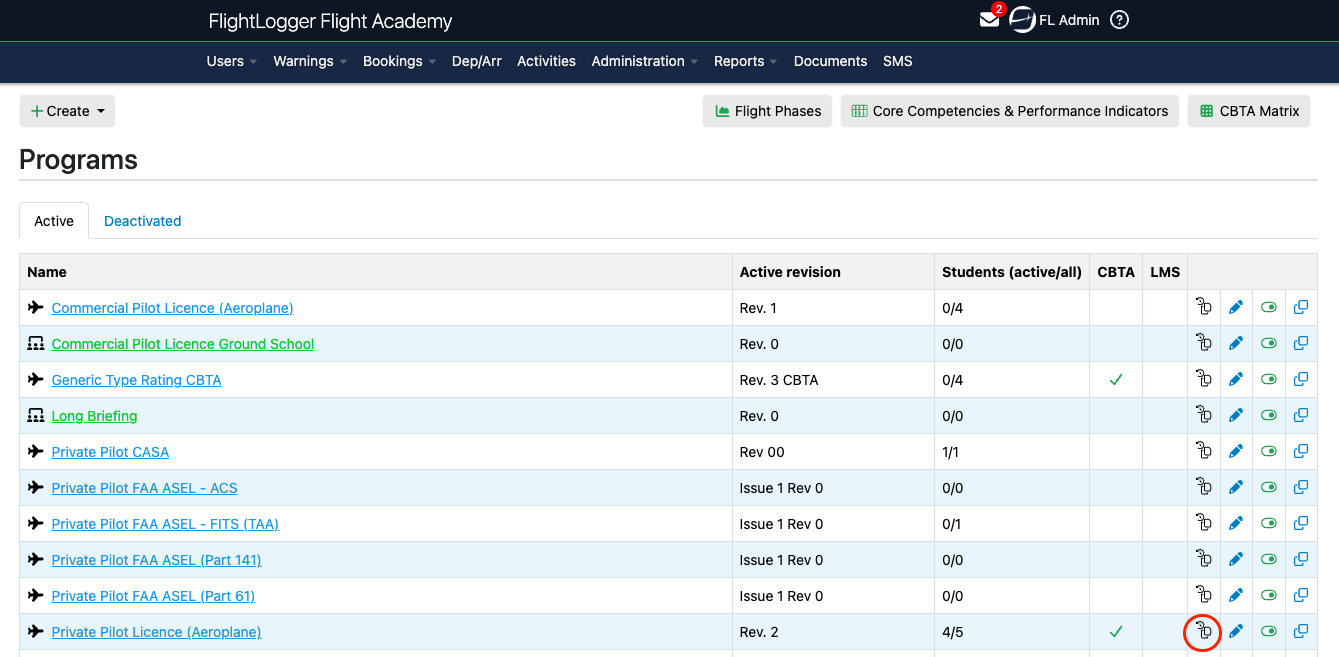
 Click Requirements and Prerequisites.
Now configure the sub tabs under Prerequisites.
Hours
Defines the minimum flight time needed before tackling a particular milestone, for example, having a minimum of fifteen hours of dual instruction before flying solo.
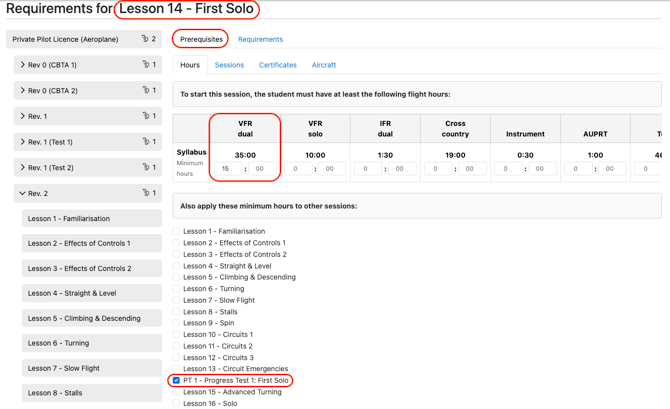
To calculate this, the engine adds up the student's completed hours together with the planned duration of earlier scheduled flights in the sequence. If the student does not have enough hours yet, the tool prioritizes scheduling the preliminary flights that build the necessary time, only placing the advanced lesson once the target number of hours is satisfied.
Session
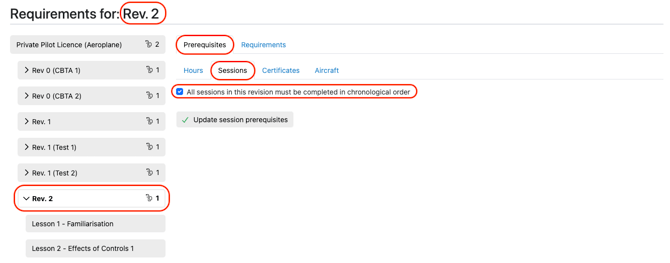
Determine the order of training by requiring earlier lessons to be finished before the next one can begin. Completed flights satisfy these requirements, but already booked flights also count as met as long as they finish before the next lesson starts.
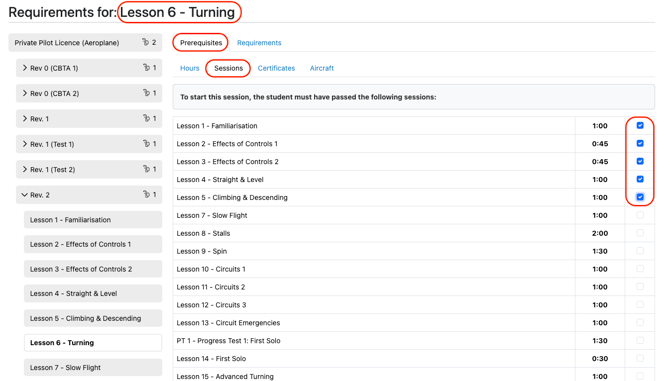
This handy mechanic allows Suggested Scheduling to plan out a logical chain of several consecutive lessons across multiple days.
You can also turn on chronological ordering to automatically treat every lesson in a revision as a requirement for the next one.
Because the tool strictly books practical flight sessions, it will pause planning whenever it reaches a marked flight stage check or flight exam. If using a Combined Syllabus program, it will pause planning when a student reaches an ground lesson, theory exam, or progress check. When this happens, the system allows you to book the milestone manually, after which you can re run the tool to continue flight planning.
Instructor Certificates
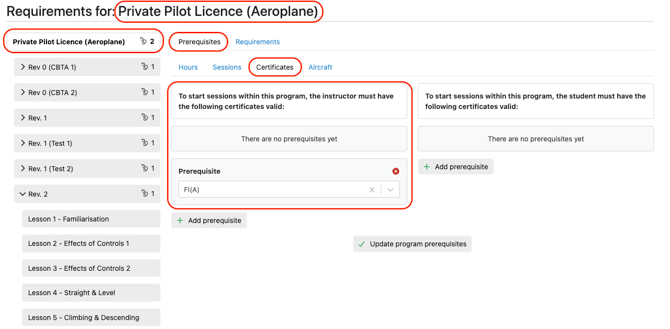
Specify any certificates an instructor must hold to teach a specific program or revision or lesson. Remember that Instructor certificates accumulate across levels, but can never remove one set higher up. Only instructors who hold every required certificate, fully approved and current on the lesson date, are suggested for scheduling.
Student Certificates
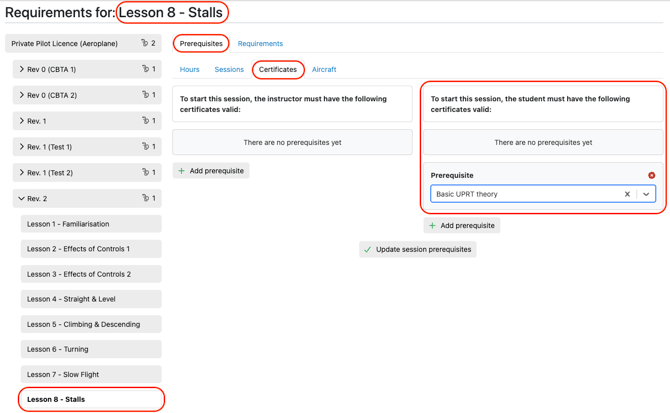
Sets certificates the student must hold, whether it is for a specific program or revision or lesson.. These are verified against the student records as of the booking date.
Aircraft
Aircraft model prerequisites define which specific aircraft models or simulators a program, revision, or individual lesson can use (e.g., C172 only or a specific simulator). Suggested Scheduling strictly respects these rules when generating draft bookings.
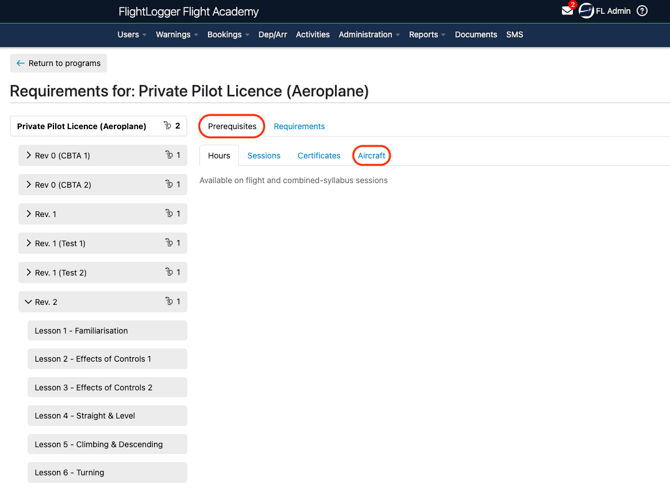
Now select the aircraft models you want to assign to the program, revision or lesson. The counter at the top displays how many models are attached (e.g., "1 aircraft model attached").
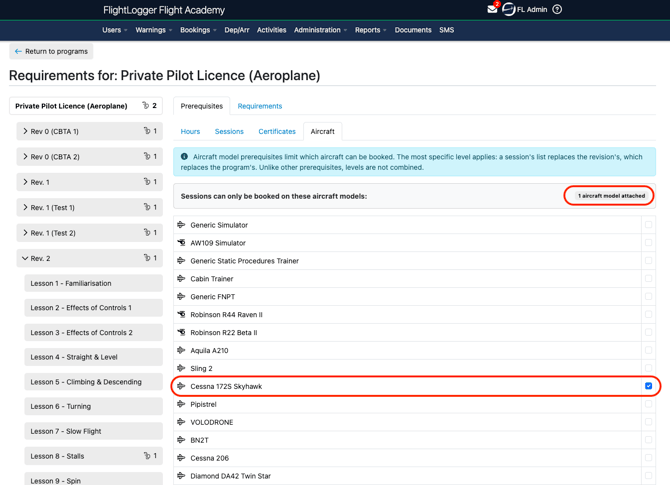
In our example, this means Suggested Scheduling will only propose bookings in the Cessna 172 Skyhawk for the entire Private Pilot License (PPL) program.
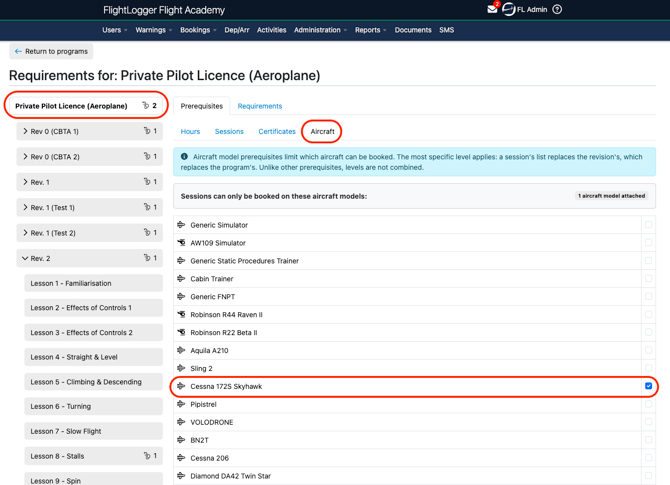
You can refine this further by setting prerequisites on individual lessons instead. This allows you to specify the exact aircraft model, such as a single-engine, multi-engine, or simulator, required for a particular session. You can also link multiple models to a single program, revision, or lesson.
Hierarchy and Precedence Rules regarding Aircraft Prerequisites
Prerequisites, like flight hours or certificates, gradually add up as you move through your training. Aircraft models do not work that way. Instead, the most specific rule always takes over.
When you set an aircraft model at a lower level (like on a specific lesson), it completely replaces anything set higher up (on a revision or program level), rather than adding to it.
If you set allowed aircraft on the overall program, that rule applies to every single revision and lesson in that program.
If you set allowed aircraft on a revision, that setting replaces the program rule for all lessons in that specific revision.
If you set allowed aircraft on an individual lesson, that setting replaces everything else and applies only to that single lesson.
For example, your Private Pilot License program might allow both the Cessna 172 and Piper PA28. If Lesson 12 specifically lists only the simulator, then Lesson 12 can only be booked in that simulator. Every other lesson in the program will still be allowed to use either the Cessna 172 or Piper PA28.
Because of how this works, adding multiple aircraft models at the overall program or revision level means the system might suggest any of those permitted models for any lesson, even if a particular session is really intended for a different aircraft. To avoid unexpected assignments and ensure you get the most accurate booking suggestions, we recommend setting your aircraft models directly on each individual lesson instead.
Location Center
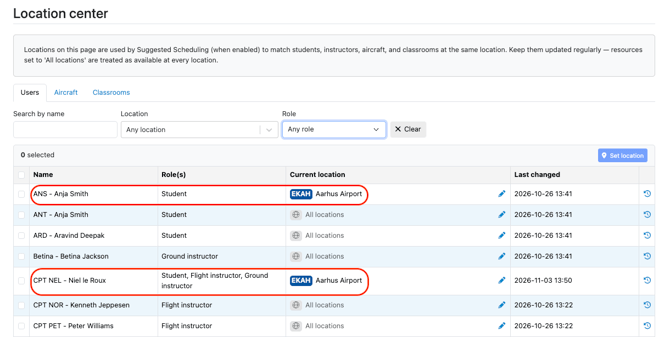
Location Center is where you set the current location of every user, aircraft, and classroom. Suggested Scheduling uses these locations to make sure the student, instructor, and aircraft on a booking are all at the same base. This matters most for schools that fly from more different bases.
To open it, go to the Bookings tab and click Location center at the bottom.
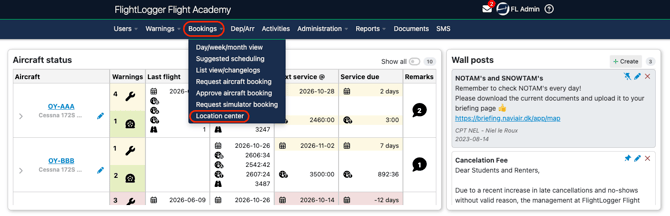
Location Center Tabs
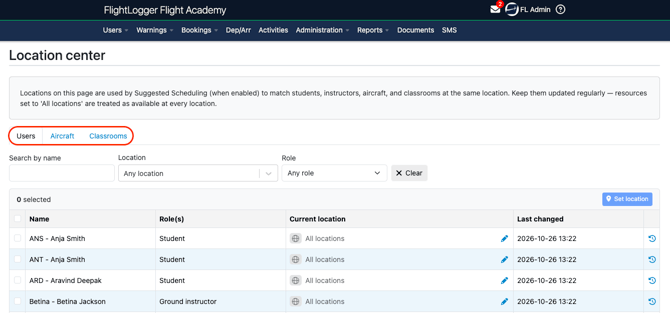
- Users: Manage students, flight instructors, and ground instructors.
- Aircraft: Manage aircraft and simulators.
- Classrooms: Manage physical classrooms.
Finding Resources
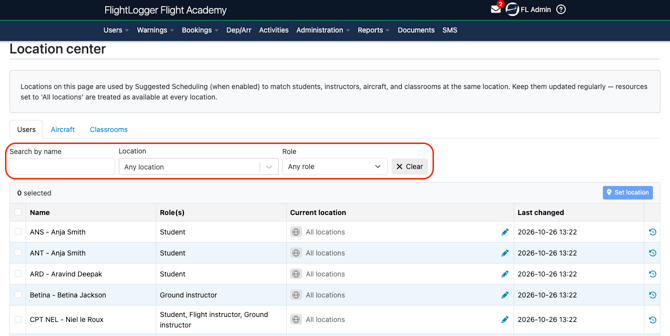
- Search by name: Type part of a name or call sign.
- Location: Filter to show only resources at a specific location (default is Any location).
- Role (Users tab): Filter by students, flight instructors, or ground instructors (default is Any role).
- Clear: Resets all active filters.
Setting a Location
For a single resource
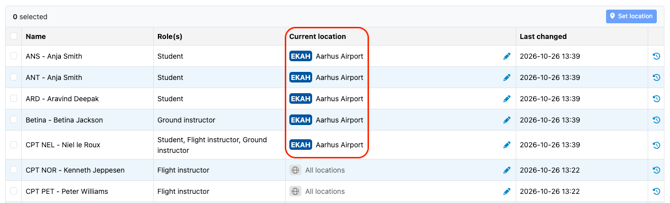
Choose the specific user, and click the pencil icon next to the current location.

Select the new location. The selection is auto-saved.
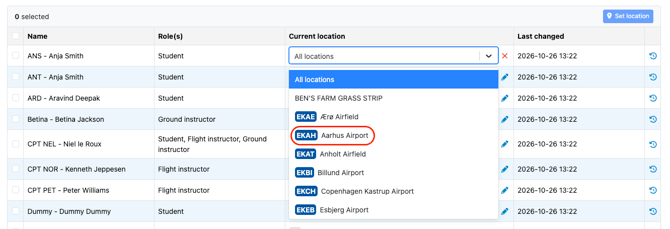
This means Suggested Scheduling now recognizes that the student is assigned to that specific base.

For several resources at once
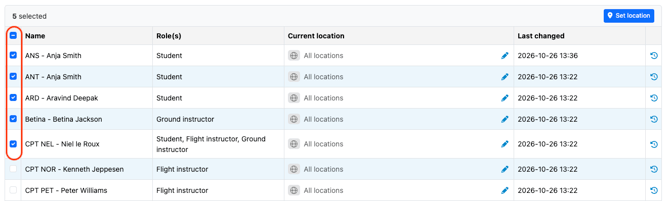
Tick the checkboxes next to the resources you want to update, or use the header checkbox to select everything in the list (filtering first by role or location helps simplify this step).
Click Set location.
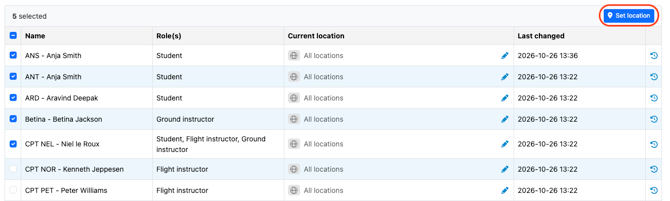
Select the new location. The selection is auto-saved.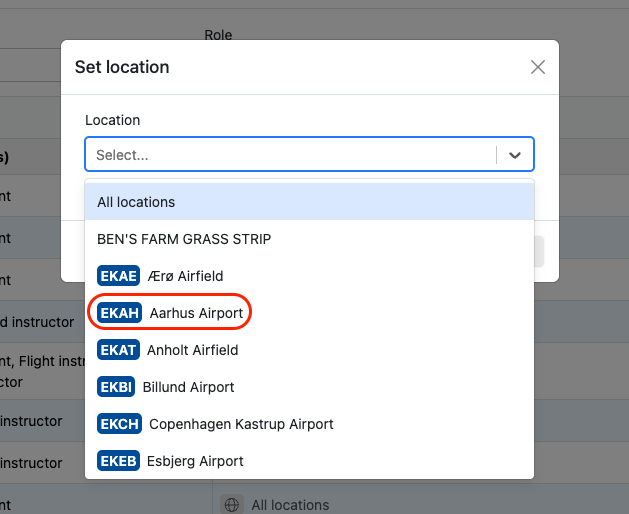
This means Suggested Scheduling now recognizes that the selected users are all assigned to that specific base.
How Locations Are Used
- A student is only booked with an instructor and aircraft at the same location.
- "All locations" matches every location (Airports that are created under the Administration tab). It is the default for users, classrooms, and simulators that have no location assigned.
- A booking's location is its departure airport. If none is set, the aircraft's current airport is used.
- Locations only affect Suggested Scheduling. They do not restrict manual bookings.
- Keep locations up to date, for example when an aircraft is repositioned or if an instructor or student moves base. Otherwise suggestions may pair people and aircraft that are not at the same airport, or miss pairings that would work.
Viewing History
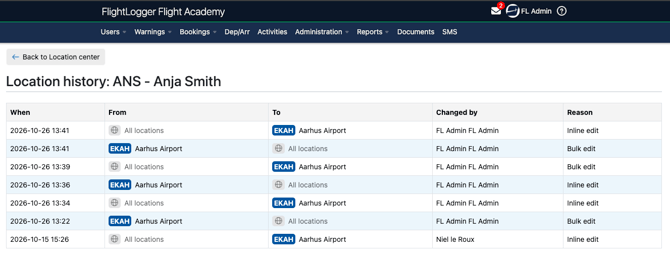
Click the history icon at the far right of any row to view location changes for that user or resource.

The information includes previous locations, timestamps, and who made the updates.
Instructors
Ensure all instructor records are complete.
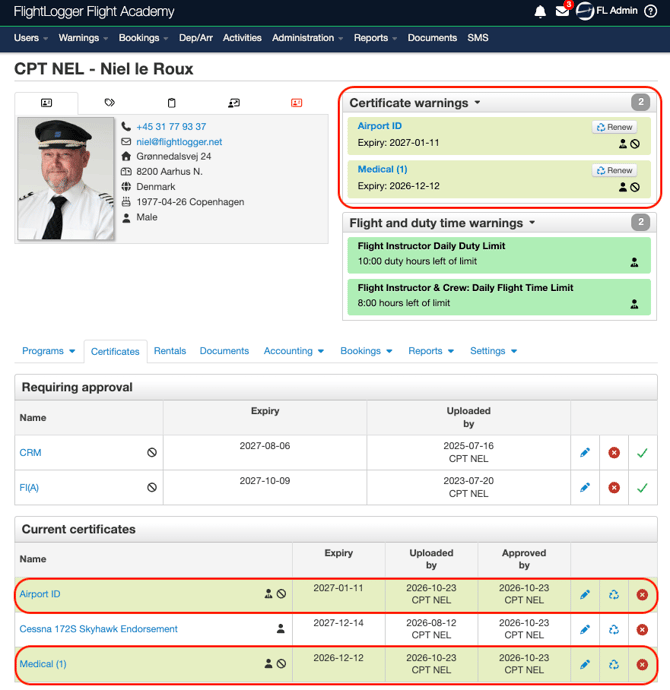
- Aircraft Model Qualifications: Instructors must hold an approved certificate requirement for the aircraft model in order to be scheduled on it.
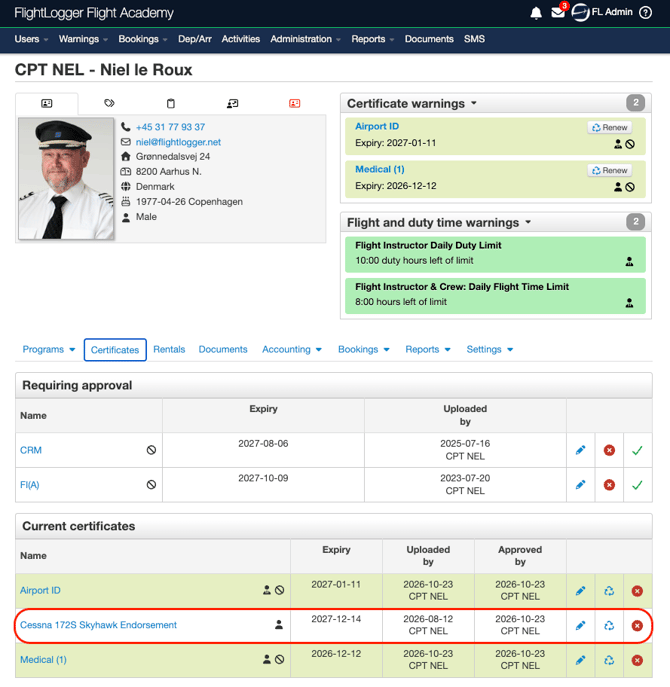
- Certificates: Must be approved and valid on the lesson date. Certificates awaiting approval do not count. Any blocking certificates that expire before the lesson date will disqualify the instructor.
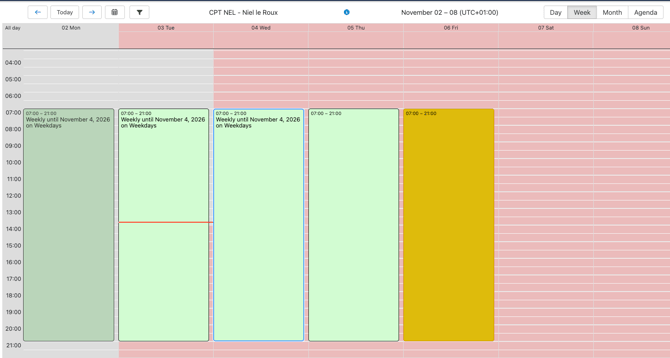
- Availability and Leave: Instructors are only booked inside registered availability windows and are never scheduled while on leave.
- Location: Must match the student and aircraft base airport.
- Daily Load: The system enforces a fixed maximum daily workload of 4 sessions and 8 block hours per instructor per day, counting existing bookings alongside new suggestions
Setting a Student's Preferences
You can tell Suggested Scheduling which instructors and aircraft models a student should preferably fly with.
Go to the student's settings, click Edit info.
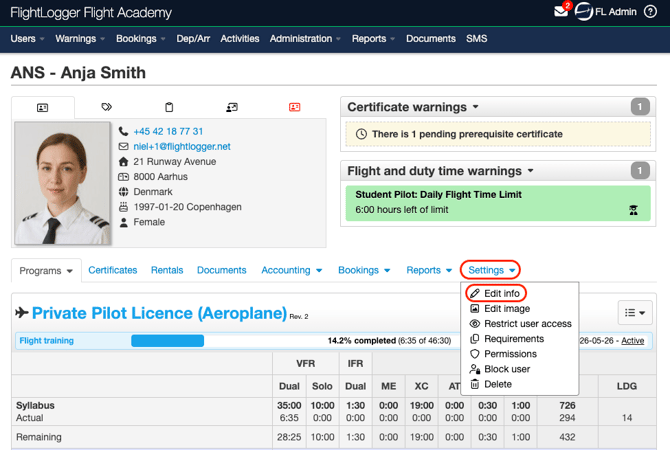
Scroll to the bottom and you will find the Suggested scheduling section.
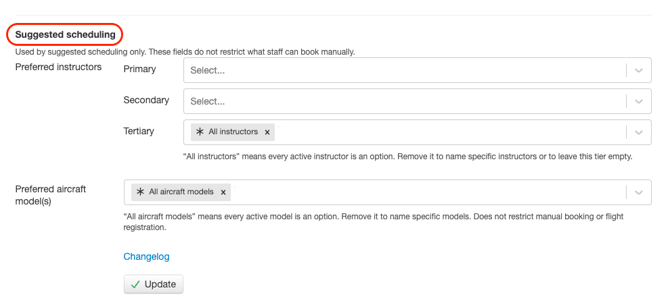
*Note: These fields are only used by Suggested Scheduling. They do not restrict what staff can book manually, and they do not affect flight registration.
Preferred Instructors
Instructors are grouped into three tiers. Suggested Scheduling tries the highest tier first.
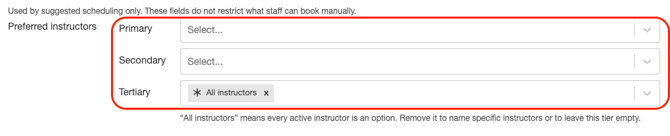
- Primary: The student's main instructor or instructors.
- Secondary: Instructors to use when no primary instructor is available.
- Tertiary: The final fallback. By default this is All instructors, meaning every active instructor is an option.
How the tiers are used
Suggested Scheduling starts by identifying the earliest open time slot for a lesson.
From there, it searches for an available instructor in the highest tier within 48 hours of that initial opening. If your secondary instructor is available tomorrow morning but the primary instructor is free the following day, the system will still prioritize and suggest the primary instructor, as he/she is within the 48 hours of the initial opening. However, if the primary instructor cannot fly until the next week (outside the 48 hours of the initial opening), the system assigns the secondary instructor instead to keep the student on schedule.
Training rules always take priority over preferences. The system will only suggest an instructor from any tier if they are qualified on the aircraft model, hold every certificate required by the lesson, and have open availability. Any instructors who are inactive, no longer assigned an instructor role, or restricted by an expired certificate are automatically excluded from suggestions.
Removing "All instructors" from the tertiary tier
You can also replace all instructors in the tertiary tier with specific names or leave the tier empty.
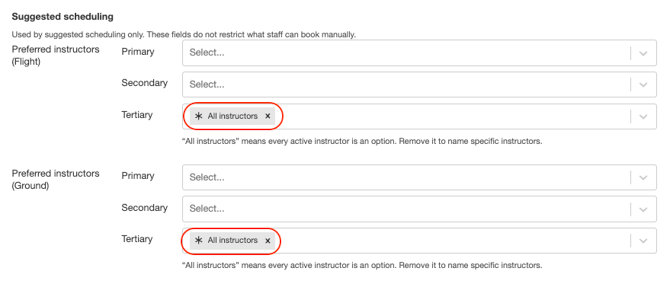
If left empty, the student can only be booked with the instructors named in primary or secondary tiers. When none of them is available, the student is not scheduled, and the run summary shows that no preferred instructor was available.
Preferred Aircraft Model
By default this is All aircraft models, meaning every active model is an option. Remove it and select one or more models to make them the student's preferred models.
 Preferred models follow the same 48-hour rule as instructors. Suggested Scheduling books a preferred model if one is available within 48 hours of the earliest slot. Otherwise it uses another model the lesson allows. A student is never skipped because of their aircraft preference.
The lesson's permitted aircraft models, set on the program, revision, or lesson, always apply. A preferred model is only used for lessons that allow it.
Preference Examples
-
When you leave both the primary and secondary instructor tiers empty and keep the default setting of "All instructors" in the third tier, any instructor who is qualified and available can be scheduled.
-
If you set one instructor as the primary instructor and keep "All instructors" in the third tier, the system looks for an opening with the primary nominated instructor first. As long as he/he is available within forty eight hours of the earliest possible slot, he/she receives the booking. If the primary instructor is not free within that window, the system books another qualified instructor instead so the student is not delayed.
-
If you assign Instructor A as the primary instructor, Instructor B as the secondary instructor, and leave the third tier completely blank, the system will only ever consider Instructor A or Instructor B. If neither of them is available, the student will simply not be scheduled, and your run summary will explain that no preferred instructor was found.
-
Aircraft preferences follow the exact same principle. For example, if a student has the Cessna 172 selected as their preferred model, the system books a Cessna 172 whenever one is free within forty eight hours of the earliest opening. If none are available during that forty eight hour window, it moves on and books another approved aircraft model so training continues without interruption.
Saving and History
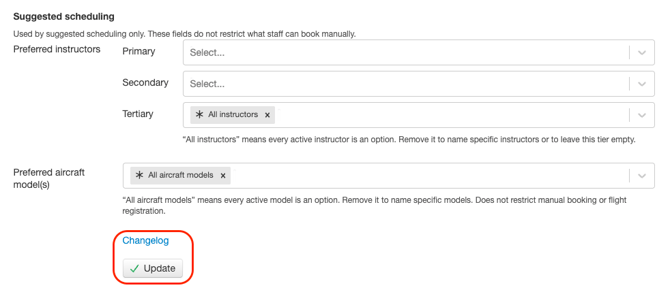
Click Update to save your changes. They apply to the next Suggested Scheduling run, not to suggestions that already exist.
Click Changelog to see earlier changes to the student's information.
Need help?
If you need assistance, feel free to contact our support team via the Get Support tab inside FlightLogger.