
In this article
-
What Student Progression is
-
Where to access it and how permissions work
-
How the dashboard calculates status and pace
-
How to update a student’s planned dates
-
Recommended settings and scheduler workflow
-
Multi‑program progression and the Progression graph
Permissions
Access to Student Progression is permission-controlled, so you can decide exactly which users in your organization can view the Student Progression overview and student-level progression data.
In most organizations, an administrator (or a user with permission to manage user access) will enable this for selected roles or specific users. If a user does not have the required permission, the Student Progression overview and/or the Student Progression card inside the student profile will not be visible.
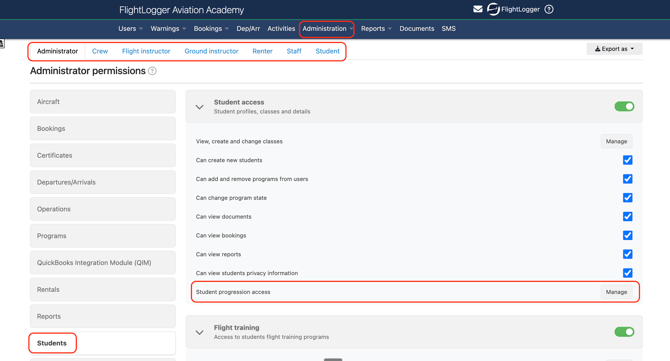
Access is controlled in Administration → User Permissions under:
Students → Student progression access
*Note: Access can be granted at either role level or individual level
What the Student Progression Module shows
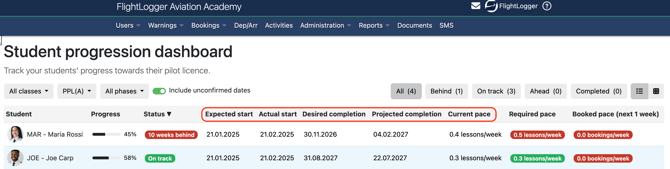
Student Progression uses three inputs to calculate progression:
-
Planned dates (Expected start, Desired completion)
-
Actual activity (Actual start, completed lessons)
-
Booking pace (Booked pace compared to Required pace)
From this, FlightLogger calculates:
-
A student status (Ahead, On Track, Behind)
-
Projected completion based on completed lessons
-
Current pace, Booked pace, and Required pace
-
A Progression graph showing progress over time
Accessing Student Progression
You can access Student Progression in two places:
-
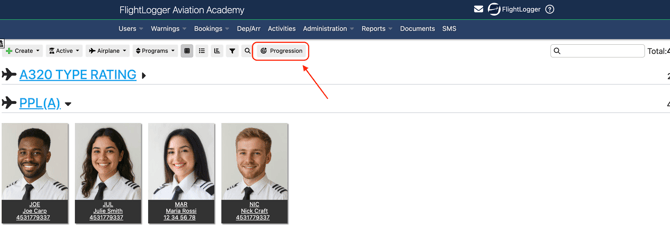
Student Progression overview: Go to Users → Students and open the Student Progression overview.
-
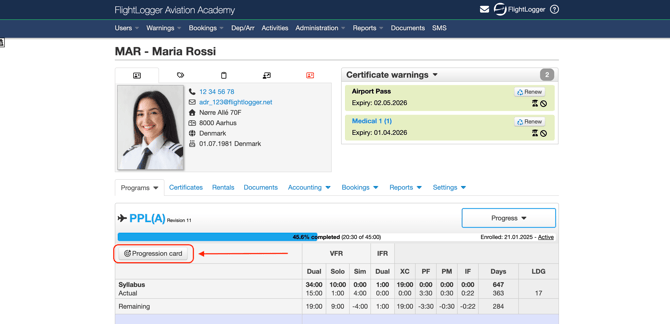
Student profile: Open a student profile and use the Student Progression card.
How to use the Student Progression dashboard
The dashboard highlights students who are ahead of schedule, on track, or falling behind so you can prioritize scheduling actions.
Select a class and program
Use the selectors in the top-left corner to choose:
-
Class
-
Training program
-
(Optional) Phase
Once selected, you can sort and filter by status, pace, and progression values.
Note: You can chose from list view and table view:
List View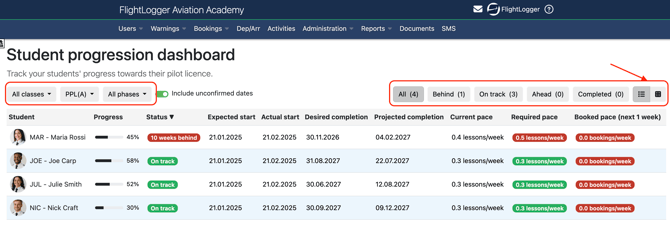
Table View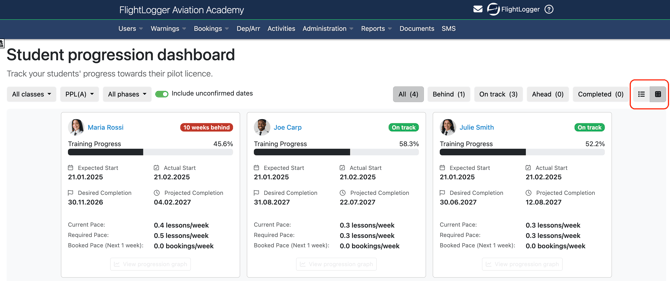
Understanding the fields
Below are the key fields shown in the overview.
Dates
Expected start
Automatically set to the date the student was enrolled in the training program.
Actual start
Automatically set when the first lesson is registered for the student.
Desired completion
Automatically calculated using the average time previous students used to complete the same program revision. Unless updated, this is an estimated completion target based on prior data.
Projected completion
Calculated from completed lesson registrations and updated continuously.
For the most accurate overview, review each student’s planned dates—especially Desired completion.
Pace
Current pace
The student’s booking pace over the next week.
Required pace
How many lessons per week the student needs to complete to finish by the Desired completion date.
Booked pace (next X weeks)
The student’s booking pace over the upcoming number of weeks defined in:
Administration → Account Settings → Student Progression Module
Status colors
Booked pace and required pace are categorized using three colors:
-
Blue = Ahead
-
Green = On Track
-
Red = Behind
A useful rule of thumb: to keep students on track, Booked pace should be higher than Required pace.
Updating a student’s dates from their Personal Student Page (Desired Start and Desired Completion)
If you need to adjust the dates used for progression calculations, you can update them directly from the student profile.
-
Open the relevant student profile.
-
In the Student Progression card, click Active.
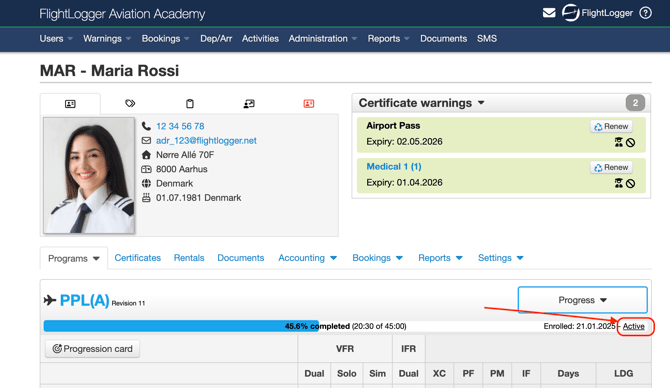
-
Update the Desired start date and/or Desired completion date.
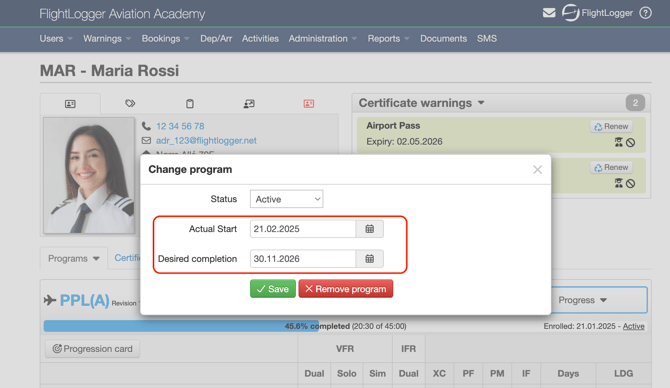
-
Save your changes.
Once updated, the Student Progression overview and progression graph will recalculate using the new dates.
*Note: For the Student Progression Module to track progress, the student must be Active in FlightLogger.
Filtering the dashboard
You can filter the dashboard to focus on specific groups:
-
Class, Program, and Phase
-
Or Program and Phase
You can also use the status filters in the top-right corner:
-
All, Behind, On Track, Ahead, Completed
To keep students on track, the booked pace must be higher than the required pace.
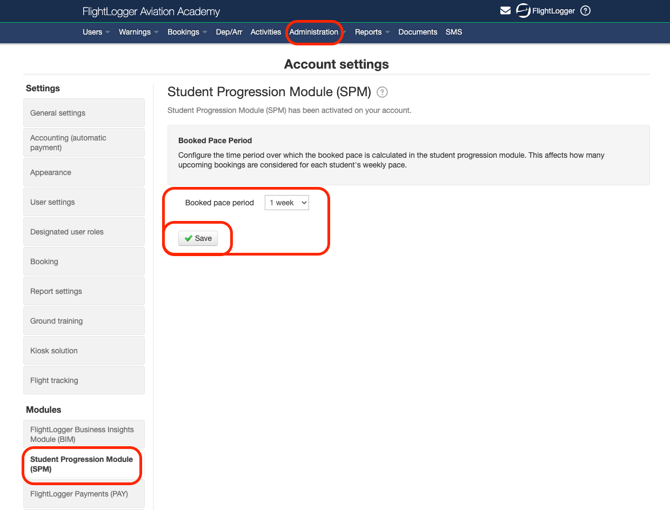
Recommended setting: Booked pace window (next X weeks)
The booked pace window defines how many weeks are used to calculate Booked pace. It should match how your school typically schedules:
-
If schedulers usually book 1 week ahead, set it to 1
-
If schedulers plan 2–4 weeks ahead, set it to 2 or 4
- Click save
This setting reflects your scheduling horizon, not the program length.
Go to: Administration -> Account Settings -> Student Progression Module
Scheduler workflow: Keeping students on track
Student Progression updates live as schedules are built, making it a practical tool for daily planning.
A common workflow is to keep these pages open:
-
Booking Page
-
Student Progression
-
Student Overview
This allows schedulers to:
-
Filter Student Progression by a class or program to identify students who are Behind.
-
Find those students in Student Overview.
-
Drag lessons into the Booking Page.
-
See Booked pace update immediately in Student Progression.
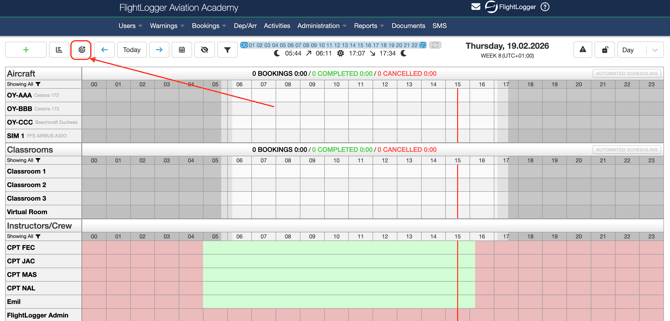
Student Progression updates live as schedules are built, so schedulers can see Booked pace change instantly and keep students aligned with their completion targets.
A practical workflow is to keep Booking Page, Student Progression, and Student Overview open at the same time. Filter by the same class or training program, drag lessons from Student Overview into the Booking Page, and immediately see the Booked pace update in the Student Progression overview.
Viewing progression across multiple programs
Some students are enrolled in multiple programs (modular training). The Student Progression card in the student profile includes an option to include all flight programs.
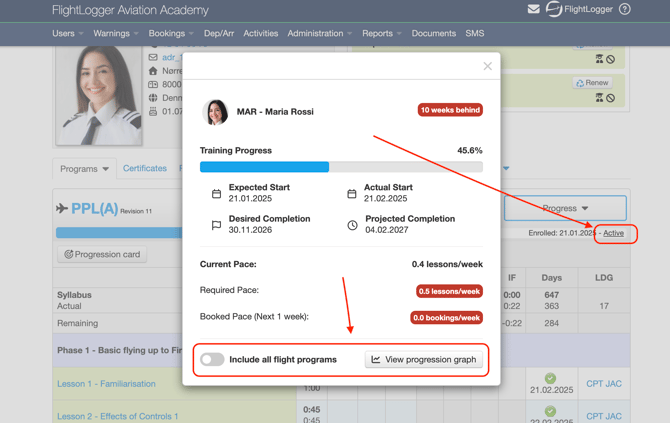
When enabled:
-
All lessons across all enrolled flight programs are included
-
The earliest Actual start and latest Desired Completion are used
-
Progression is calculated across the full lesson set
This provides a complete overview of modular and multi-program training paths.
The Progression graph
The Progression graph visualizes training progress over time and helps identify delays early:
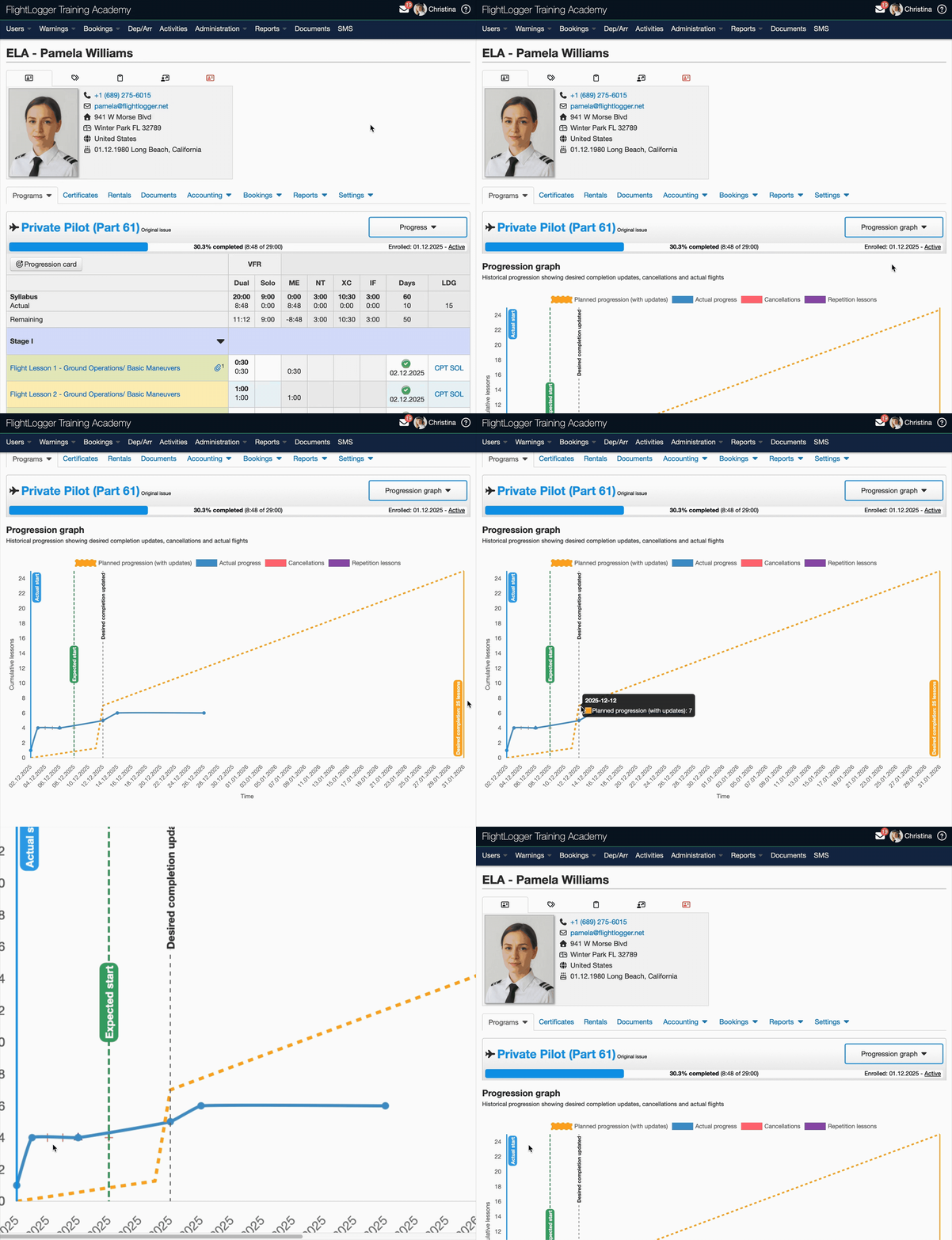
The graph displays the following information:
-
Accumulated lessons completed
-
Ideal progression line from the actual start date to the desired completion date
-
Cancellations represented as flat sections with markers
-
Repetition lessons reflected in the progression curve
When the Desired completion date is updated, the graph recalculates and displays a new target line. Progression metrics update in real time as activity and bookings change.
Need help?
If you have questions about setup, permissions, or best practices, contact us at support@flightlogger.net