
As an instructor, Flight Logger helps you see your schedule, access students connected to training activities, review student progress, register completed lessons, manage your own availability (when enabled), and find your own reports and records.
Your school may have enabled or disabled some features and permisions, so your view may look slightly different from the screenshots or descriptions in this article.
Log in and check your profile
When your user profile has been created, you will receive a welcome email from Flight Logger. Use the link in that email to set up your login.
Please refer to the following article on logging in for the first time. Getting started as a new user: The Registration and Login Process
After logging in, start by checking your own user profile.
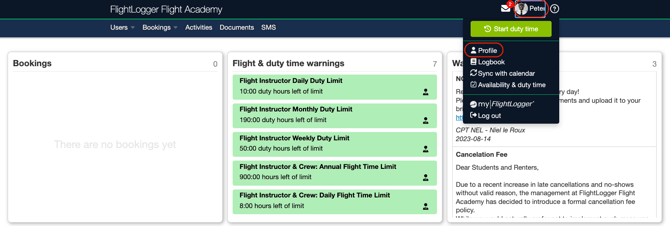
To access your profile page, click on your name and choose Profile.
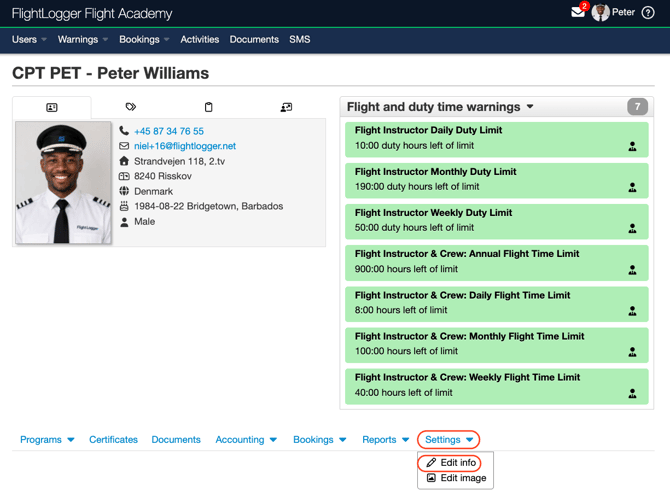
From here open the Settings tab, and choose Edit info.
 Depending on your school’s setup, you may be able to update details such as:
Contact information (both personal and emergency contact information)
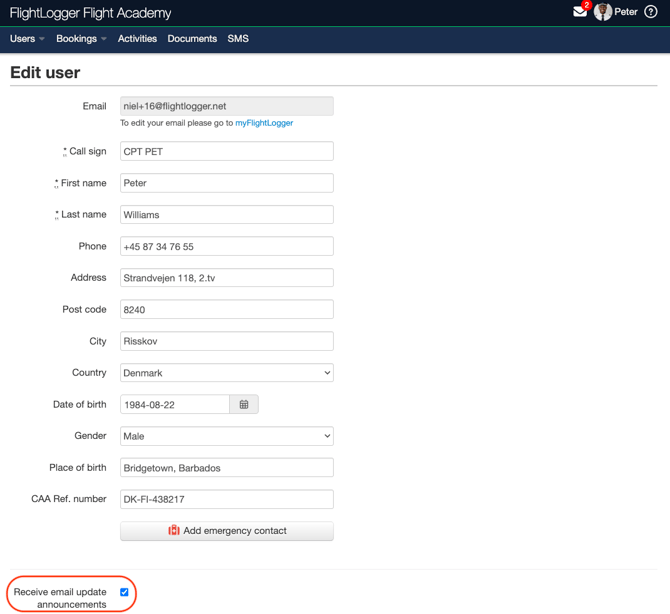
*Note: In the bottom-left corner, you have the option to opt out of receiving email updates and announcements directly from FlightLogger. Please note that this controls communications from FlightLogger itself, not from your own organization. If you deactivate this setting, you will no longer receive these global updates.
*Note: Always remember to click Save or Update to apply any changes you have made.
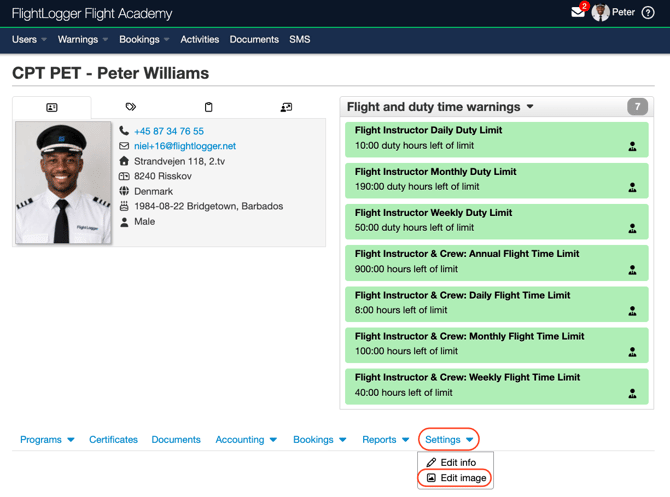
Profile image
Open the Settings tab, and choose Edit image.
Upload any Personal documents
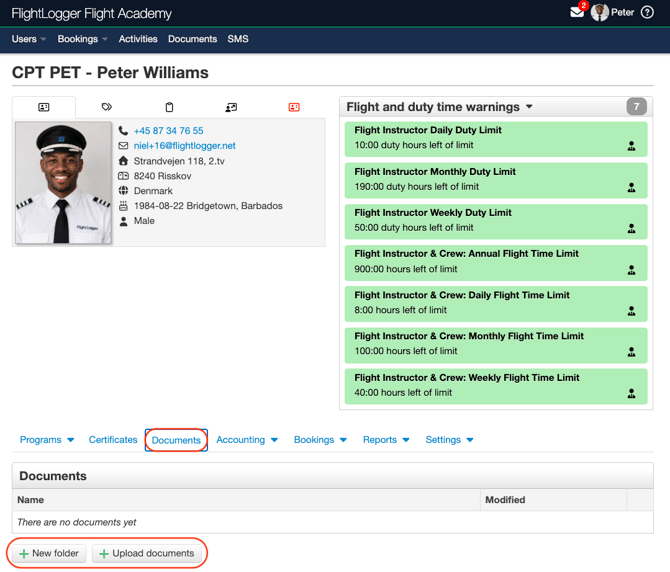
Update/upload any certificate requirements
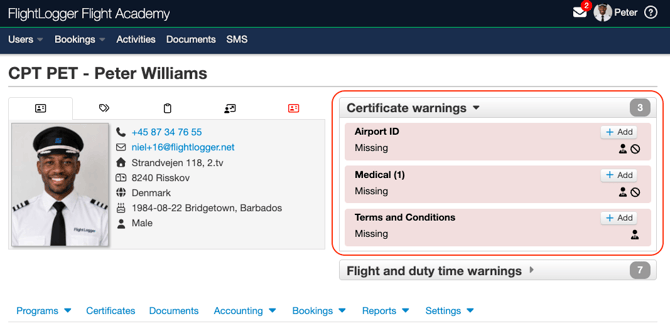
Please refer to the following article on how to upload a requirement. Getting started with uploading a new Requirement
Set your availability (If activated by the Training Organization)
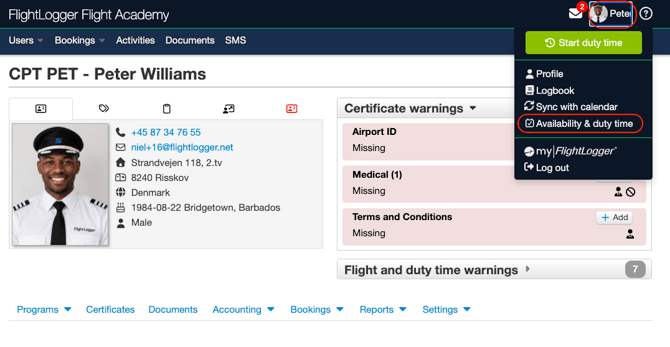
Please refer to the following article on how to set your availability. Getting started with availabilities
*Note: If something in your profile is incorrect and you cannot edit it yourself, contact your school administrator.
Understand what you can access as an instructor
With the Flight Instructor role, you have access to the parts of FlightLogger needed for day-to-day training work (and whatever else permissions your administrator(s) have assigned to you).
This typically includes:
Your bookings and assigned training activities
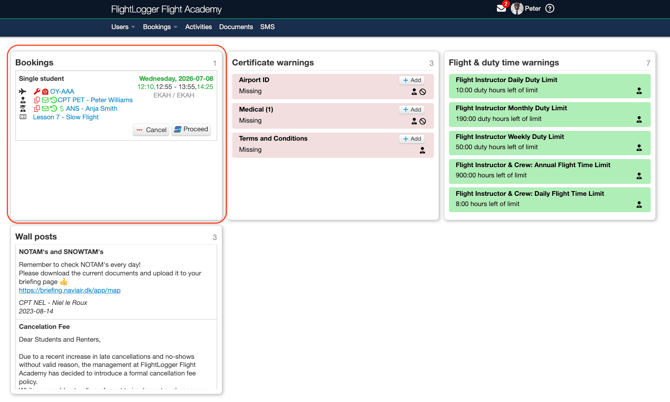
For further info regarding your daily instructor workflow, see the following articles: Instructor Workflows
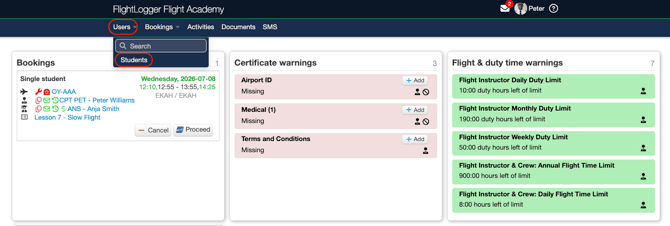
Students you are allowed to see
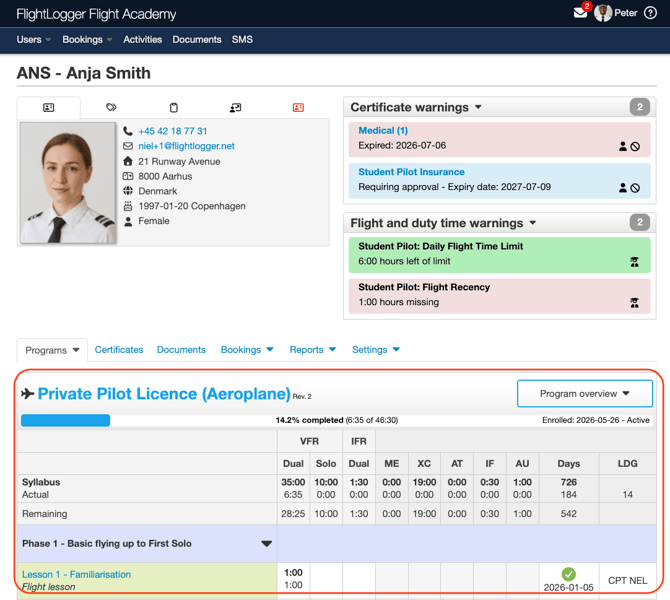
Student training programs and lesson progress
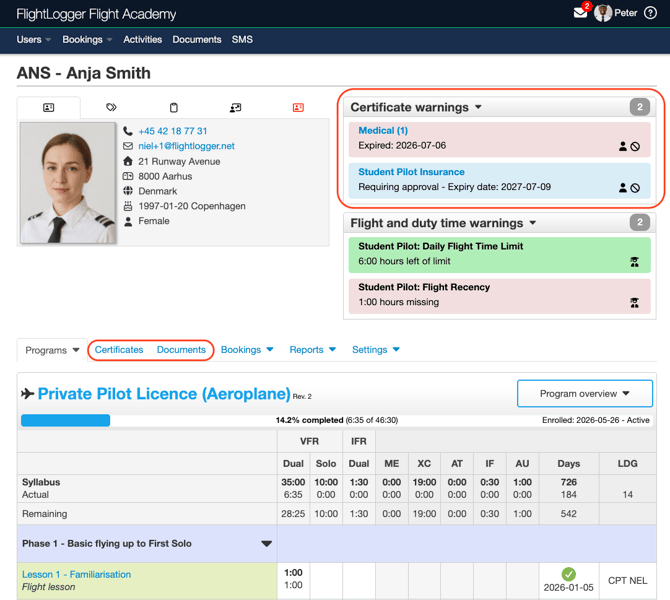
Documents and certificates connected to students, if your school allows this
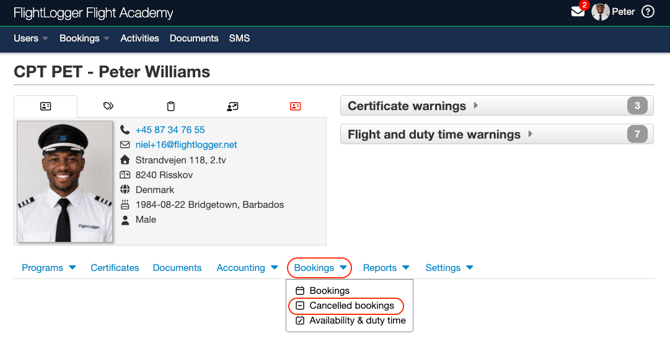
Cancelled bookings connected to your own bookings
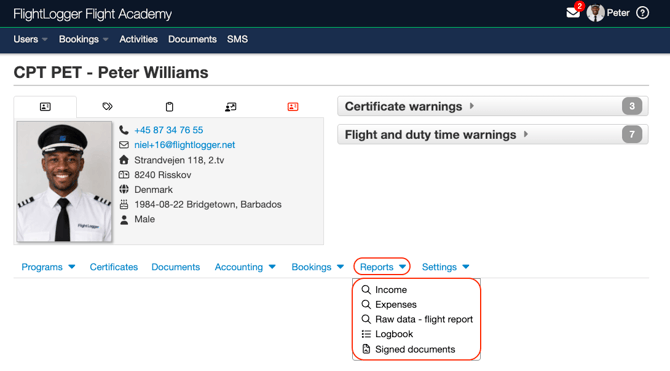
Your own income & expense reports, logbook, and other relevant reports
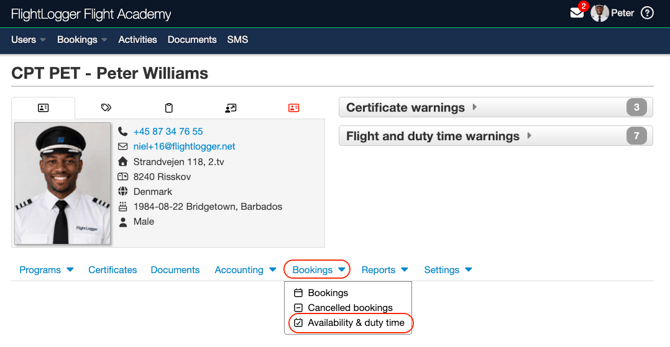
Availability and duty time, if enabled by your school
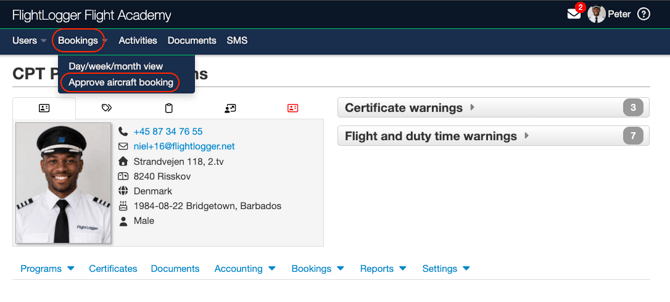
Booking requests from students, if your school uses student booking requests
*Note: You will not have the same access as an administrator. For example, creating users, changing permissions, managing account settings, or editing school-wide configuration is normally handled by admin users. You will only see students and information your school has allowed you to access.
Daily Workflows
For more in-depth information, please see our detailed articles covering the Flight and Ground Instructor Workflow: Instructor Workflows
Activities
The Activities tab on your profile page serves as your central dashboard for tracking and managing all your flight bookings.
For further info regarding your daily instructor workflow, see the following articles: Getting started with the Activities page
Common first-time questions
Why can’t I see a student?
Your access may be limited to specific students, programs, or user groups. Ask your administrator to check your access and whether the student is connected to the correct program or booking.
Why can’t I edit a booking?
Flight instructors do not always have full booking administration rights. Your school may allow you to view bookings and register lessons, while booking changes are handled by scheduling staff.
Why can’t I edit my availability?
Your school controls whether instructors can edit their own availability, future availability only, or no availability at all.
Why does my view look different from another instructor’s?
Flight Logger access depends on user roles, account settings, enabled modules, and which students or programs you are allowed to see.
Best practice for your first day
Before your first lesson, we recommend that you:
- Log in and check your profile.
- Open the booking calendar and confirm your schedule.
- Open the student profile from the booking.
- Review the student’s program and planned lesson.
- Check for warnings, missing documents, or required sign-offs (Both yours and the student's).
- Complete the lesson registration after the lesson.
- Review your own logbook or reports to confirm the activity was recorded correctly.
Need help?
If you need assistance, feel free to contact our support team via the Get Support tab inside FlightLogger