
This guide is designed for any user logging into FlightLogger as a renter. Whether you are an individual renting an aircraft from a flying club, a student building hours, a flight school leasing another facility's FNPT simulator, or an airline dry-leasing a full flight simulator (FFS) from a simulator center, this overview covers how to navigate your rental workflow.
As a renter, FlightLogger allows you to request aircraft or simulator bookings, track your rental activity, manage rental-related documents, and complete flight registrations (if enabled by your organization).
*Note: The organization renting out their resources, controls which features and rental options are assigned to your account. Your dashboard view may vary depending on whether you are authorized to rent aircraft, simulators, or both.
*Note: If you already have an active account with your flight training organization and are subsequently assigned the Renter role, you can skip the initial login setup. Upon logging in, you will simply see expanded permissions and new dashboard options corresponding to your updated renter status.
Log in and check your profile
When your user profile has been created, you will receive a welcome email from Flight Logger. Use the link in that email to set up your login.
Please refer to the following article on logging in for the first time. Getting started as a new user: The Registration and Login Process
After logging in, start by checking your own user profile.
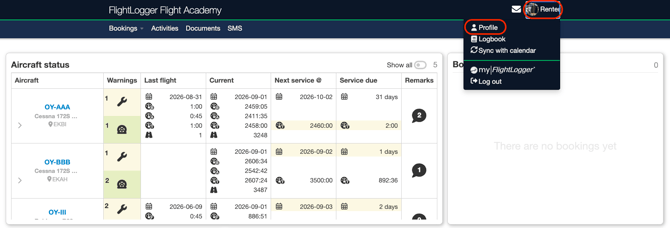
To access your profile page, click on your name and choose Profile.
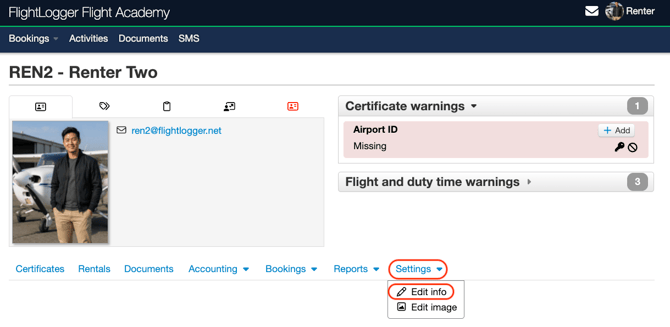
From here open the Settings tab, and choose Edit info.
Depending on your school’s setup, you may be able to update details such as:
Contact information (both personal and emergency contact information)
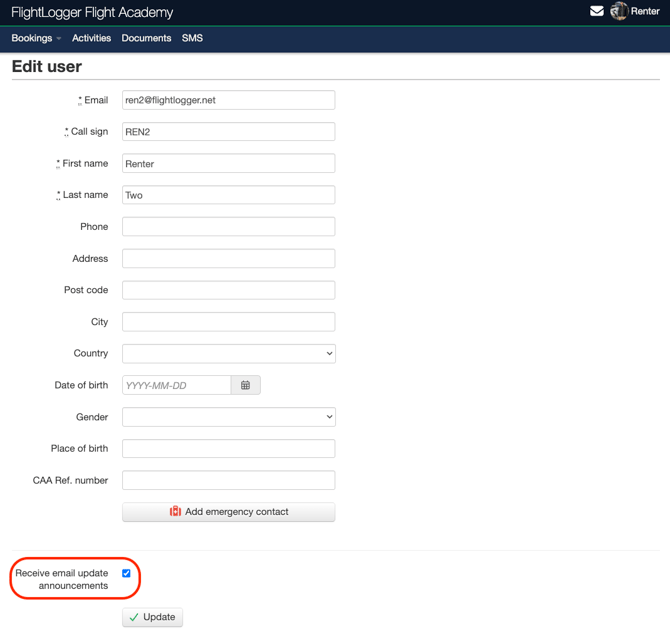
*Note: In the bottom-left corner, you have the option to opt out of receiving email updates and announcements directly from FlightLogger. Please note that this controls communications from FlightLogger itself, not from your own organization. If you deactivate this setting, you will no longer receive these global updates.
*Note: Always remember to click Save or Update to apply any changes you have made.
Profile image
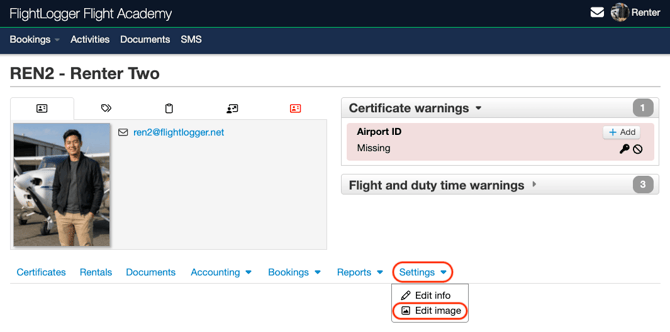
Open the Settings tab, and choose Edit image.
Upload any Personal documents
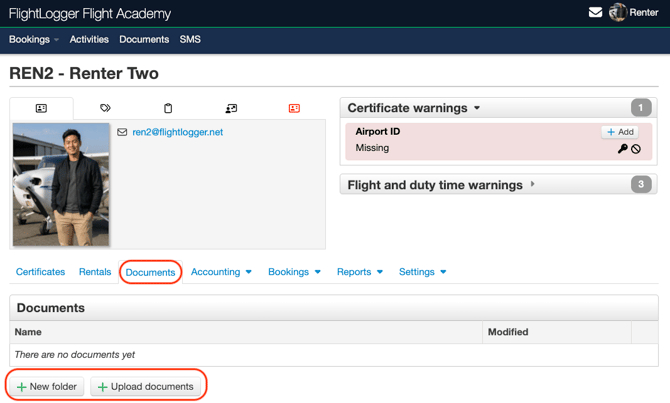
Update/upload any certificate requirements
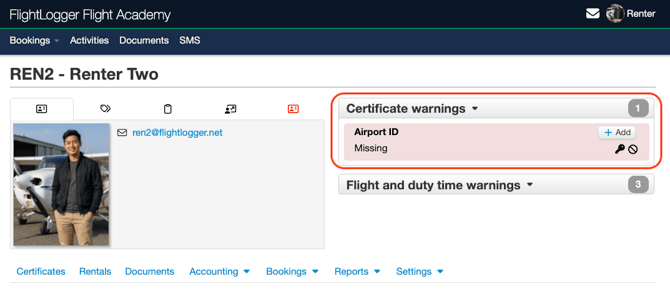
Please refer to the following article on how to upload a requirement. Getting started with uploading a new Requirement
Understand what you can access as a renter
With the renter role, you have access to the parts of FlightLogger needed for your rental flights (and whatever else permissions the administrator(s) have assigned to you).
This typically includes:
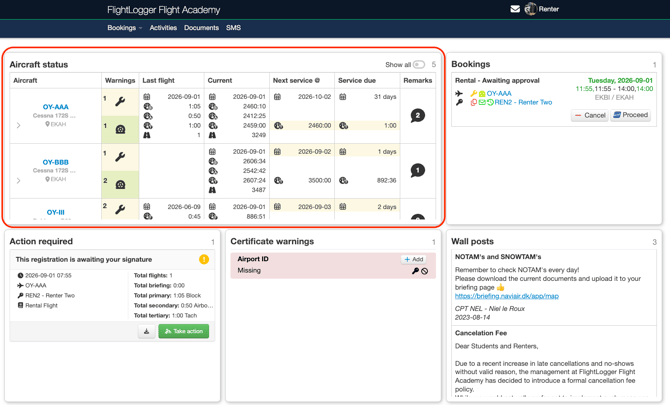
Aircraft Status: If enabled by the organization, the aircraft status overview displays all fleet aircraft alongside key operational data, including recent flight history, upcoming maintenance schedules, and active remarks.
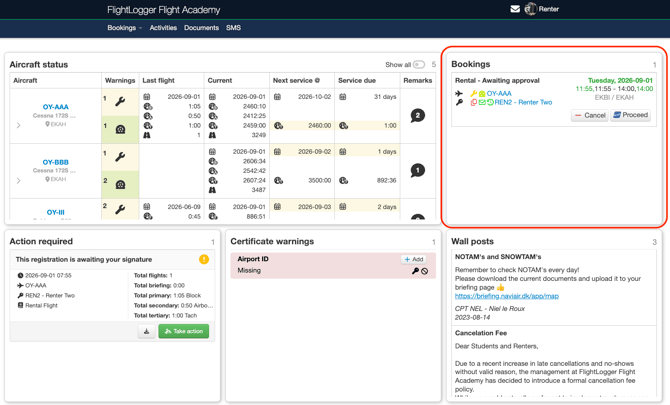
Bookings: View your upcoming rental flights, organized by date and time. Any bookings scheduled for today, have the date highlighted in green.
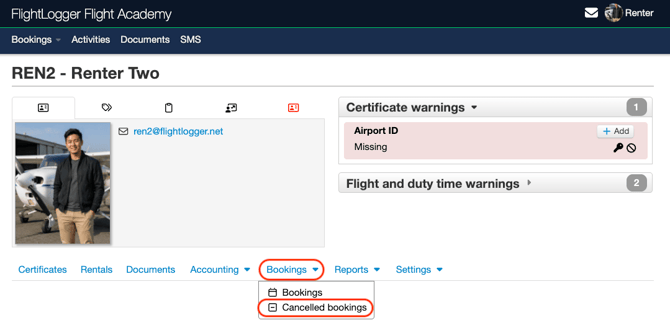
Unsigned Lessons: Displays any flown flights awaiting your sign-off. Click Take Action to finalize the flight.
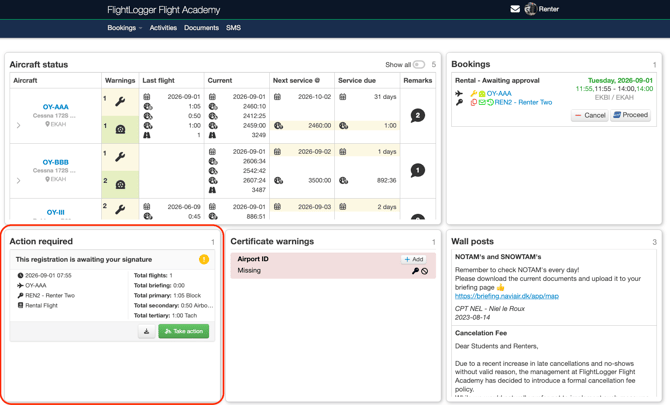
Certificate Warnings: Displays alerts if a required document or certificate is missing or nearing its expiration date. You can upload updated certificates directly from your dashboard to clear these warnings. Any submitted documents are automatically routed to the organization's designated administrators for approval. Once an administrator approves your document, the corresponding warning will disappear from your main dashboard page.
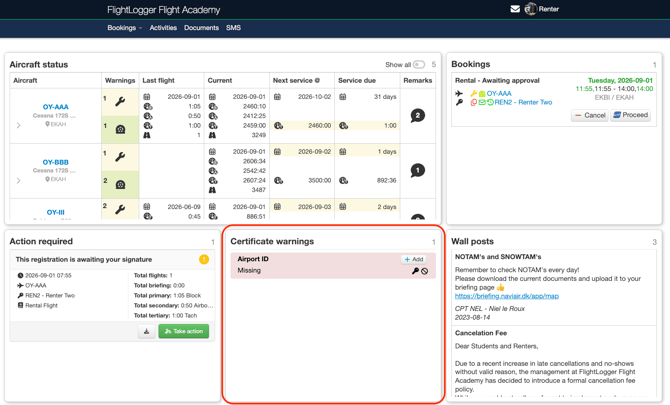
Wall Posts: Important operational updates, safety announcements, and general notices posted by your academy's management team.
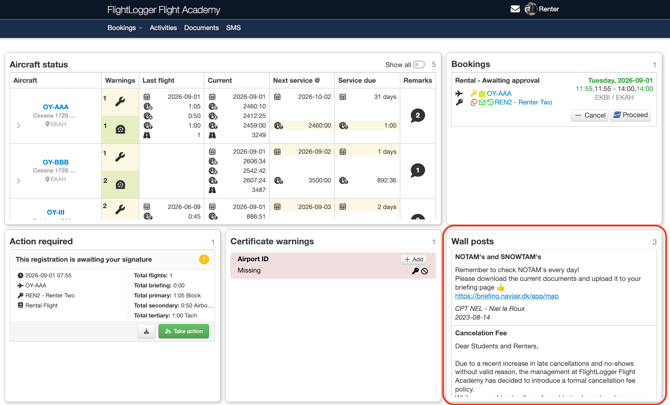
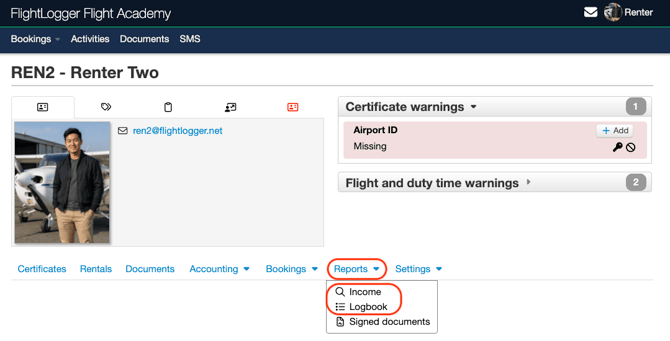
You can easily view a list of all your previous cancelled bookings at any time.
Once completed, your flight information will automatically appear in both your Income report and your logbook.
Activities
The Activities tab on your profile page serves as your central dashboard for tracking and managing all your flight bookings. Basically it is an overview of which flights have been submitted or not.
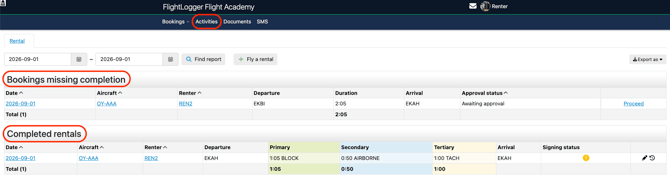
For further info regarding your daily instructor workflow, see the following articles: Getting started with the Activities page
Rental Workflow
For more in-depth information, please see our detailed article covering the Rental Workflow:
Frequently Asked Questions
Why is my rental status listed as "Awaiting Approval"?
The rental organization requires administrative review before converting a request into a confirmed slot on the main schedule.
Why am I unable to register my completed rental?
Self-registration is controlled by administrator permissions. If disabled, staff will register flight times on your behalf.
Why differ my portal view from another renter's?
Permissions in FlightLogger are granular. Views differ based on whether a user is categorized as and administrator assigned permissions.
Best practice for your first day
Before your initial rental session:
- Log in and verify your profile details and document expiration dates.
- Confirm your booking permissions.
- Submit booking requests with adequate advance notice.
- Verify that your booking status shows as Approved before arriving.
- Review any mandatory document upload requirements.
- Complete the post-rental registration promptly after your session (if enabled).
Need help?
If you need assistance creating or structuring your training programs, feel free to contact our support team via the Get Support button inside FlightLogger