
Getting Started as a Staff Member
Welcome to FlightLogger! The Staff role is designed for team members who need access to their own profile and operational information, but do not require full instructor, student, or administrative privileges.
Because FlightLogger allows your organization to customize permissions based on your specific job responsibilities, your menu view may look slightly different from another staff member's view.
Log in and check your profile
When your user profile has been created, you will receive a welcome email from Flight Logger. Use the link in that email to set up your login.
Please refer to the following article on logging in for the first time. Getting started as a new user: The Registration and Login Process
After logging in, start by checking your own user profile.
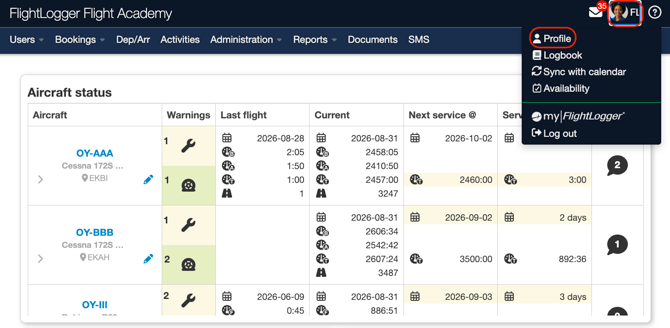
To access your profile page, click on your name and chooses Profile.
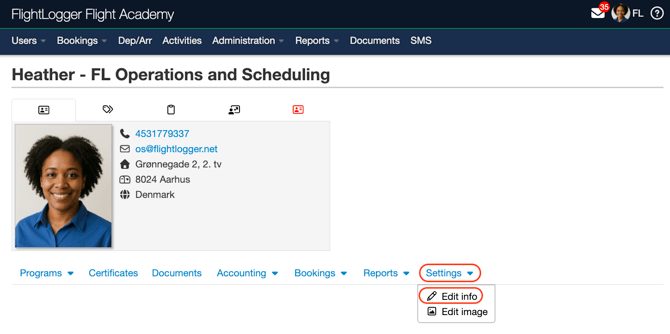
From here open the Settings tab, and choose Edit info.
Depending on your school’s setup, you may be able to update details such as:
Contact information (both personal and emergency contact information)
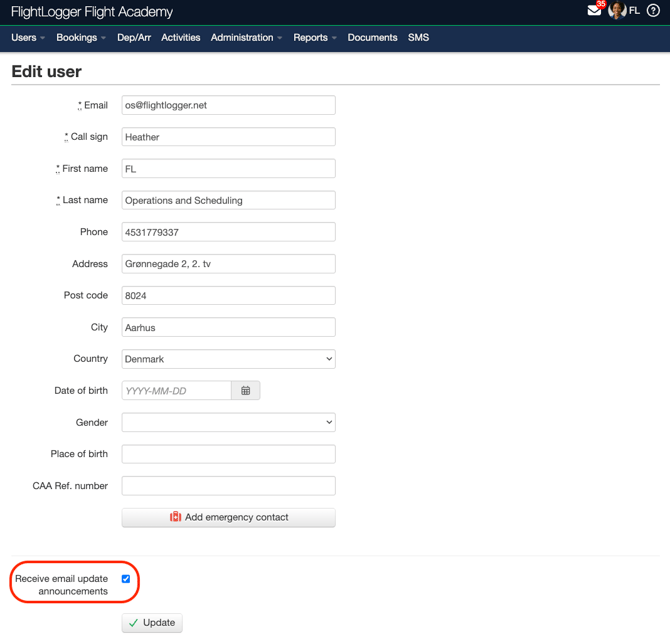
*Note: In the bottom-left corner, you have the option to opt out of receiving email updates and announcements directly from FlightLogger. Please note that this controls communications from FlightLogger itself, not from your own organization. If you deactivate this setting, you will no longer receive these global updates.
*Note: Always remember to click Save or Update to apply any changes you have made.
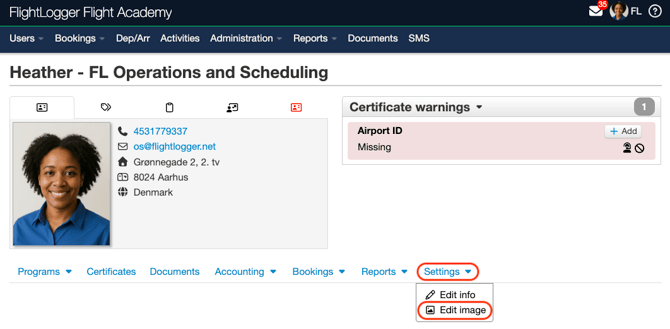
Profile image
Open the Settings tab, and choose Edit image.
Upload any Personal documents
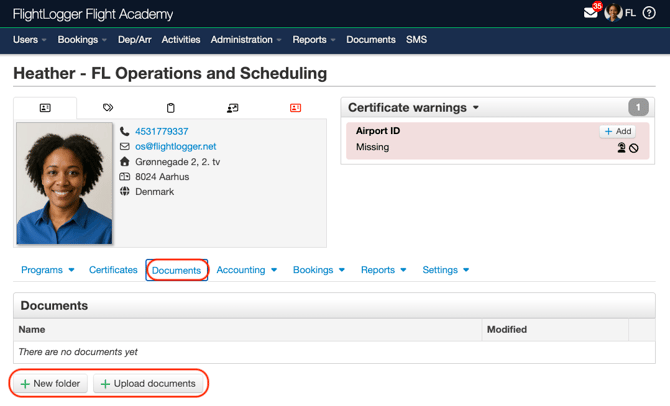
Update/upload any certificate requirements
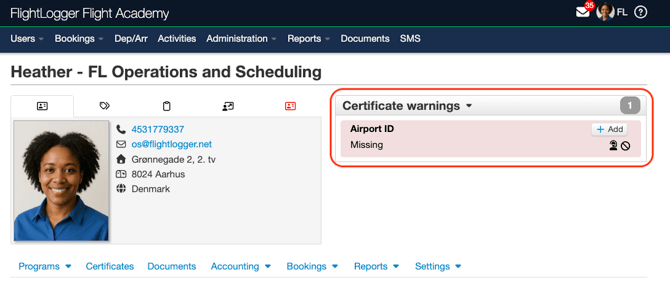
Please refer to the following article on how to upload a requirement. Getting started with uploading a new Requirement
Set your availability (If activated by the Training Organization)
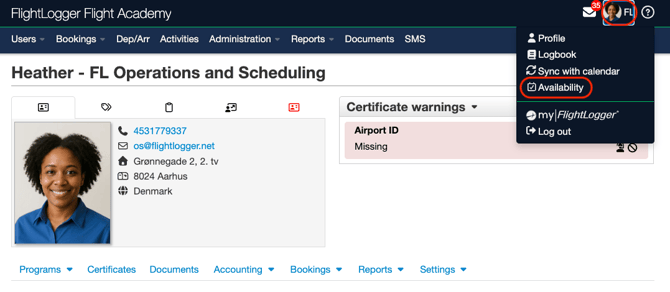
Please refer to the following article on how to set your availability. Getting started with availabilities
*Note: If something in your profile is incorrect and you cannot edit it yourself, contact your school administrator.
Understand Your Role and Optional Permissions
With the Staff role, your default access is limited compared to an administrator.
Depending on your daily responsibilities, your administrator may assign optional permissions to your user profile, including:
- Bookings: View, create, update, or manage flight bookings, scheduling conflicts, and user resource availabilities.
- Student Records: Access student profiles, training programs, certificates, theory progress, and student documents.
- Reports: View operational, training, financial, or business insight dashboards.
- Operations & Resources: Manage aircraft schedules, departures, arrivals, rentals, and general operational data.
- Maintenance: Staff members can also be assigned maintenance permissions, allowing them to view aircraft status, log maintenance entries, and assist with fleet management if enabled by your organization.
First-Day Checklist
Before you begin using FlightLogger daily, we recommend completing the following steps:
- Log in and verify your profile information.
- Upload all required user documents and certificates.
- Review your navigation menu to see which features are active on your account.
- Confirm with your manager if your role requires access to for example, bookings, student profiles, or reporting tools.
- Reach out to your account administrator if you need additional permissions enabled for your role.
Frequently Asked Questions
1. Why can't I see students, instructors, or bookings?
The basic Staff role does not automatically include access to student profiles, instructor lists, or booking calendars. If your job requires these tools, your administrator simply needs to enable the corresponding permission for your user account.
2. Why does my page look different from my colleague's page?
FlightLogger permissions are tailored to individual job functions. Two staff members may see completely different menu options based on the specific access granted by your organization.
3. Why can't I change global account settings?
System-wide account settings and overall organization configurations are managed exclusively by account administrators.
Need help?
If you need assistance creating or structuring your training programs, feel free to contact our support team via the Get Support button inside FlightLogger