
Getting Started as a Student
Welcome to FlightLogger! As a student, your account is your central hub for tracking your flight training, approving completed lessons, prepare yourself for flight bookings, keeping certificates up to date, and reviewing your syllabus progress.
Log in and check your profile
When your user profile has been created, you will receive a welcome email from Flight Logger. Use the link in that email to set up your login.
Please refer to the following article on logging in for the first time. Getting started as a new user: The Registration and Login Process
After logging in, start by checking your own user profile.
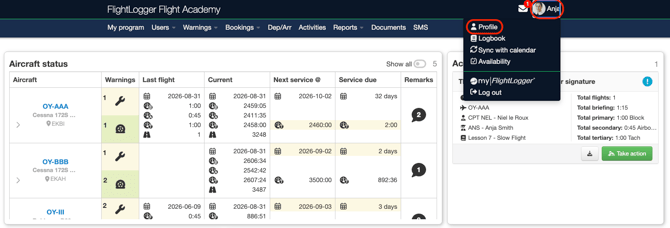
To access your profile page, click on your name and choose Profile.
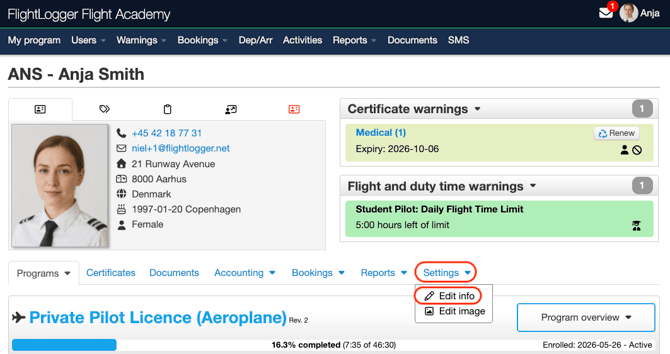
From here open the Settings tab, and choose Edit info.
Depending on your school’s setup, you may be able to update details such as:
Contact information (both personal and emergency contact information)
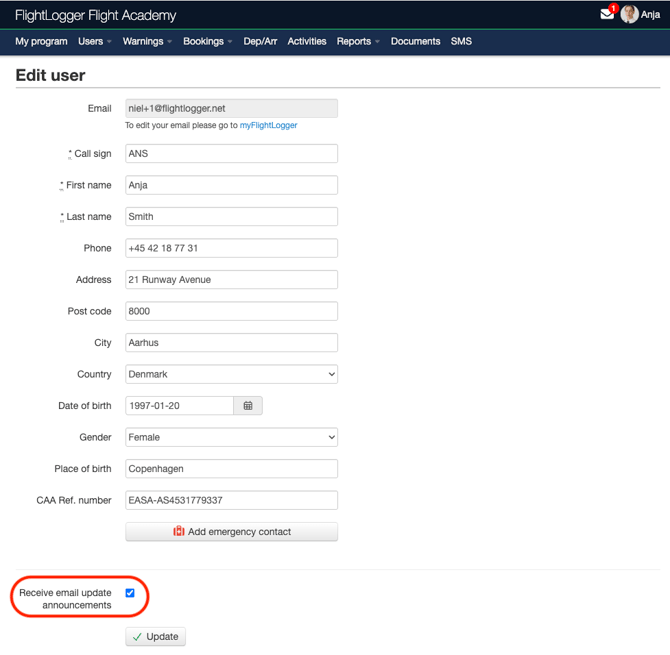
*Note: In the bottom-left corner, you have the option to opt out of receiving email updates and announcements directly from FlightLogger. Please note that this controls communications from FlightLogger itself, not from your own organization. If you deactivate this setting, you will no longer receive these global updates.
*Note: Always remember to click Save or Update to apply any changes you have made.
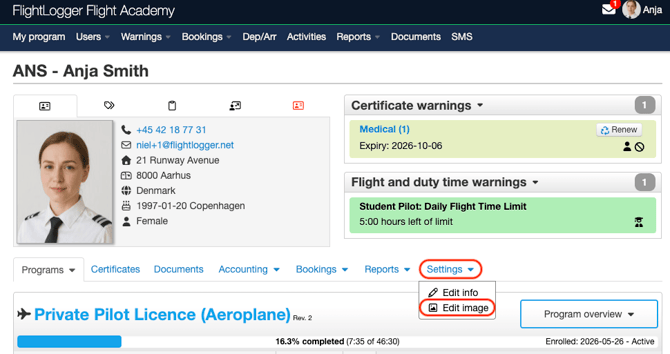
Profile image
Open the Settings tab, and choose Edit image.
Upload any Personal documents
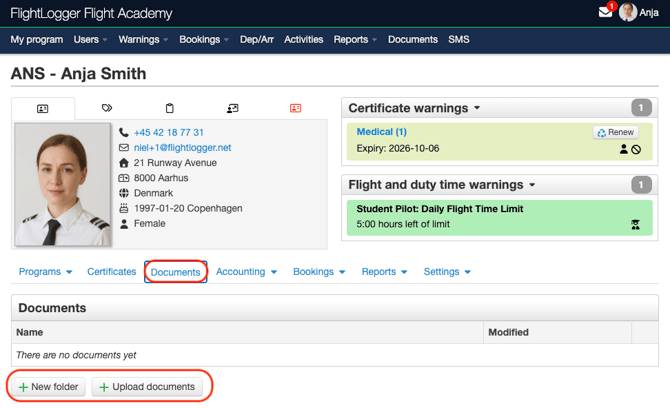
Update/upload any certificate requirements
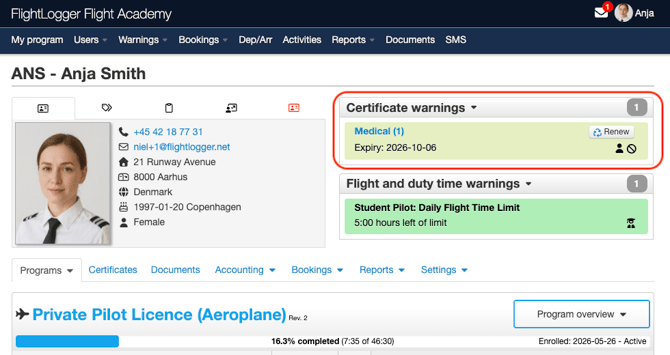
Please refer to the following article on how to upload a requirement. Getting started with uploading a new Requirement
Set your availability (If activated by the Training Organization)
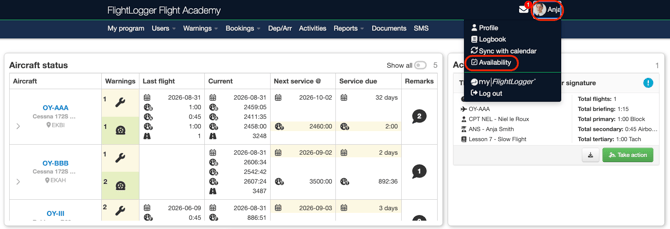
Please refer to the following article on how to set your availability. Getting started with availabilities
*Note: If something in your profile is incorrect and you cannot edit it yourself, contact your school administrator.
Understand your Front Page/Dashboard Overview
When you log in, your main page displays the most critical operational item. This, of course, depends on the permissions your account administrator has enabled for you.
This typically includes:
Aircraft Status: If enabled by your organization, the aircraft status overview displays all fleet aircraft alongside key operational data, including recent flight history, upcoming maintenance schedules, and active remarks.
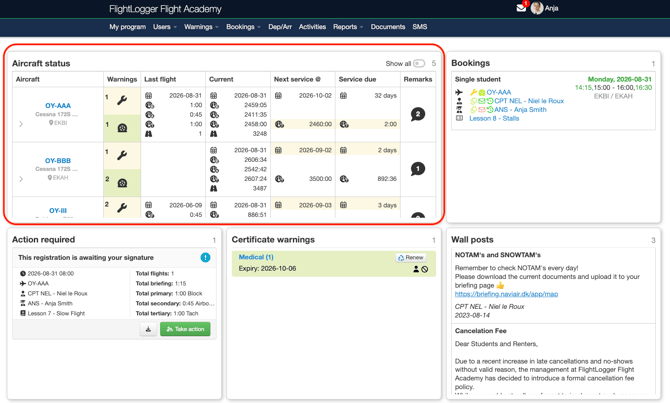
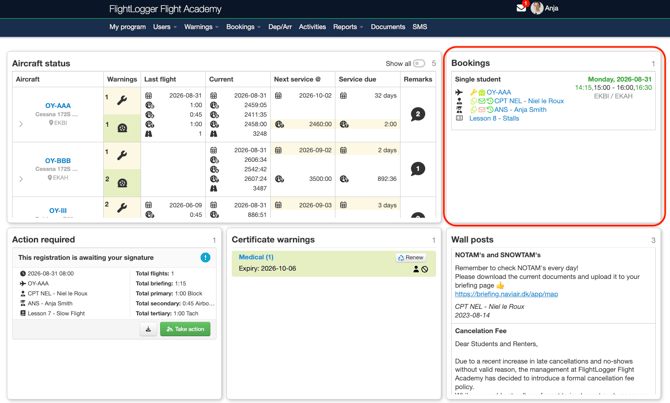
Bookings: View your upcoming school flights and ground school classes organized by date and time. Any bookings scheduled for today, have the date highlighted in green.
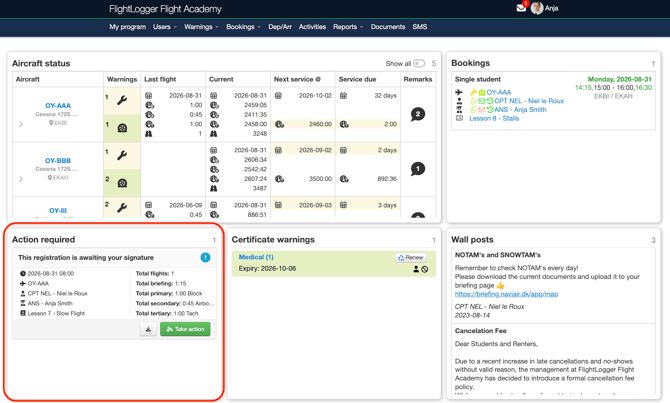
Unsigned Lessons: Displays any recently flown lessons awaiting your sign-off. Click Take Action to review gradings, flight times, and instructor debriefing comments. You can add your own comments and finally Approve to finalize the lesson.
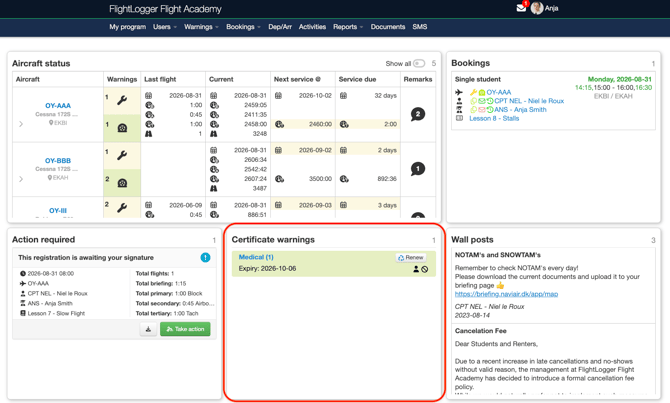
Certificate Warnings: Displays alerts if a required document or certificate is missing or nearing its expiration date. You can upload updated certificates directly from your dashboard to clear these warnings. Any submitted documents are automatically routed to your organization's designated administrators for approval. Once an administrator approves your document, the corresponding warning will disappear from your main dashboard page.
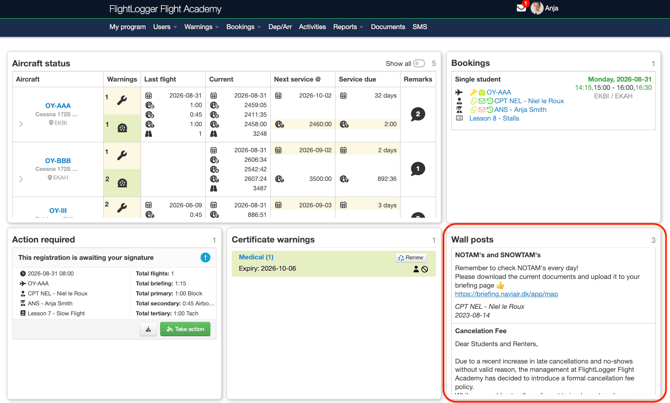
Wall Posts: Important operational updates, safety announcements, and general notices posted by your academy's management team.
*Note: Your main dashboard page may feature several additional widgets, including ground school warnings, flight and duty limitations, or business insights displaying METARs and TAFs. The specific widgets visible to you depend entirely on the features activated by your administrators, so the layout shown here is a general overview rather than a complete representation of all possibilities.
Track Your Flight Training on your Profile page
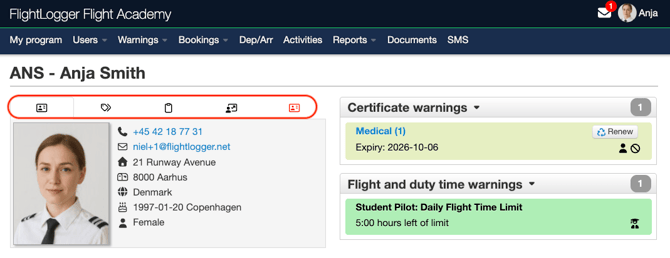
Your profile page serves as your digital training manual. Surrounding your profile picture, you will find five key tabs:
- General Information: Displays your core personal and account details.
- Reference Numbers: Contains relevant identification and operational reference numbers.
- Notes: Holds general notes and administrative remarks connected to your profile.
- Activity Logs: Tracks your account history and recent system actions.
- Emergency Contact Information (Highlighted in Red): Contains your essential emergency contact details.
Flight and Ground training Progress
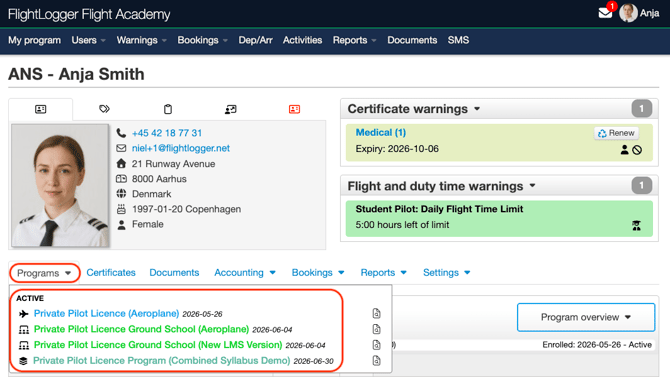
Programs Tab: Under the Programs tab, you will find a complete history of all your enrolled training programs. This includes flight training programs, ground school courses, and combined flight and ground training programs. Selecting a specific program will display its complete digital training overview.
For ground training, you can view attendance, progress test scores, ground school releases, and official exam results across all training subjects.
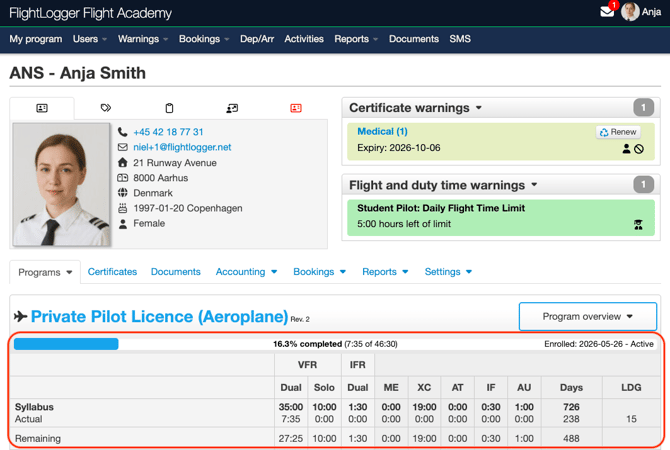
The top section provides a complete breakdown of your program according to your training manual:
- Time Indicators: Bold times represent the minimum syllabus duration, while non-bold times display your actual logged flight hours for each lesson.
- Overall Progress Bar: Located at the top of your folder, this bar tracks your total program completion percentage along with your total logged flight hours.
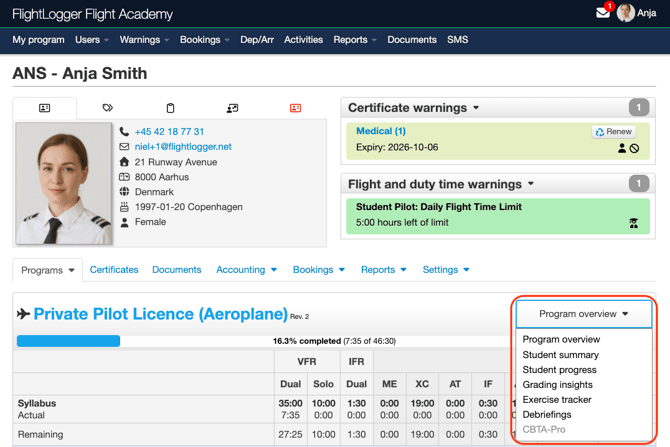
A Program Overview tab is included to provide cumulative data and detailed insights on your overall program progress.
Green Lessons: Successfully completed and passed lessons.
Blue Lessons: Lessons currently scheduled or booked.
Uncolored Lessons: Remaining syllabus items not yet scheduled.
The lesson overview is organized using the following visual indicators:
- Green Lessons: Successfully completed lessons.
- Red Lessons: Indicates a lesson where one or more exercises requires repetition or extra training.
- Blue Lessons: Currently scheduled/booked lessons.
- Uncolored Light Blue/White Lessons: Remaining syllabus lessons that have not yet been booked.
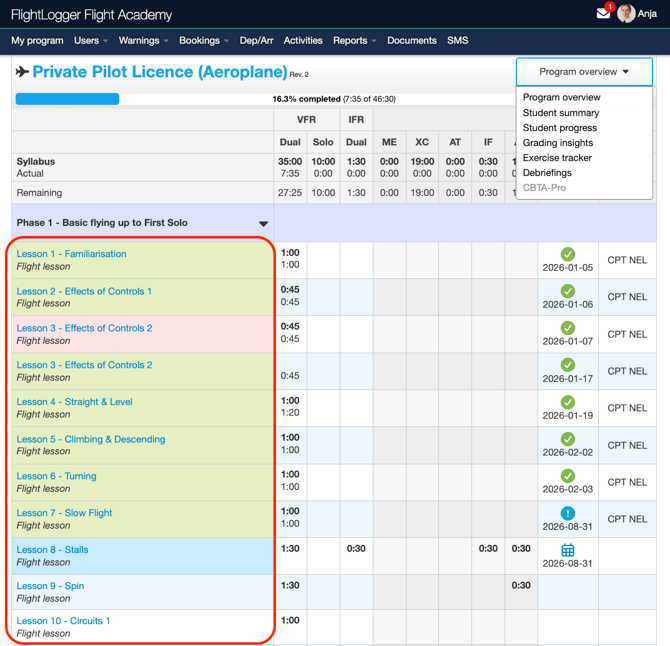
*Note: You can click any completed lesson to review past instructor grades and debriefing notes, or click upcoming lessons to prepare for your next flight.
Other Features on the Profile page
Certificates
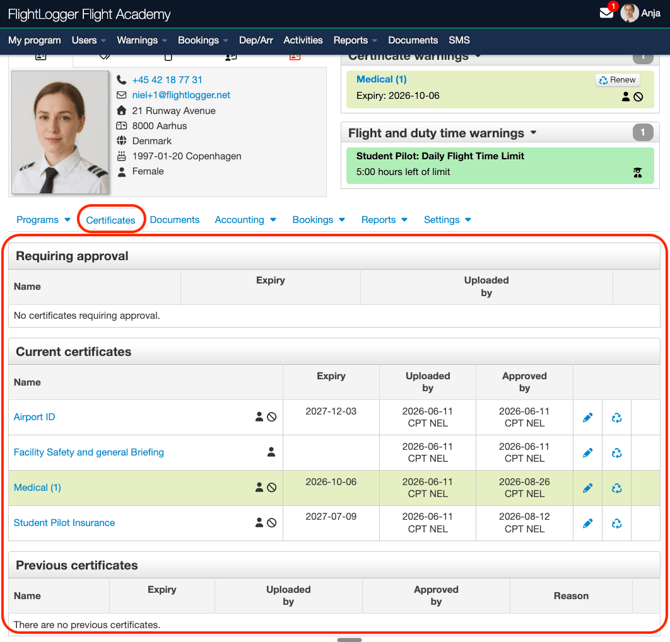
The Certificates tab provides a complete overview of all your current and previous certificates, as well as a list of any newly submitted certificates awaiting administrative approval.
Bookings
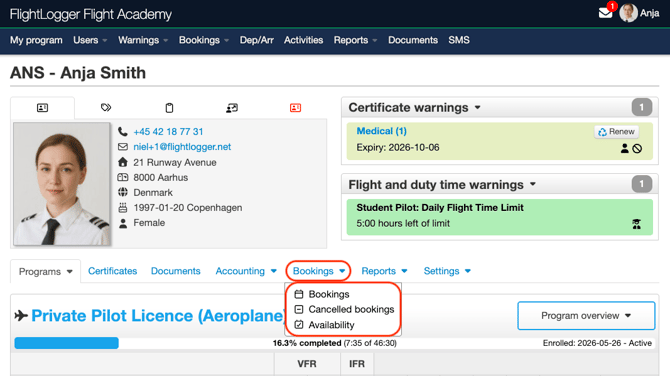
The Bookings tab displays your complete scheduling history, including active bookings, canceled bookings, and, if enabled by your administrators, your configured personal availability.
Reports
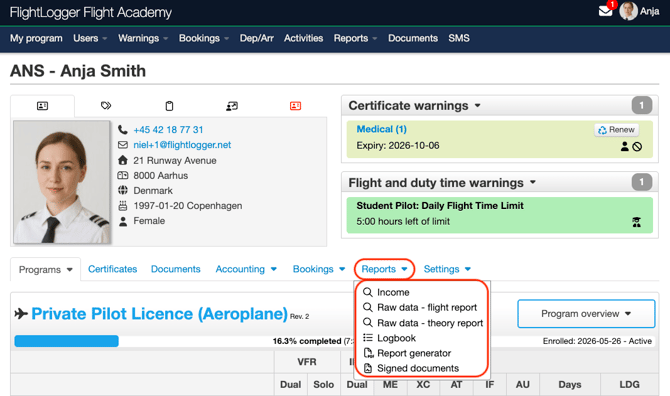
The Reports tab provides a comprehensive overview of your training activities, logged flight hours, and personal digital logbook.
Other Access Control and Setting
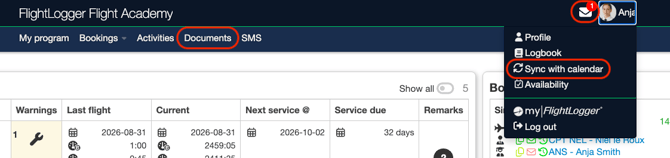
Use the top navigation bar to access additional tools and features across the platform, depending on the specific permissions assigned to your account.
- Documents: Download training manuals, checklists, SOPs, and general files shared by your school.
- Message Center & Sign-offs: Send internal messages and files to instructors and staff. If you receive an operational document (such as a updated SOP) marked with Need sign-off, open the message, review the attachment, and click Sign off to confirm you have read and understood the notice.
Click your name in the top right corner to access your profile settings and logbook:
- Calendar Synchronization: Set up automatic synchronization to send your flight and class bookings directly to your personal calendar on your phone or computer.
Common first-time questions
Why can’t I create or request a booking/instructor?
Your school may not allow students to request or create bookings. In that case, bookings are created by instructors, schedulers, or administrators.
Why can’t I edit my profile?
Your school controls whether students can edit their own personal information.
Why can’t I see an instructor?
Instructor visibility depends on your school’s privacy settings and access setup.
Why does my view look different from another student’s?
Your access depends on your school’s settings, your active programs, enabled modules, and your user permissions.
Best practice for your first day
Before your first lesson, we recommend that you:
- Log in and check your profile.
- Open your bookings and confirm your schedule.
- Review your active training program.
- Check whether any documents or certificates are missing.
- Read any booking comments or attached information.
- Ask your instructor or school administrator if something looks incorrect.
- After your lesson, check that the lesson appears correctly in your progress or training history.
- Remember to sign off on lessons.
Need help?
If you need assistance creating or structuring your training programs, feel free to contact our support team via the Get Support button inside FlightLogger